
Table toolbar and tools
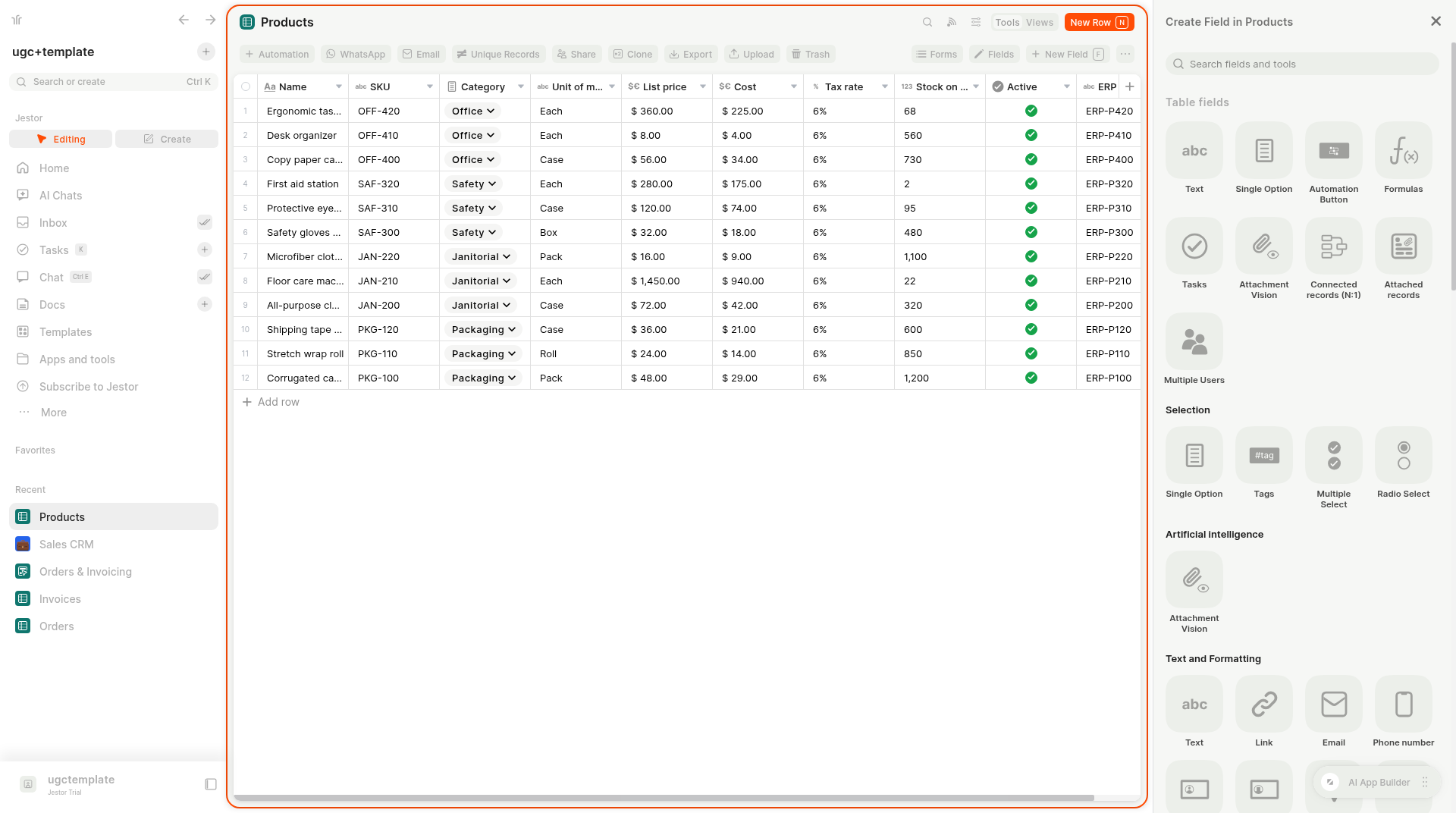
The table toolbar gathers every table tool in one place: follow, page filters, views, automations, WhatsApp, email, unique records, share, clone, export, upload, trash, forms and fields.
In short
- What it is: the bar at the top of every table, with the Tools row, the Views row and the table ... menu.
- How to open it: open a table and use the Tools / Views switch at the top right.
- Shortcuts: press N to add a row and F to create a field.
- Stay in the loop: Follow table sends you updates about the table.
What is it
Every table in Jestor comes with a toolbar that turns a list of records into a working system. From one row of buttons you can automate the table, connect WhatsApp or email, block duplicates, share it, clone it, move data in and out with spreadsheets and restore what was deleted. Switch to the Views row to see the same data as a table, follow SLA times or check the change history.
How to access
- Open any table, for example from Apps and tools or the Recent list in the left sidebar.
- At the top right, use the Tools / Views switch: Tools shows the tools row and Views shows the views row.
Options
Header
| Item | What it does |
|---|---|
| Search | Searches the table. |
| Follow table | Follows the table (tooltip: Follow table updates). The icon turns orange while you follow it, and a message confirms when you follow or unfollow. See Updates and Follow. |
| Page filters | Opens the (table name) Filters panel. See Filters. |
| Tools / Views | Switches between the tools row and the views row. |
| New Row (N) | Adds a record to the table. |
Page filters panel
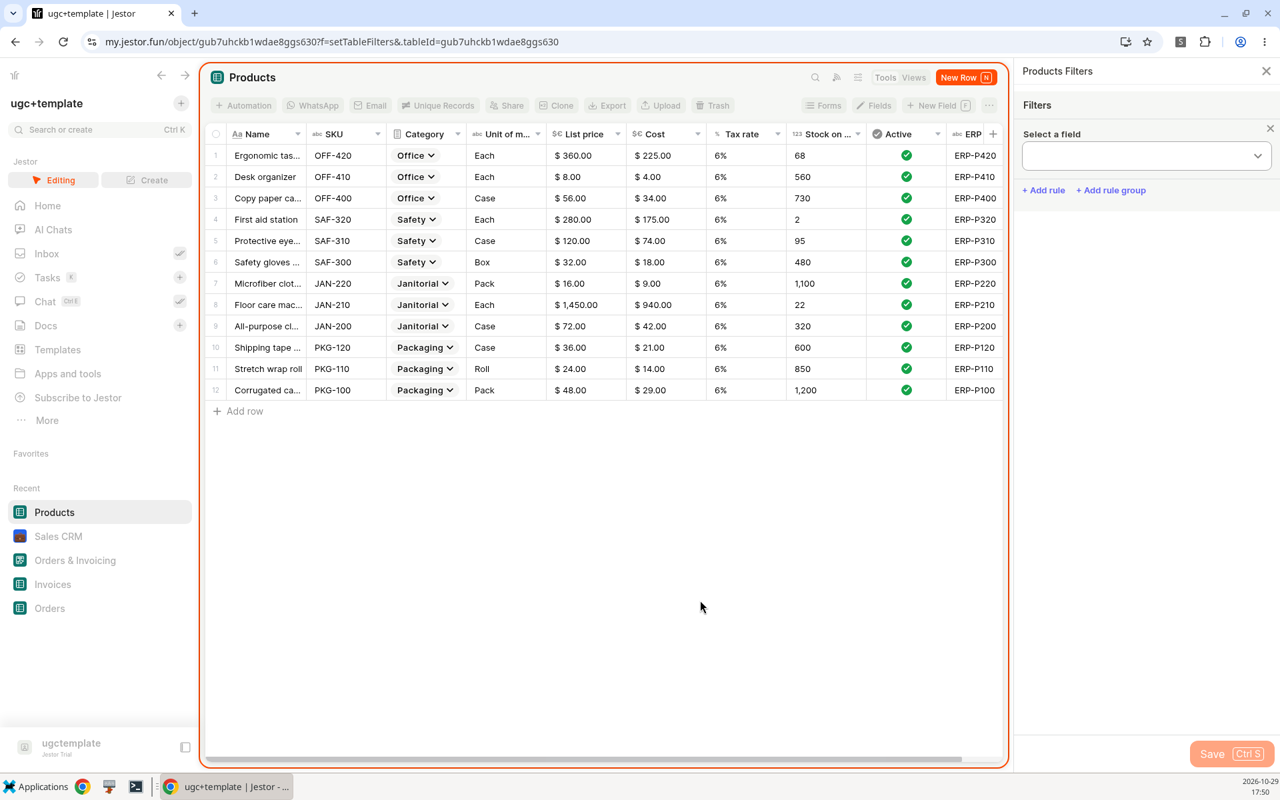
Click Page filters to open the (table name) Filters panel (for example, Products Filters). Choose a field in Select a field, add more conditions with + Add rule or group them with + Add rule group, and click Save (Ctrl S).
Tools row
| Tool | What it does | Learn more |
|---|---|---|
| Automation | Add automations to the table. | Automation |
| Connect a WhatsApp number to the table. | WhatsApp Integration | |
| Use the table's own email address to create records and talk by email inside them. | Email Ticket | |
| Unique Records | Pick a key field so the table doesn't get duplicated records. | Unique Records |
| Share | Share the table. | |
| Clone | Duplicate the table, replicating its fields and information. You get a notification when it's done. | |
| Export | Export the table data to a spreadsheet. | |
| Upload | Add or update records from a spreadsheet. | Update your table using Spreadsheets |
| Trash | Restore deleted records and fields. | Recovering and Deleting |
| Forms | Opens Edit forms: the record creation form, the table update form and the chat update form. | Super Forms |
| Fields | Opens Edit Table Fields: reorder fields, Add all, Remove all, Add existing field and, optionally, Sort by. | Field types |
| New Field (F) | Opens the New Field panel. | Field types |
Views row
| Item | What it shows | Learn more |
|---|---|---|
| Table view | The records in a grid. | Views |
| Table SLA | SLA times for the table. | SLA |
| History | Every change made to the table. | Table History View |
| Eye icon | Opens Table Views, where you add a New Kanban View, New Table View, New Table Form or New List View. | Views |
Table "..." menu
The ... at the end of the tools row has: Copy link, Add to favorites, Export to spreadsheet, Manage automations, Upload data, Access management (opens Roles), API table ID's, Open in Jestor app, Clone and Delete table.
Column menu
Click a column header to Add filter, Hide field, Edit field, Sort A to Z, Sort Z to A, Duplicate field, Create new field, Select as label or Delete field.
New Field panel
New Field opens a panel with a search box and the field types grouped by purpose: Selection, Artificial intelligence, Text and Formatting, Number, Productivity, Files, Buttons, User, Time and Database and Formulas. See Field types.
How to use
- Open the table.
- Click Tools in the switch at the top right.
- Click the tool you need, such as Unique Records or Clone, and follow the steps on its page.
Keep in mind
- Records and fields deleted from the table go to the table's Trash. A deleted table goes to the workspace Trash, in Apps and tools > Trash > Excluded Tables.
- Access management in the ... menu takes you to Roles, where you set who can see and edit the table. See Profiles and Access Levels.
Work faster with the keyboardPress N to add a row and F to create a field while the table is open.
Related pages
- Tables: what a table is and how it works.
- Views: table, kanban, list and form views.
- Table History View: every change made to the table.
- SLA: time spent in each stage.
- Filters: choose which records you see.
- Updates and Follow: updates about what you follow.
FAQ
Where are the table tools?
Open the table and click Tools in the Tools / Views switch at the top right.
How do I follow a table?
Click Follow table in the table header. The icon turns orange while you follow it. Click it again to unfollow.
How do I add a field quickly?
Press F while the table is open, or click New Field in the tools row.
How do I stop duplicated records?
Use Unique Records in the tools row and choose the field that identifies each record, such as name or email.
Can I make a copy of a table?
Yes. Click Clone in the tools row or in the table ... menu. Jestor replicates the fields and information and notifies you when it's done.
Where do I find the table's API ID?
In the table ... menu, choose API table ID's.
Where do I restore a deleted record?
In the table's Trash, in the tools row.
Updated about 10 hours ago