
Add Connected
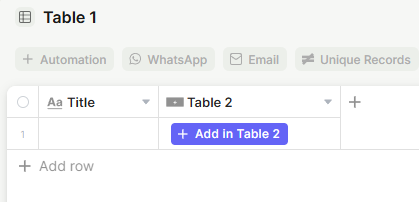
The Add Connected field adds a button directly to a record that lets users create and link a new record in a connected table — without leaving the current record.
For instructions on how to access field types or how to add one, see Field Types.
Capabilities
- Displays a button inside a record to trigger record creation in a connected table
- Lets users create a new linked record directly from the current record
- Customizable button label, icon, and color
- Supports a custom form for record creation (via Form source)
- Optional tooltip to provide context for the button
Use Cases and Examples
- Sales teams can add a button inside a client record to create a new opportunity linked to that client without leaving the current record.
- Project managers can place a button on a project record to quickly spin up a new task in the connected tasks table, already linked to that project.
- Support teams can use the button to create a follow-up record in a connected table — such as a scheduled callback or an escalation — directly from an open ticket.
- Operations teams can add a button to a supplier record that creates a new purchase order in a connected orders table, keeping the relationship intact from the start.
How to set up
Step 1 — Name the field
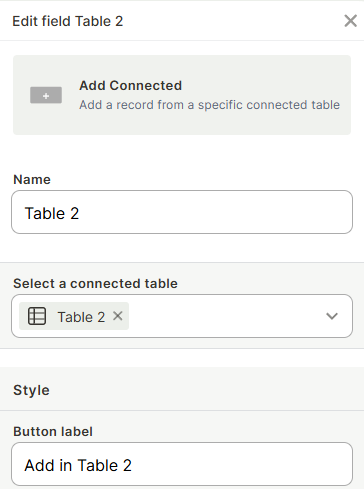
Enter a name for the field. This is the internal label shown in the table.
Step 2 — Select a connected table
Choose which connected table the button will create records in. Only tables that are already connected to the current table appear here.
Step 3 — Set a button label (optional)
Enter the text that will appear on the button. If left blank, a default label is used.
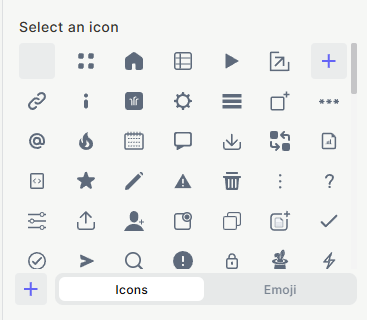
Step 4 — Choose an icon (optional)
Select an icon or emoji to display alongside the button label.
Step 5 — Choose a button color (optional)
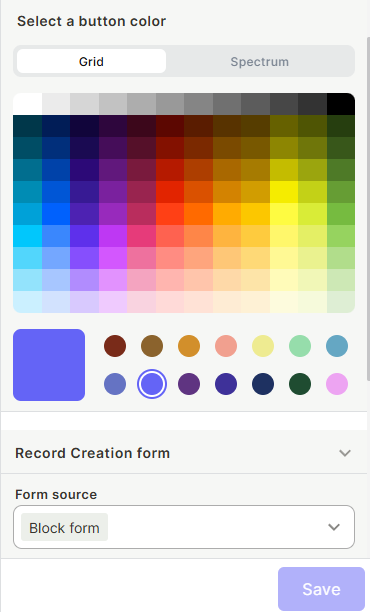
Pick a color from the grid or spectrum palette to style the button.
Step 6 — Configure the Record Creation form (optional)
Under Record Creation form, select the Form source to control which form opens when the button is clicked. Defaults to the connected table's default form.
Step 7 — Enable a tooltip (optional)
Toggle Tooltip on and add a short description to help users understand what the button does.
Step 8 — Save
Click Save
Keep in mind
- The Add Connected field does not display existing linked records — it only creates new ones. Use a connected field or lookup to display existing records.
- The button does not auto-fill any fields in the new record with data from the current record unless the connected form is configured to do so.
- Clicking the button always opens a form — it does not create a record silently in the background.
- The connected table must already have a relationship established with the current table. The field cannot create connections between unrelated tables.
FAQ
1-Can I use this field to link an existing record instead of creating a new one?
No. The Add Connected field is for creating new records only. To link an existing record, use a connected (relation) field directly.
2-Will the new record automatically be linked to the current record?
Yes. Records created through this button are automatically linked to the record where the button was clicked.
3-Can I choose which fields appear in the creation form?
Yes. Under Form source, you can select a custom form from the connected table. Edit that form to control which fields are shown.
4-Can I have multiple Add Connected buttons pointing to different tables?
Yes. You can add one Add Connected field per connected table, and each button will point to its respective table.
Updated 7 months ago