
AI App Builder
Describe the system you need and Jestor builds and publishes a working app, with tables, pages, kanbans, dashboards, rules and sample data.
In short
- What it does: creates a complete, published app (tables, pages, kanbans, dashboards, rules and sample data) from a description in a chat.
- How to open it: press C anywhere in Jestor, or click Create in the left menu. The AI App Builder is the default agent.
- How to change the app: keep chatting. Every change is published as a new version.
- Recommended for: building any new system in Jestor. Start here.
Which AI agent should I use?
Jestor has more than one AI agent that builds things for you. For a new app, we recommend the AI App Builder.
| Agent | What it builds | Use it when |
|---|---|---|
| AI App Builder (recommended) | A complete app with tables, pages, kanbans, dashboards, rules, sample data and a custom look | You want a full system for a process, from scratch or from a spreadsheet |
| Block Composer (formerly Jestor Builder) | Tables, kanbans, forms and app pages made from Jestor's native no-code components | You want to create or adjust a specific table, view or page and keep editing it in the no-code builder |
| AI Block Builder | A single custom block (component) connected to your tables | You need a component that doesn't exist yet, like a calculator or a visual board, inside an app page |
If you ask the Block Composer for something it can't build, it suggests switching to the AI App Builder.
None of these agents creates automations. To automate actions, use Jestor's no-code automations, low-code or the MCP.
What is it
The AI App Builder (also called the AI app inside the platform) is Jestor's AI assistant for creating full apps. You describe your process in a chat, and it creates the tables and fields, builds an app with its own pages, and publishes it. Then you keep chatting to change it, and every request generates a new published version of the app.
You are not stuck with a standard layout. Ask for the colors, style and page layout you want, or describe your brand, and the AI App Builder designs the app around it. In minutes you go from an idea to a system that looks and works the way your team needs.
Capabilities
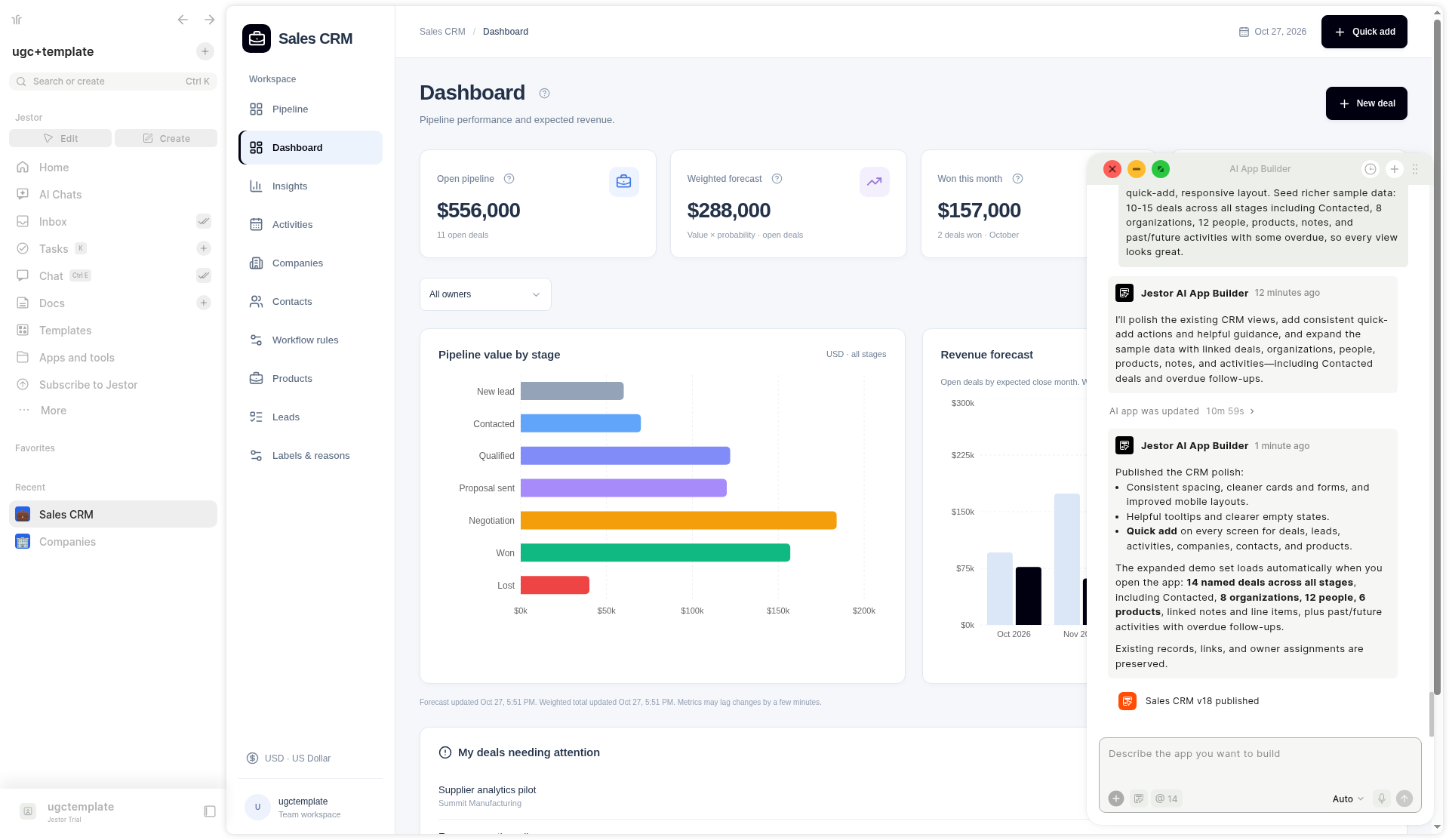
Based on a Sales CRM built with the AI App Builder, it can:
- Create tables with fields, grouped in a folder named AI - <app name> (for example: Deals, Companies, Contacts, Activities, Products, Notes, Leads)
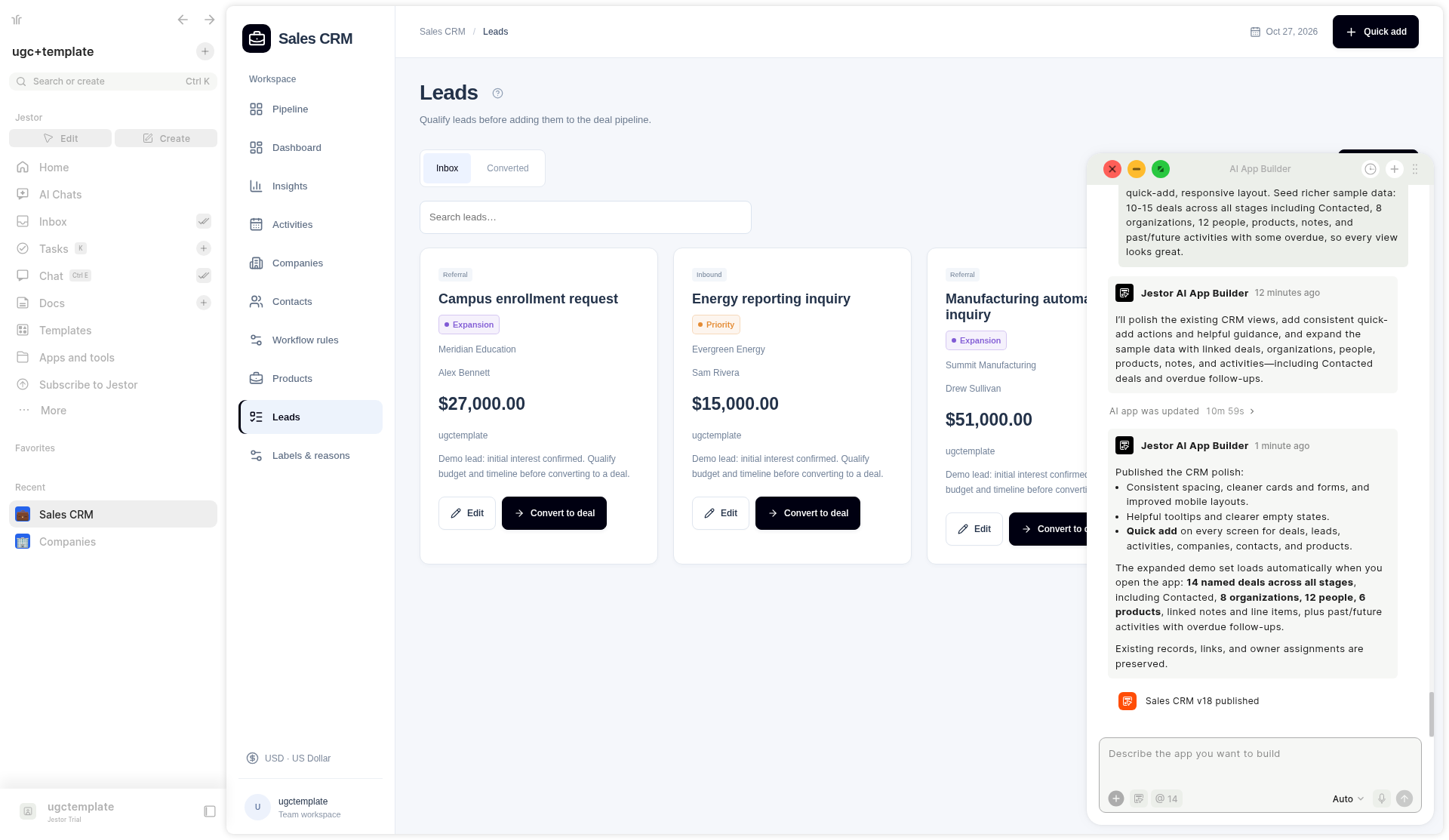
- Build an app with its own pages and side menu (for example: Pipeline, Dashboard, Insights, Activities, Companies, Contacts, Leads, Products, Workflow rules)
- Design the app with the visual style you ask for, such as colors, layout and the look of your brand
- Create kanbans with drag-and-drop between stages, totals and record counts per column, filters, search and an add button
- Create record detail pages with a timeline and tabs for notes and activities
- Show records in calendar and list views
- Create dashboards with indicator cards and charts (for example: pipeline value by stage, forecast, win rate, average deal value)
- Add action buttons and flows to the app (for example: Won / Lost buttons, or Convert to deal on a leads inbox)
- Add business rules that run inside the app (for example: creating a follow-up activity when a new deal is created, or requiring a reason before marking a deal as Lost)
- Fill the app with fictional sample data so you can see it working right away
- Fix problems in the app when you describe them in the chat (for example, a chart that isn't loading)
- Read a CSV or spreadsheet you attach to the chat and use it to build the app
- Use SLA and tasks inside the app, and kanban stage data to generate charts (SLA follows the rules of the plans that include it)
- Capture the user's address from their current location, the same way the Current location field does. On mobile, the app no longer shows the location permission prompt every time
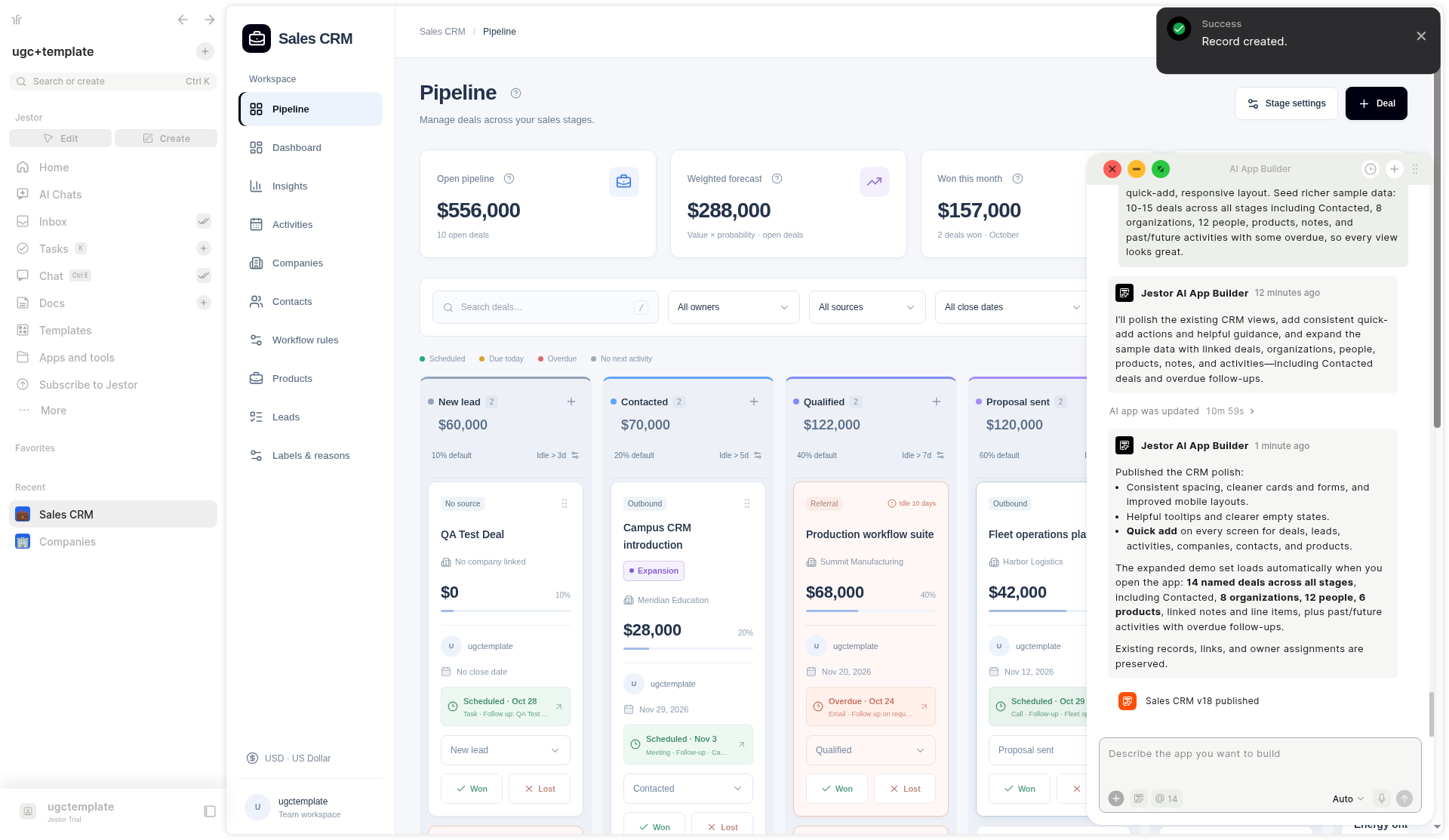
When to use
Use the AI App Builder when you want to:
- Get a complete, working system for a process (CRM, requests, projects, finance, service desk) without configuring each table and page by hand
- Have an app that matches your brand and the way your team likes to work
- Turn a spreadsheet you already use into an app
- Prototype a process quickly and refine it by chatting
- Add pages, indicators or rules to an app that the AI App Builder created
How to access
The fastest ways to open the AI App Builder:
- Press C. From anywhere in Jestor (outside a text field), press the C key. The Create window opens with the question What do you want to build? and the AI App Builder ready to use.
- Click Create. In the left menu, click Create, next to Editing. It opens the same Create window.
- From Home. The AI Builder section on the Home page has the same field to describe your app.
- From AI Chats. Click AI Chats in the left menu and click New chat. The AI App Builder is selected by default. Use the Builder tab to see the chats where you built apps.
- From an app it created. Open the app and use the floating AI App Builder panel to keep editing it.
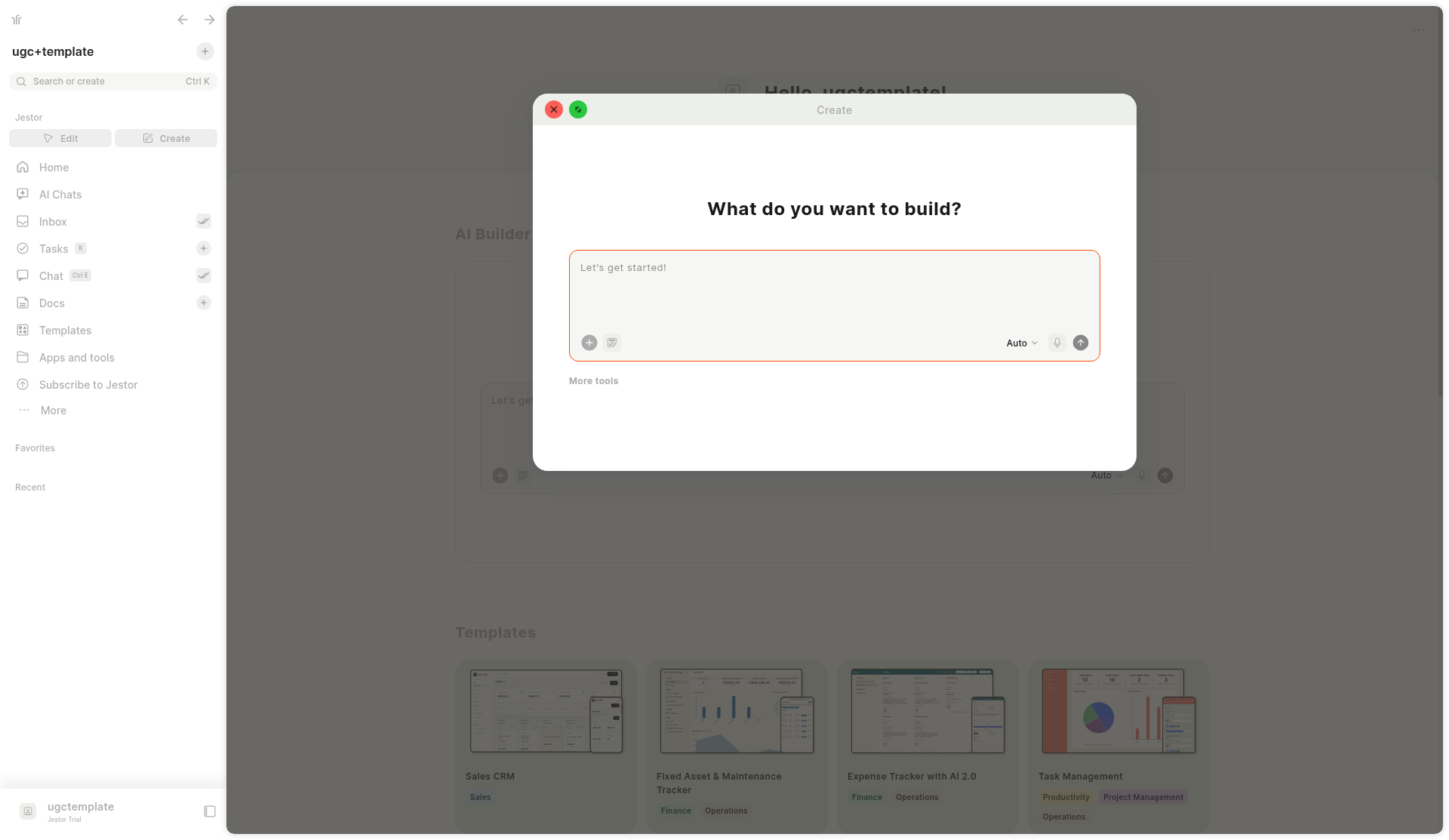
The Create window and the panel can be maximized. Maximize the panel to see all your AI chats in one place and jump between them. On mobile, it opens in full screen.
In the Create window, click More tools to see other shortcuts, such as Create a Table, Create an App Page, Create a Form, Create a Kanban, New data from Spreadsheets, Templates and New Automation.
Chat tools and settings
The chat field has these controls, from left to right:
| Control | What it does |
|---|---|
| + | Opens a menu to add context and choose the agent. Under Add context, attach Files, Tables, Apps or AI apps so the agent can use them. Under Agents, choose AI App Builder or Block Composer. New agent creates a new agent. |
| Agent icon | Shows which agent is selected (for example, Agent: AI App Builder). |
| @ and a number | Shows the tables the chat is using as context (for example, @ 14 means 14 tables). Click it to see the list. |
| Auto | Agent settings. In Mode, Auto (Balanced) is on by default and chooses the best configuration for each request. Saver (Cheaper) runs the agent at a lower cost. |
| Microphone | Records your request by audio instead of typing it. |
| Send arrow | Sends your message. It is enabled once you type something. |
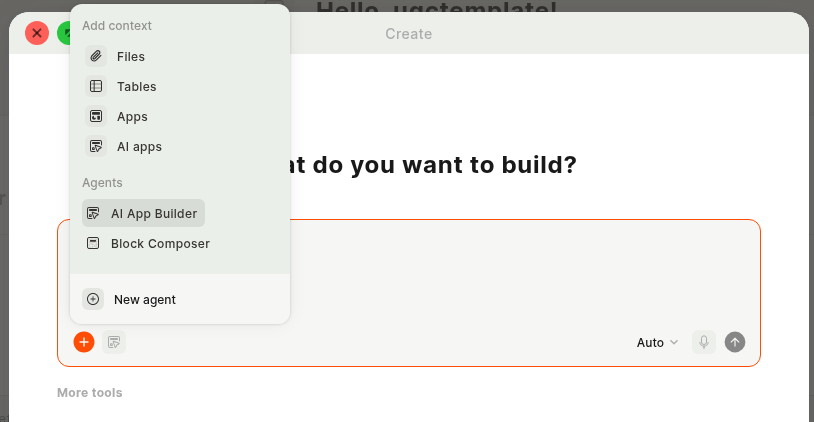
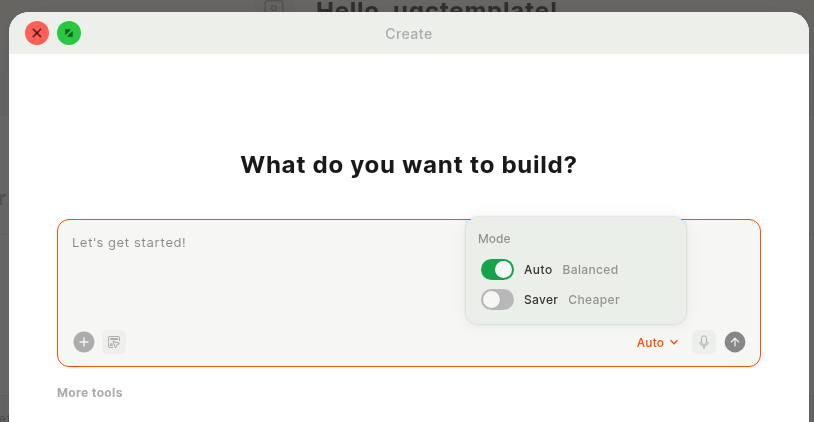
In an existing chat, the ... menu at the top right lets you Rename chat, Copy link or Delete chat, and Go to solution opens the app built in that chat.
How to create an app
- Press C or click Create in the left menu.
- In the field, describe your process: what you need to control, the stages, the information you want to track, who uses it, what you want to see on dashboards and how you want the app to look.
- If you want, attach a spreadsheet or other context with the + button, or record your request with the microphone.
- Send the message. The AI App Builder starts building right away, without asking questions first. You can follow the progress in the chat, which lists each table and field as it is created.
- Wait for the build to finish. A first build can take around 10 minutes.
- When the chat shows that a new version was published (for example, Sales CRM v1 published), the app is ready. You also get a notification. Open it from the link in the chat or from the left menu.
The app is a starting pointReview the generated tables, fields and indicators before using the app in production. Some metrics may need follow-up requests to calculate correctly.
Iterating and versions
To change your app, just send another message in the same chat. For example:
- "Add a Products page and let me add products to each deal."
- "Require a reason when a deal is marked as Lost."
- "Use our brand colors, dark blue and orange, and make the dashboard cards bigger."
- "The forecast chart isn't loading. Fix it."
- "Add more sample data so every stage has deals."
Every request that changes the app is published as a new numbered version (for example, Sales CRM v18 published). Larger changes can take around 10 minutes.
Deleted an AI app by mistake? Deleted AI apps go to the Trash and can be restored, like tables and app pages. Open it from Apps and tools > Trash or from Settings. See Recovering and Deleting.
Add custom blocks with the AI Block Builder
Need a component that doesn't exist yet, like a custom calculator, a visual board or a special form? Use the AI Block Builder. You describe the component in a chat, and the AI builds it as a block connected to your Jestor tables.
The two work well together:
- The AI App Builder creates the tables, pages and rules of your system.
- The AI Block Builder creates custom blocks that read and update records in those same tables, so everything stays in sync.
- Custom blocks receive the colors and font of your workspace and page, so they match the look of the rest of your system.
Tips for good prompts
- Describe the process, not the screens. Explain what happens from start to finish (for example: "a lead comes in, we qualify it, send a proposal, negotiate, then win or lose").
- List the stages and the key information. Mention the stages, important fields and any values you need to calculate.
- Say what you want to see. Ask for the dashboards, indicators and views you need (kanban, calendar, list).
- Describe the look. Mention colors, style or a reference for the layout you want.
- Describe your rules. For example: "when a deal is created, create a follow-up activity for the owner".
- Make one change at a time. Smaller, specific follow-up requests are easier to review.
- Send your spreadsheet. Attach a CSV or spreadsheet with the + button and ask it to create the app from it. To bring in a large volume of records, use the spreadsheet importer.
- Use audio. Record your request with the microphone instead of typing it.
Keep in Mind
- Automations are created separately. The AI App Builder does not create automations. For actions that need to happen on a schedule or on any change (for example, a daily alert for deals with no activity for 7 days), create an automation on the same tables using no-code automations, low-code or the MCP. Inside the app, the AI App Builder can add visual helpers, such as an "idle for X days" badge or a dashboard section for stalled deals.
- App rules only run inside the app. Business rules created by the AI App Builder run when changes are made through the app's pages. Editing records directly in the table does not trigger them. If a rule must always run, use an automation.
- Review metrics. Some indicators may show errors or zero values in the first versions. Describe the problem in the chat and ask it to fix it.
- It may ask for a manual step. If it asks you to do something manually (for example, linking sample data), you can ask it to do it for you.
- Each message consumes AI credits. Follow your consumption in Settings → Usage. See Usage.
FAQ
1. Which AI agent should I use to build an app?
The AI App Builder. It creates a complete app with tables, pages, rules and sample data. Use the Block Composer to build specific tables, views and pages with no-code components, and the AI Block Builder for a single custom component.
2. What is the fastest way to open it?
Press C anywhere in Jestor, or click Create in the left menu.
3. Can I choose how the app looks?
Yes. Describe the colors, style or layout you want in your first message or in a follow-up, and the AI App Builder applies it to the app.
4. Does it ask me questions before building?
No. It starts building as soon as you send your description. If something isn't what you expected, send a follow-up message and it will publish a new version.
5. How long does it take?
A first build can take around 10 minutes, and larger changes about the same.
6. Where are the tables it creates?
In a folder named AI - <app name>. You can open and use them like any other Jestor table.
7. Can my app send alerts or run actions on a schedule?
Yes, with an automation. Business rules that react to what users do in the app are created by the AI App Builder itself. For time-based actions, such as a daily alert for stalled deals, create an automation on the same tables using no-code automations, low-code or the MCP.
8. Why didn't my rule run when I edited a record in the table?
Rules created by the AI App Builder only run for changes made inside the app. To apply a rule to any change, create an automation for the table.
9. Can I import my existing spreadsheet?
Yes. Attach a CSV or spreadsheet with the + button and the AI App Builder uses it to build your app. For a large volume of records, use the spreadsheet importer.
10. What is the difference between Auto and Saver?
Both are modes in the Auto selector of the chat. Auto (Balanced) is the default and chooses the best configuration for each request. Saver (Cheaper) runs the agent at a lower cost.
11. Does it use my AI credits?
Yes. The AI App Builder consumes AI credits from your plan. See Usage.
12. Can I recover an AI app I deleted?
Yes. Open Trash from Apps and tools > Trash or from Settings, select the AI app and restore it. See Recovering and Deleting.
Updated about 3 hours ago