
Connected Table (N:M)
The Connected Table (N:M) field creates a many-to-many relationship between two tables by automatically generating an intermediary table to manage the connections. Each record in one table can be linked to multiple records in another table, and vice versa.
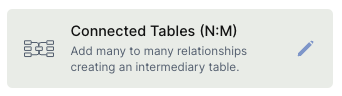
For instructions on how to access field types or how to add one, see Field Types.
Capabilities
- Link multiple records from one table to multiple records in another table
- Automatically creates a third (intermediary) table to manage the relationship
- Filter which records are available to connect using conditions
- Sort the list of available records
- Customize the field's icon and button color
- Configure the form used to create new connected records (block form, app page form, or default table form)
- Set the window style for the record creation form
- Mark the field as required
How to create a Connected Table (N:M) field
Step 1 — In table mode, click the + button on the last column header (or press F) to open the field creation panel.
Step 2 — Select Connected Table (N:M) from the list of field types.
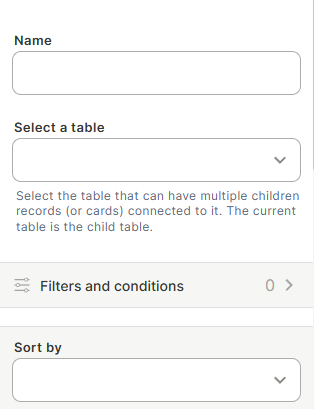
Step 3 — Fill in the Name for the field and select the table you want to connect to. The current table becomes the child table in the relationship.
Step 4 (optional) — Set up Filters and conditions to restrict which records from the connected table are available for linking.
Step 5 — Use Sort by to define the order in which available records appear.
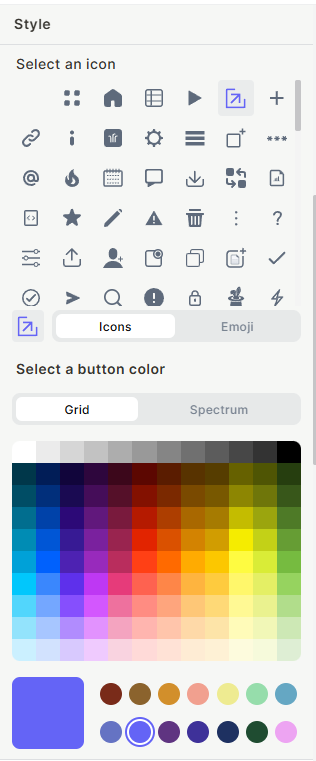
Step 6 — Under Style, choose an icon and a button color for the field.
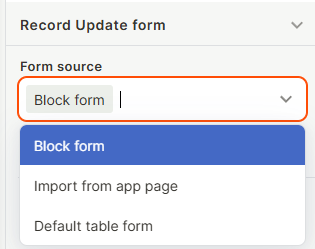
Step 7 — Under Form source, choose how new connected records will be created: via a Block form, Import from app page, or the Default table form.
Step 8 — Set the Window style for the record creation form. Options include Traditional (double window), Triple window, Quadruple window, Right side window, Full screen, and Wider form (double window).
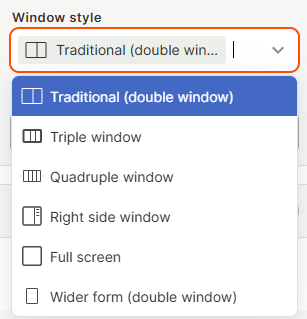
Step 9 — Set the Success behavior (e.g., keep form open after submission) and configure a Tooltip if needed.
Step 10 — Enable Required field if this connection must always be filled.
Step 11 — Click Create.
Warning: Creating this field generates a new field on 2 different tables — the current table and the connected table.
Use cases and examples
The Connected Table (N:M) field is useful whenever elements on both sides of a relationship need to connect to many elements on the other side.
Education — A "Students" table and a "Courses" table connected through an "Enrollment" intermediary table. Student A can be enrolled in multiple courses, and Course 1 can have multiple students.
Projects — A "Projects" table and a "Team Members" table, where each project has multiple contributors and each person works on multiple projects simultaneously.
E-commerce — An "Orders" table and a "Products" table, where a single order contains multiple products and a product can appear in many different orders.
Keep in mind
- The N:M field is not the same as the N:1 (Connected Records) field — it does not create a simple parent-child relationship where one record belongs to one parent.
- The intermediary table created automatically cannot be deleted without removing the N:M field itself.
- This field is not suited for most standard business process flows, which typically follow N:1 relationships. Use N:M only when both sides genuinely need to link to many records on the other side.
- Filters set on the field restrict which records are available to connect, but do not affect records that were connected before the filter was applied.
FAQ
1- What is the difference between Connected Table (N:M) and Connected Records (N:1)?
Connected Records (N:1) links each child record to a single parent record. Connected Table (N:M) allows records on both sides to link to multiple records on the other side, and requires a third intermediary table to manage those connections.
2- Can I delete the intermediary table that is automatically created?
No. The intermediary table is managed automatically by Jestor and is tied to the N:M field. To remove it, you would need to delete the Connected Table (N:M) field itself.
3- Will creating this field affect my connected table as well?
Yes. A new field is created on both the current table and the connected table to support the relationship.
4- Can I filter which records appear in the connection field?
Yes. During setup (or when editing the field), you can define filters and conditions to control which records from the connected table are available for linking.
5- When should I use N:M instead of N:1?
Use N:M only when records on both sides genuinely need to relate to many records on the other side — for example, students and courses, or projects and team members. For most business processes, N:1 is the more appropriate choice.
Updated 6 months ago