
PDF Viewer
PDF Viewer is a form block that displays one or more PDF files directly inside a Super Form or app card. Users can read, zoom, navigate pages, and download the document without leaving the form.
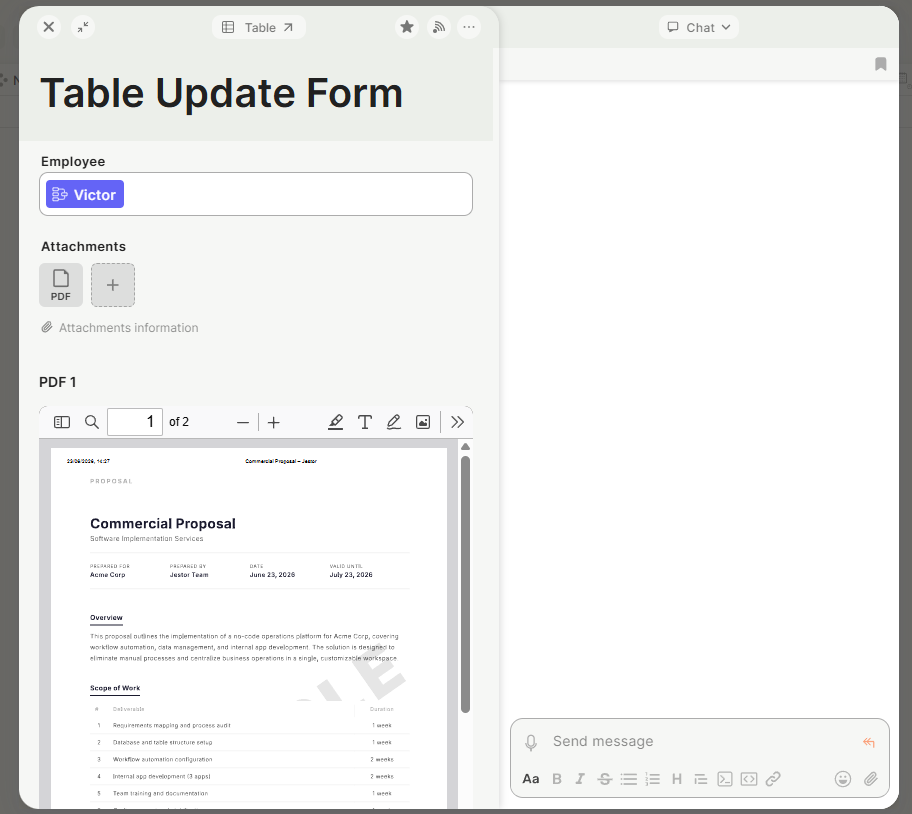
For instructions on how to add a form block to a Super Form, see Fields and Form Blocks.
Capabilities
- Display a PDF from an attachment field or as a fixed static file
- Support multiple PDFs in the same block, stacked vertically
- Allow users to zoom in/out, navigate pages, and download the file
- Show or hide the PDF toolbar
- Show or hide the block title
- Use form conditionals to control when the block appears
Use cases and examples
Use the PDF Viewer block when you want to:
- Show a client proposal stored in an attachment field directly on their record card
- Display terms and conditions inside a form so users can read before accepting
- Embed a fixed commercial presentation that is always the same for every submission
- Let team members view a contract or document inline without downloading it
How to configure
Step 1
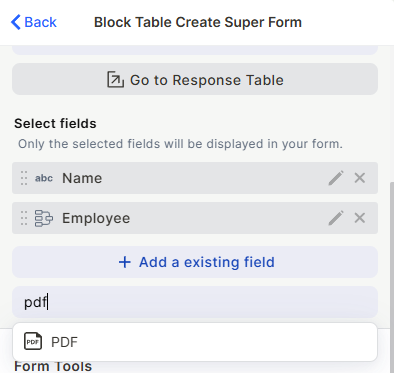
Add the block: In your form's edit mode, add a PDF Viewer block from the form blocks list. The edit panel will open on the right side.
Step 2
Set the name: Enter a label in the Name field. This identifies the block inside the editor and can optionally be shown as a title above the PDF.
Step 3
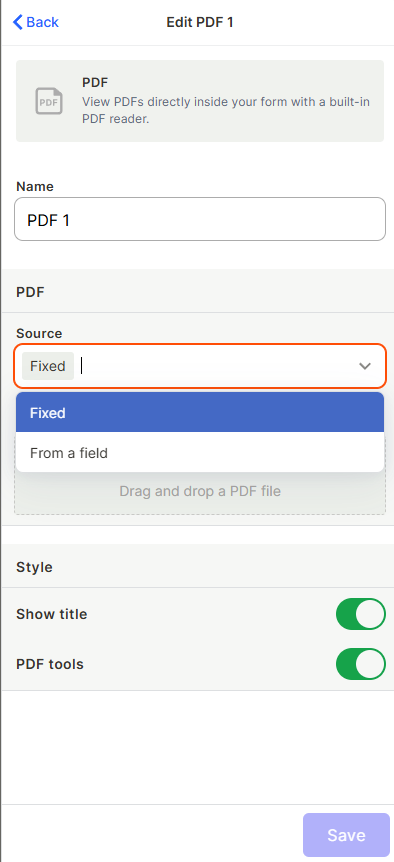
Choose the PDF source: Select one of two options:
- From a field — Select an attachment field from your table. The PDF displayed will be whatever file is stored in that field for the current record. Use this when each record has its own document (e.g., a proposal or contract).
- Fixed PDF — Upload a static file that is the same for everyone who sees the form. Use this for documents that never change, such as terms of service or a standard commercial presentation.
Step 4
Configure display options:
- Show title — Toggle on to display the block name as a visible heading above the PDF.
- PDF toolbar — Toggle on to show the toolbar with zoom, page navigation, and download controls. Toggle off if you want users to view only, without access to those tools.
Step 5
Save: Click Save to apply the configuration.
Keep in mind
- The PDF Viewer does not allow users to edit or annotate the document — it is view-only.
- Turning off the PDF toolbar hides the controls, but users can still interact with the PDF (zoom, scroll) using standard browser gestures.
- If the attachment field contains more than one PDF, each document is displayed stacked below the previous one.
- The block supports form conditionals, so you can show or hide the PDF based on field values in the form.
FAQ
1 — Can I show a PDF that is different for each record?
Yes. Select From a field as the source and choose an attachment field. The block will display whichever file is stored in that field for the record being viewed.
2 — What if the attachment field has multiple files?
All PDF files in the field will be displayed, one below the other, in the same block.
3 — Can users download the PDF from inside the form?
Yes, as long as the PDF toolbar option is enabled. The toolbar includes a download button. If the toolbar is disabled, the download button is not shown.
4 — Can I use this block in an app card, not just a form?
Yes. The PDF Viewer block works inside app cards as well, letting users view documents directly from a record without downloading.
Updated 30 days ago