
Address
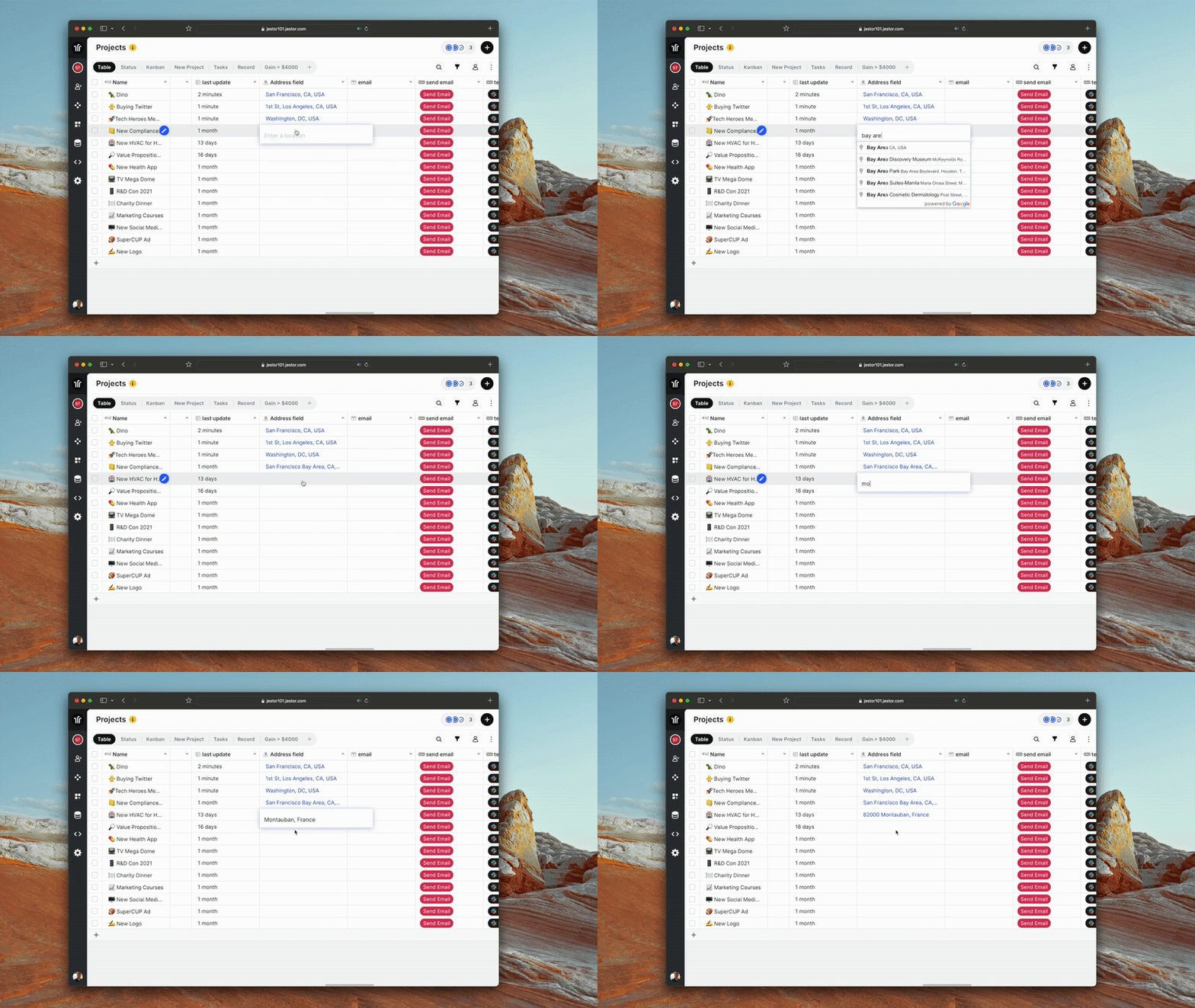
The Address field stores location data by letting users search and select addresses using Google Maps integration. It captures both the formatted address and its geographic coordinates, enabling map-based visualization and precise location tracking.
For instructions on how to access field types or how to add one, see Field Types.
Capabilities
- Search and select addresses with Google Maps autocomplete
- Store geographic coordinates (latitude and longitude) alongside the address text
- Generate a map link for each saved address
- Avoid duplicate or imprecise entries by selecting from standardized suggestions
- Plot saved locations on map visualizations within your app
- Mark the field as required to make it mandatory on record creation
- Add a tooltip to guide users on how to fill in the field
How to create an Address field
Step 1 — In table mode, click the "+" icon at the end of the table headers.
Step 2 — Select Address from the list of field types.
Step 3 — Set the field name and, if needed, toggle Required field to make it mandatory.
Step 4 — Click Create.
Use cases and examples
- Clients table — Store each client's address with coordinates to display their locations on an interactive map inside your app.
- Deliveries table — Record delivery destinations with precise coordinates to support route planning and logistics workflows.
- Properties table — Keep property addresses standardized and linkable to Google Maps for easy access and visualization.
Keep in mind
- The field does not accept free-form text without selecting from the Google Maps suggestions — an address must be confirmed through the autocomplete dropdown.
- It does not calculate distances or routes between addresses.
- It does not automatically update if an address changes in Google Maps after it has been saved.
- The map link opens Google Maps in the browser — it does not embed an interactive map directly in the field itself.
FAQ
1- Can I type an address manually without using the Google Maps suggestions?
No. The field requires selecting an address from the Google Maps autocomplete dropdown to ensure the coordinates are captured correctly.
2- Does the field store the coordinates automatically?
Yes. When you select an address from the suggestions, the field saves both the formatted address text and its geographic coordinates.
3- Can I use the Address field to show locations on a map inside my app?
Yes. The stored coordinates can be used to plot records on map visualizations available within Jestor apps.
4- Can I make the Address field required?
Yes. When creating or editing the field, toggle the Required field option so users must fill it in before saving a record.
5- What happens if a specific address is not found in the Google Maps suggestions?
If the exact address does not appear in the suggestions, you can try entering a nearby reference point or a more general location. The field cannot save an address that was not selected from the autocomplete results.
Updated 6 months ago