
Take the Text in an Image (ChatGPT)
Use ChatGPT's intelligence to read text inside an image and automatically save the extracted value into a text field. Works especially well with handwritten text and scanned documents.
When to use
- You receive images or scanned files containing text that needs to be stored in a structured field
- You want to digitize handwritten notes, receipts, forms, or labels automatically
- You need to extract text from attachments without manual transcription
How to configure
Step 1
Create a new automation
This page covers only the action. For instructions on how to access automations and create a new automation, see the Automations page.
Step 2
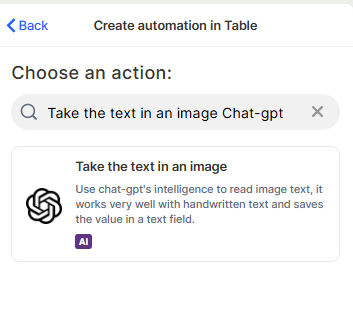
Choose the action: In the action search bar, type ChatGPT, and select Take the text in an image.
Step 3
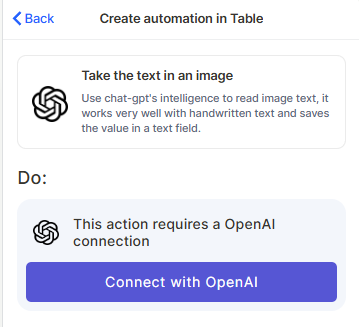
Connect with OpenAI: This action requires an OpenAI connection. Click Connect with OpenAI and follow the authentication steps to link your OpenAI account.
Step 4 (optional)
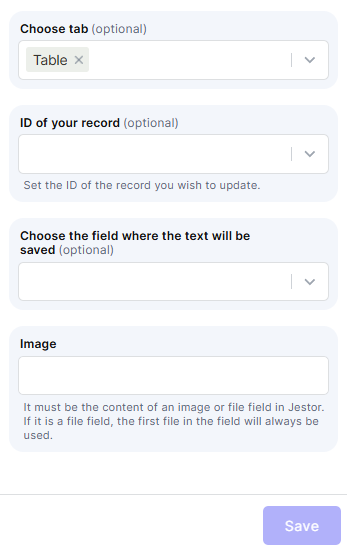
Choose tab: Select the table where the target record is located.
Step 5
ID of your record: Set the ID of the record you want to update with the extracted text. You can pass this dynamically using a trigger value.
Step 6 (optional)
Choose the field where the text will be saved: Select the text field in which the extracted content will be stored.
Step 7
Image: Provide the content of an image or file field from Jestor. If a file field is used, the first file in the field will always be processed.
Step 8
Save: Click Save to activate the automation.
Keep in Mind
- You also can use the Attachment Vision (OCR) feature, instead of this automation
- This action does not process multiple images in a single run — if the field contains more than one file, only the first file is used.
- It does not return structured data — the output is raw extracted text, not parsed or formatted values.
- It does not self-correct OCR errors — if the image has low quality or poor contrast, the extracted text may be inaccurate.
- It does not save the result automatically unless a target field and record ID are properly configured.
- Each execution consumes OpenAI API credits — high-volume automations may incur significant API costs depending on your OpenAI plan.
FAQ
1 — Does this action work with handwritten text?
Yes. ChatGPT's vision model handles handwritten text well, but accuracy depends on image quality. Clear, well-lit images produce better results.
2 — Is there a cost to use this action?
Yes. This action uses the OpenAI API, which is billed separately based on your OpenAI account plan. Jestor does not cover OpenAI API costs.
3 — Can I use the extracted text in the same automation to trigger other actions?
Yes. Once the text is saved to a field, subsequent automation steps or separate automations can reference that field value normally.
Updated 7 months ago