
Currency
The Currency field stores a numeric value formatted as a monetary amount. You can define the currency symbol to display alongside the number, making it easy to represent prices, costs, revenues, and other financial values.
For instructions on how to access field types or how to add one, see Field Types.
Capabilities
- Store numeric values formatted as currency amounts
- Choose a custom currency symbol (e.g., $, €, R$, £)
- Use the value in Formula fields for financial calculations
- Filter and sort records by monetary value
- Reference the field in automations as a condition or output value
How to add a Currency field
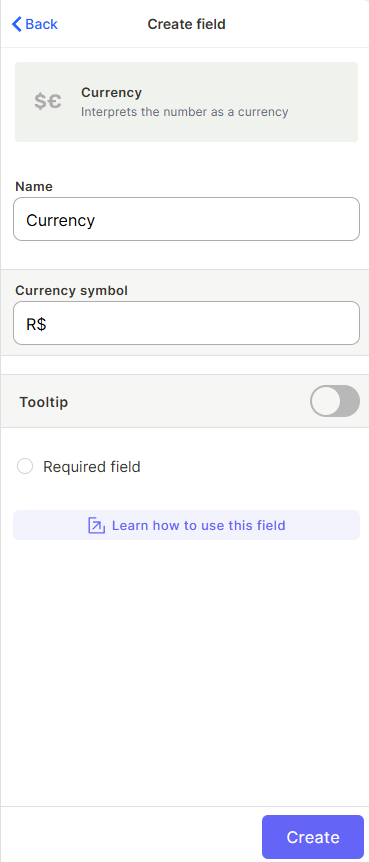
- Open your table and click + to add a new field.
- Select Currency from the field type list.
- Enter a name for the field.
- Choose the currency symbol to display with the value.
- Optionally mark the field as Required.
- Click Create.
Use Cases and Examples
- In a "Sales" flow, a Currency field can store the price or value of each deal.
- In a "Project Management" flow, it can track the budget or cost of a project.
- In an "HR" table, it can hold payroll values or monthly salaries.
- In a "Products" table, it can store the unit price or cost of each item.
Keep in Mind
- The currency symbol is cosmetic only — it does not perform currency conversion. The same symbol applies to all records in the table.
- Leaving the field empty is treated as null, not zero, in formulas and filters.
FAQ
1 — Can I use different currencies in different records of the same table?
No. The currency symbol is defined at the field level and applies to all records. If you need to track multiple currencies, consider adding a separate Text field for the currency code alongside the Currency field.
2 — Can I use a Currency field in a formula or automation?
Yes. Currency values behave like plain numbers in Formula fields and can be added, subtracted, multiplied, or divided. In automations, you can use them as conditions or values in actions.
Updated 6 months ago