
Calendly
The Calendly block embeds a Calendly scheduling page directly inside an app page, letting users book meetings without leaving the app.
For instructions on how to add a block to your app, see the Blocks page.

Capabilities
- Embed any public Calendly scheduling link into an app page
- Customize background color, text color, and primary color to match your app's design
- Toggle event details visibility on or off
Use cases and examples
Use the Calendly block when you want to:
- Let clients or leads book a meeting directly from a CRM or client portal
- Embed a scheduling widget inside an onboarding or intake app
- Allow team members to book time with a colleague without leaving the workspace
How to configure
Step 1
Add the block: Inside your app page in edit mode, add a Calendly block. The edit panel will open on the right side.
Step 2
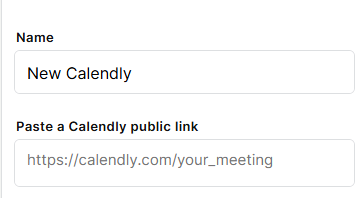
Set the name: In the Name field, enter a label to identify this block inside the editor.
Step 3
Paste the Calendly link: In the Paste a Calendly public link field, enter your public Calendly URL (e.g. https://calendly.com/your_meeting).
Step 4
Configure the settings (Calendly Pro plans only):
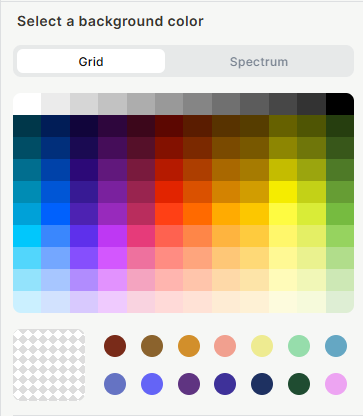
- Background color: Select a background color for the embedded widget using the color picker (Grid or Spectrum view).
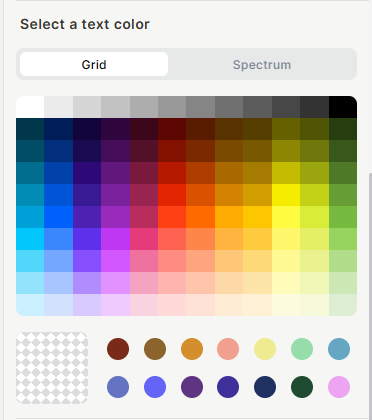
- Text color: Select the color used for text inside the widget.
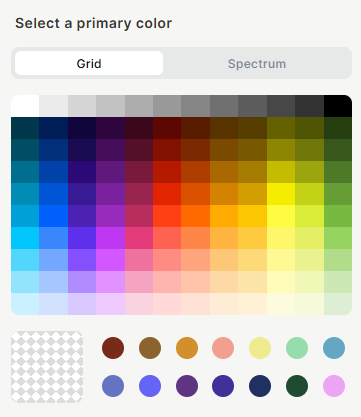
- Primary color: Select the primary accent color for buttons and interactive elements.
- Hide event details: Toggle on to hide event information (duration, description, etc.) from the booking view. Off by default.
Step 5
Create: Click Create to add the block to the page.
Keep in mind
- The color customization settings (background, text, and primary color) are only available on Calendly Pro plans. On free plans, these settings will not take effect.
- The block does not host the scheduling logic — it embeds it from Calendly, so an active internet connection and a valid Calendly account are required.
- The link must be a public Calendly URL. Private or restricted links will not load correctly inside the block.
- The block does not sync booking data back into Jestor automatically.
FAQ
1 — Do I need a Calendly account to use this block?
Yes. You need a Calendly account and a public scheduling link to configure this block.
2 — Why are the color settings not working?
Color customization (background, text, and primary color) is only available on Calendly Pro plans. If you are on a free Calendly plan, these settings will be ignored by the embedded widget.
3 — Can users book meetings directly from inside the block?
Yes. The embedded Calendly widget is fully interactive — users can select a time slot and complete the booking without leaving the app page.
4 — Will bookings made through the block appear in my Calendly account?
Yes. All bookings go through Calendly and will appear in your Calendly dashboard as usual.
5 — What happens if I change my Calendly link after adding the block?
The block will continue using the original link. You will need to edit the block and paste the new URL to update it.
Updated 7 months ago