
Obtain Information from a Brazilian General Registry (RG)
Use AI to automatically extract data from an RG image or file and save it directly into a Jestor record, eliminating manual data entry.
When to Use
- You receive RG (Brazilian general registry) files and need to extract data automatically
- You want to avoid manual data entry from identity documents
- You are building a flow that handles people registration, onboarding, or any process that requires RG data
How to Configure
Step 1
Create a new automation: This page covers only the action. For instructions on how to access automations and create a new automation, see the Automations page.
Step 2
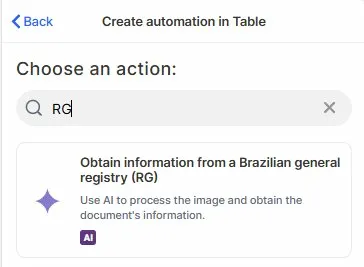
Choose the action: In the action search bar, type RG and select Obtain information from a Brazilian general registry (RG).
Step 3
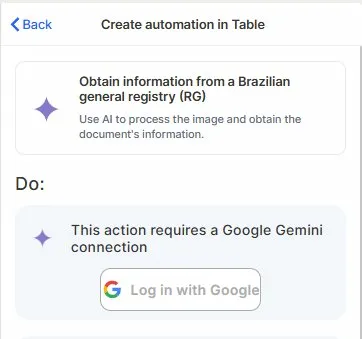
Connect your Google account: This action requires a Google Gemini connection. Click Log in with Google and authorize access.
Step 4 (optional)
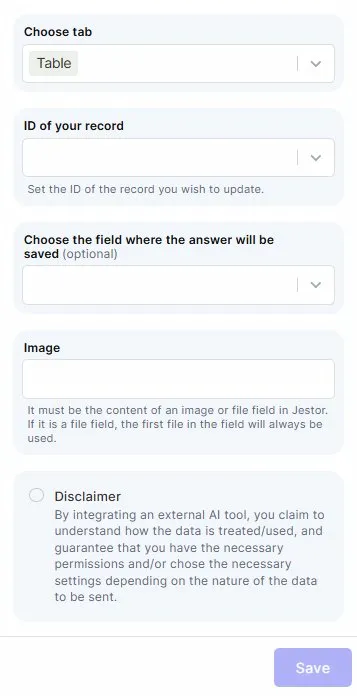
Choose tab: Select the table that contains the records with the RG files.
Step 5
ID of your record: Map the field that holds the ID of the record you want to update with the extracted data.
Step 6 (optional)
Choose the field where the answer will be saved: Select the field where Gemini's extracted output will be stored.
Step 7
Image: Map the image or file field that contains the RG. If the field holds multiple files, the first file will always be used.
Step 8
Save: Click Save to apply the automation.
Keep in Mind
- This action only works with Brazilian general registry documents (RG). It does not process CNH, passport, CPF cards, or any other identity documents.
- If the file field contains multiple files, only the first file is read — the remaining files are ignored.
- The action does not split extracted data into multiple fields automatically. The full output is saved into a single field.
- This action does not validate whether the document is a real or correctly formatted RG — it will attempt to process whatever image or file is provided.
- A Google Gemini connection is required. The action will not run without an authorized Google account linked.
- The quality of the extraction depends on the clarity and format of the file. Low-resolution images or photos taken at an angle may produce incomplete or inaccurate results.
- If you only need to extract specific text from the document without AI processing, consider using the Attachment Vision (OCR) action as an alternative — it reads image content directly and may be simpler for straightforward extraction needs.
FAQ
1 — Does this action work with CNH, passport, or other Brazilian documents?
No. This action is built specifically for RG. For other document types, check if there is a dedicated action or use Attachment Vision (OCR) for generic text extraction.
2 — Can I use a PDF instead of an image?
Yes, as long as the file is stored in an image or file field in Jestor. If the field contains multiple files, only the first one will be processed.
3 — Where does the extracted data get saved?
The output is saved into the field you select in the Choose the field where the answer will be saved step. Make sure the field type is compatible with text output.
4 — Does this action work without a Google account?
No. A Google Gemini connection is mandatory. Without it, the action cannot be saved or executed.
5 — Can I save each RG field (name, number, date of birth) into separate Jestor fields automatically?
No. The action saves the full extracted output into a single field. To split the data into separate fields, you would need to add further automation steps to parse and map the output.
Updated 7 months ago