
Connected Table
Connected Table is a form block that embeds records from a connected table directly inside a Super Form. Instead of navigating away to fill in related data, users can view, create, and manage connected records without leaving the form.
For instructions on how to add a form block to a Super Form, see Fields and Form Blocks.
Capabilities
- Display connected records inline within a Super Form
- Let users create new records in a connected table from inside the form
- Choose between three view modes: Classic, Super Form, and Tables
- Select and reorder which fields are shown per connected table
- Apply filters and sorting to the records shown
- Hide the add record button or make the connected table read-only
- Configure the record creation and update form for each connected table (Tables view only)
- Set a custom title, description, and background color for the block
Use Cases and Examples
Connected Table is useful when a form collects data that relates to other tables. For example, a client onboarding form may need the user to also fill in contact records linked to that client — the Connected Table block lets them do this in the same flow, without switching to a different table or page.
It also works well for order entry scenarios, where a main record (the order) needs line items (products) to be added inline during the same form session.
How to configure
Step 1
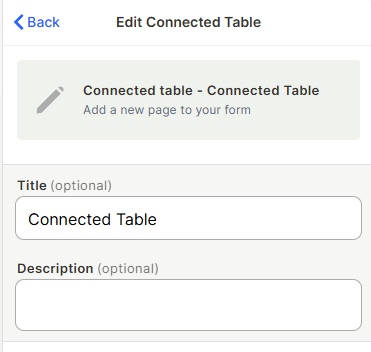
Set title and description (optional): Type a Title to display as a header for the connected table block inside the form. Add a Description to give users context about what they should fill in.
Step 2
Choose a view mode: Open the View as dropdown and select one of the three modes. Each mode changes the available configuration options.
Display Modes
It has three display modes — Classic, Super Form, and Tables — each offering a different level of interaction and visual presentation.
Classic
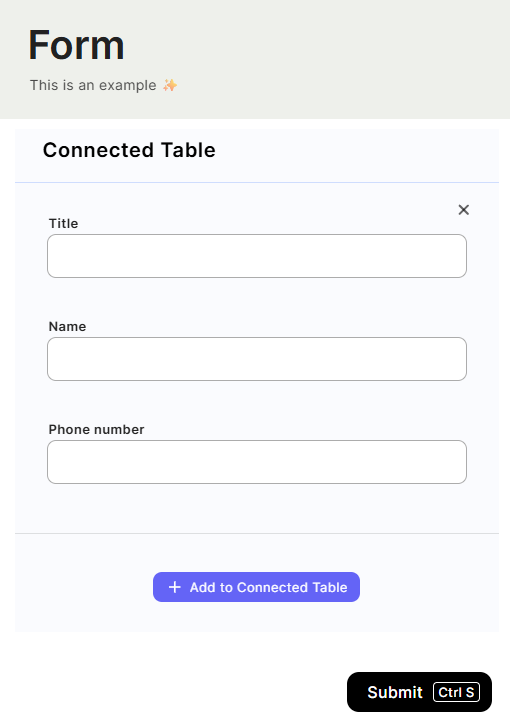
Displays the connected table's fields inline within the form, alongside a button for users to add new connected records. The form renders compactly inside the main form flow.
Configuration:
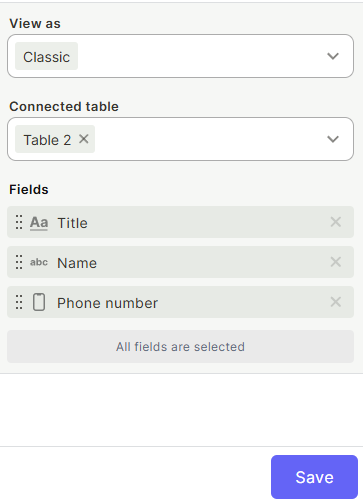
- Connected table — Select the table whose records will be shown.
- Fields — The selected fields appear inline. All fields from the table are included by default. Remove fields by clicking the × next to each one.
Super Form
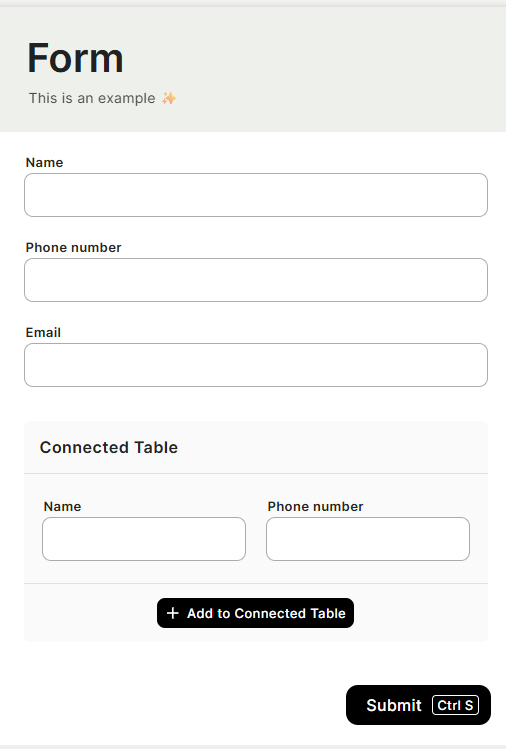
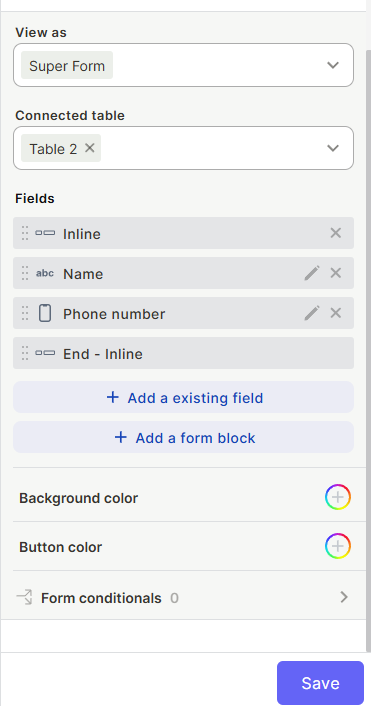
Displays the connected table as a full form experience embedded within the main form, with support for form blocks, conditionals, and color customization.
Configuration:
- Connected table — Select the table whose records will be shown.
- Fields — Click + Add an existing field to choose which fields appear. Click + Add a form block to insert structural elements between fields.
- Background color — Set the background color of the embedded form area.
- Button color — Set the color of buttons within the embedded form.
- Form conditionals — Define conditional logic for fields inside this connected table block. Works the same as Form Conditionals in the main Super Form. See Form Conditionals.
Tables
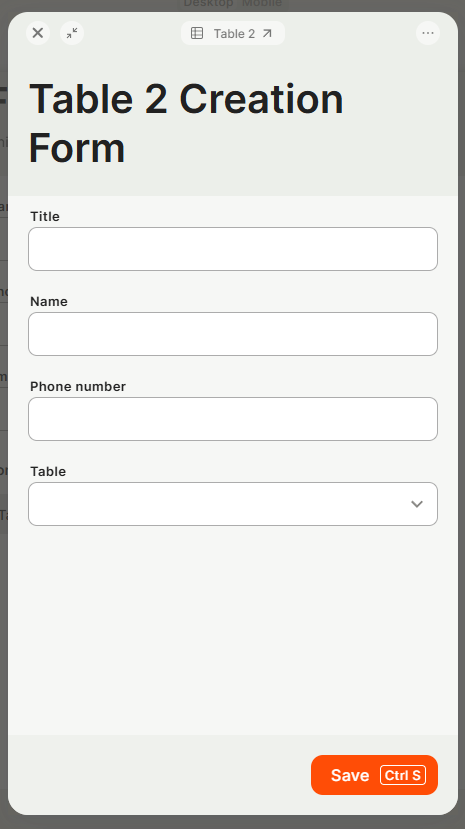
Displays one or more connected tables as labeled sections, each with a "+" button that opens a creation form when clicked. Users can add records to multiple connected tables from the same block.
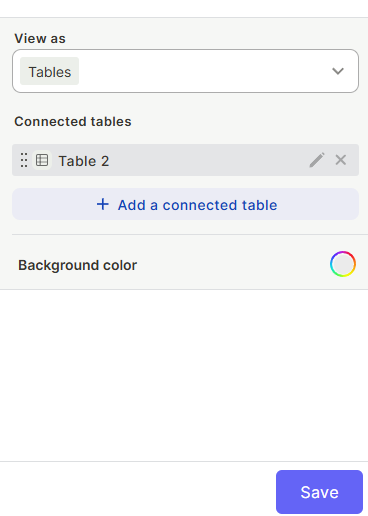
Configuration:
- Connected tables — Click + Add a connected table to add tables to the block. Multiple tables can be added and displayed together. Each table can be reordered by dragging.
- Background color — Set the background color of the block.
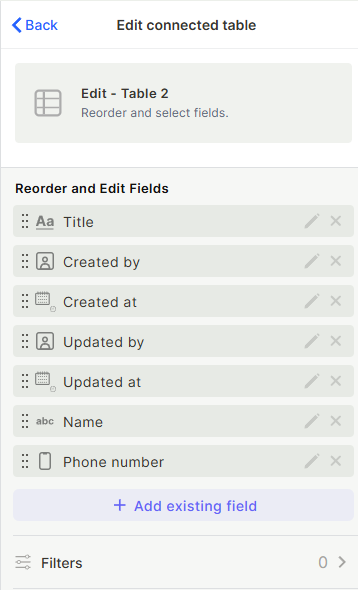
To configure each connected table individually, click the edit icon next to the table name. A panel opens with the following options:
- Reorder and Edit Fields — Select which fields appear in the table view and drag to reorder them. Click + Add existing field to add more fields.
- Filters — Define which records are shown. See the Filters page.
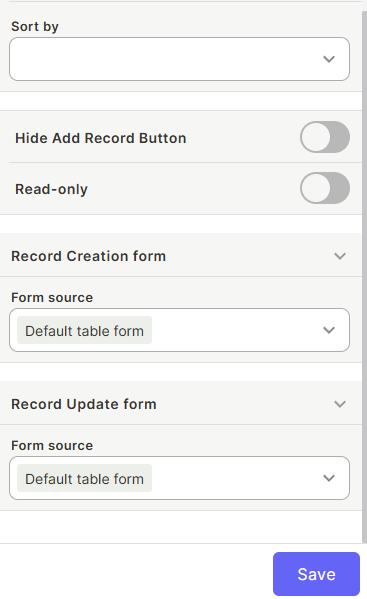
- Sort by — Set the default sort order for records in this table.
- Hide Add Record Button — When enabled, the "+" button is hidden and users cannot create new records from this block.
- Read-only — When enabled, users can view records but cannot create or edit them.
- Record Creation form — Choose which form opens when a user clicks the "+" button to create a new record. See Super Form for form source options.
- Record Update form — Choose which form opens when a user edits an existing record. See Super Form for form source options.
Step 3
Save: Click Save to apply the configuration.
Keep in Mind
- In Tables mode, the record creation form that opens when clicking "+" is configured per connected table — not in the main Super Form settings.
- Form conditionals are only available in Super Form mode — Classic and Tables do not support them.
- Removing a field from the block does not delete it from the connected table.
- Filters applied in Tables mode only affect which records are displayed — they do not filter what gets created.
FAQ
1 — What is the difference between Classic and Super Form view modes?
Classic shows fields inline in a compact layout with minimal configuration. Super Form gives a full embedded form experience with support for form blocks, conditionals, and color customization. Use Classic for simple inline data entry and Super Form when the connected table needs the same level of structure as a standalone form.
2 — Can I show records from more than one connected table in the same block?
Only in Tables mode. Classic and Super Form modes are limited to a single connected table per block. To show multiple tables in Classic or Super Form style, add multiple Connected Table blocks to the form.
3 — Can users edit existing connected records from inside the form, or only create new ones?
In Tables mode, users can both create new records and edit existing ones — each is controlled by the Record Creation form and Record Update form settings.
4 — Do the filters in Tables mode affect what gets submitted?
No. Filters only control which records are visible in the block. They do not prevent records from being created or affect what gets saved.
Updated 15 days ago