
Send a Prompt and an Image to Get an Answer (Gemini)
Send an image and a text prompt to Google Gemini and save the AI-generated response directly into a field in your Jestor table. Use this action to analyze images, extract information from documents, or run any visual reasoning task at scale.
What is it
This automation action sends a text prompt and an image to Google Gemini and writes the model's response into a field of your choice. It is the multimodal version of the standard Gemini prompt action — instead of text only, it also accepts an image as additional context for the AI.
When to use
- You need to analyze or describe images stored in a File or Image field
- You want to extract structured information from photos, receipts, or scanned documents
- You need to classify, label, or validate images automatically based on their visual content
- You want to combine visual context with a custom prompt to generate a tailored response
How to configure
Step 1
Create a new automation — This page covers only this action. For instructions on how to access automations and create a new automation, see the Automations page.
Step 2
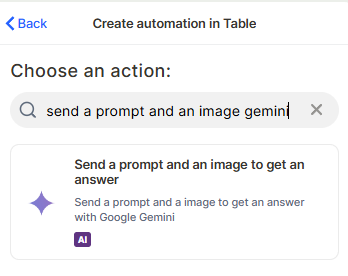
Choose the action — In the action search bar, type send a prompt and an image and select Send a prompt and an image to get an answer. This action is powered by Google Gemini.
Step 3
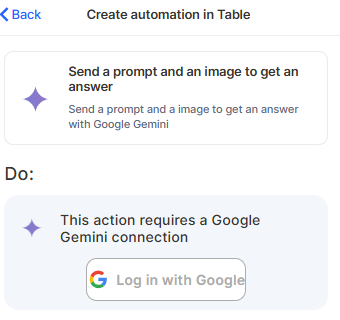
Connect your Google account — This action requires a Google Gemini connection. Click Log in with Google and authorize Jestor to access your Google account. The connection is created once and reused across automations.
Step 4
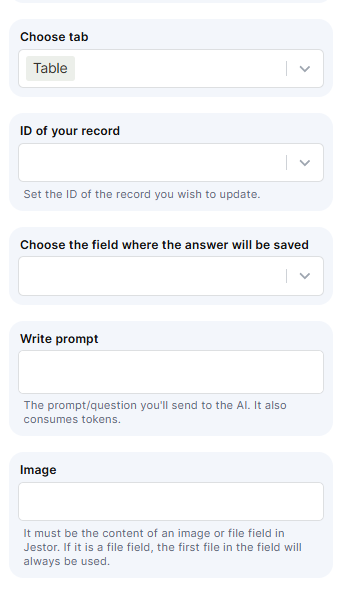
Choose tab — Select the table that contains the records you want to process.
Step 5
ID of your record — Set the ID of the record you want to update. This tells Jestor which record will receive the AI response.
Step 6
Choose the field where the answer will be saved — Select the field where Gemini's response will be written. This must be a text-compatible field.
Step 7
Write your prompt — Enter the text prompt or question you want to send to the AI. The prompt is sent together with the image. It also consumes tokens.
Step 8
Image — Select the Image or File field that contains the image to be sent. If it is a File field, the first file in the field will always be used.
Step 9 (optional)
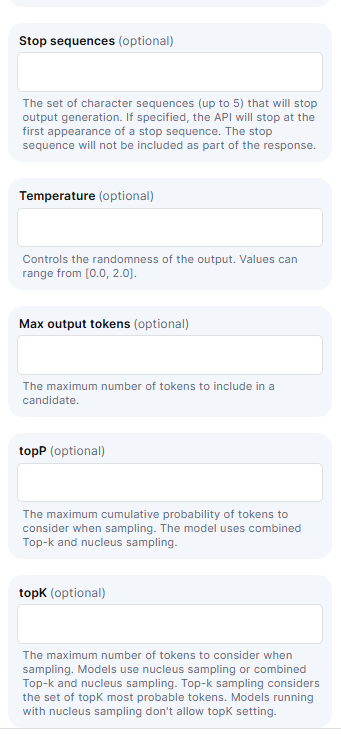
Configure the advanced parameters if needed:
- Stop sequences — Up to 5 character sequences that will stop output generation when reached. The stop sequence itself is not included in the response.
- Temperature — Controls the randomness of the output. Values range from 0.0 to 2.0. Lower values produce more predictable responses; higher values produce more creative ones.
- Max output tokens — The maximum number of tokens to include in the response.
- topP — The maximum cumulative probability of tokens considered during sampling. The model uses combined Top-k and nucleus sampling.
- topK — The maximum number of tokens considered during sampling. Models with nucleus sampling don't allow the topK setting.
Step 10
Save — Save the automation and test it with a real record to confirm the response is being written correctly.
Keep in Mind
- This action only works with images stored in an Image or File field inside Jestor — you cannot pass an external URL as the image source.
- If the selected field is a File field, only the first file will be sent, regardless of how many files are attached.
- The action does not return structured data by default — the response is plain text. If you need structured output (like JSON), you must prompt the model explicitly to return that format and parse it in a subsequent step.
- Gemini cannot perform actions inside Jestor — it only reads the image and prompt and returns a text response. Any update to records must be handled by the automation itself.
- This action consumes tokens on every run. High-volume automations can impact your usage quota.
- The Google connection is per workspace, not per automation. Changing or revoking the connection will affect all automations using it.
- Temperature, topP, topK, and Stop sequences affect model behavior but do not guarantee a specific output format or length.
- This action does not support audio, video, or multi-page PDFs as the image input — only image files.
FAQ
1 — What is the difference between this action and the standard "Send a prompt" Gemini action?
The standard action sends only a text prompt to Gemini. This action also sends an image alongside the prompt, allowing the model to analyze visual content and incorporate it into the response.
2 — Can I use a URL instead of a field to provide the image?
No. The image must come from an Image or File field inside Jestor. External URLs are not supported as the image source.
3 — What happens if the File field has more than one file attached?
Only the first file in the field will be sent to Gemini. The remaining files are ignored by this action.
4 — Can I use this action to extract text from a scanned document or receipt?
Yes. You can write a prompt instructing Gemini to read and extract specific information from the image, such as totals, dates, or names. The response will be saved as plain text in the chosen field.
5 — Does changing the Temperature or topP affect the reliability of the response?
Yes. Higher Temperature values make the output more varied and less predictable. For tasks that require consistent or structured responses — like data extraction — keep Temperature low (close to 0.0) and leave topP and topK at their defaults unless you have a specific reason to adjust them.
Updated 7 months ago