
Take the Text in an Image (Jestor AI)
Use Jestor's native AI to read text inside an image and automatically save the extracted value into a text field. Works especially well with handwritten text and scanned documents.
When to use
- You receive images or scanned files containing text that needs to be stored in a structured field
- You want to digitize handwritten notes, receipts, forms, or labels automatically
- You need to extract text from attachments without manual transcription
How to Configure
Step 1
Create a new automation
This page covers only the action. For instructions on how to access automations and create a new automation, see the Automations page.
Step 2
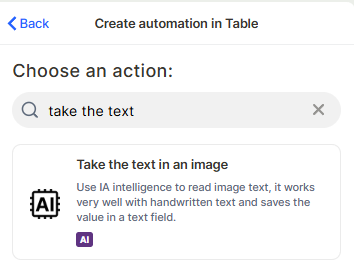
Choose the action: In the action search bar, type take the text in an image and select Take the text in an image.
Step 3 (optional)
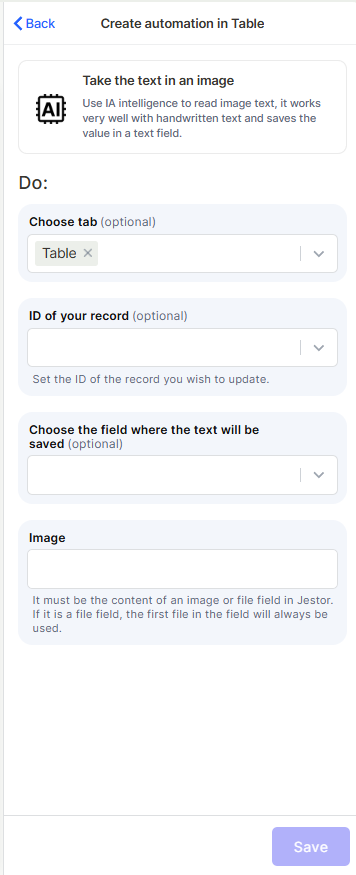
Choose tab: Select the table where the target record is located.
Step 4 (optional)
ID of your record: Set the ID of the record you want to update with the extracted text. You can pass this dynamically using a trigger value.
Step 5 (optional)
Choose the field where the text will be saved: Select the text field in which the extracted content will be stored.
Step 6
Image: Provide the content of an image or file field from Jestor. If a file field is used, the first file in the field will always be processed.
Step 7
Save: Click Save to activate the automation.
Keep in Mind
- You can also use the Attachment Vision feature (OCR) instead of this automation
- This action does not process multiple images in a single run — if the field contains more than one file, only the first file is used.
- It does not return structured data — the output is raw extracted text, not parsed or formatted values.
- It does not self-correct OCR errors — if the image has low quality or poor contrast, the extracted text may be inaccurate.
- It does not save the result automatically unless a target field and record ID are properly configured.
- It does not require an external API connection — unlike the ChatGPT version, this action runs entirely on Jestor's built-in AI with no third-party account needed.
FAQ
1 — What is the difference between this action and the ChatGPT version?
Both actions read text from images, but this one uses Jestor's native AI — no external account or API key is required. The ChatGPT version uses OpenAI's API and bills separately based on your OpenAI plan.
2 — Does this action work with handwritten text?
Yes. Jestor's AI handles handwritten text well, but accuracy depends on image quality. Clear, well-lit images produce better results.
3 — Can I use the extracted text in the same automation to trigger other actions?
Yes. Once the text is saved to a field, subsequent automation steps or separate automations can reference that field value normally.
4 — Does this action work with PDFs?
If the PDF is stored in a file field in Jestor, the action will attempt to process the first file. Results may vary depending on the PDF format and readability.
5 — What happens if the image field is empty?
If no file or image is provided, the action has nothing to process and will not save any value to the target field.
Updated 7 months ago