
Offline Mode
Offline Mode lets you keep creating and editing records, Docs and Tasks without a connection. Changes are saved when the connection returns.
In short
- What it is: Offline Mode lets you keep working in Jestor without an internet connection. You can create and edit table records, Docs and Tasks, and your changes are saved when the connection returns.
- Availability: available on select plans.
- How to turn it on: open Settings, go to Offline mode in the White label and behavior section and turn on Available offline. It is off by default and, once on, it is enabled for all users.
- Keep in mind: only data already loaded on your device before you go offline is available. Edits are saved when you sync, and the most recent sync wins for the fields you edited.
What is it
Offline Mode keeps Jestor usable when your connection drops, for example in the field, on a site visit or while traveling. You keep creating and editing records, Docs and Tasks. What you create offline is held in an intermediate (staging) table on your device until the connection returns, and then it is sent to Jestor.
Availability
Offline Mode is available on select plans. See Jestor Plans.
How to turn it on
- Open Settings. For example, in the left sidebar click More, then Settings.
- In the White label and behavior section, click Offline mode.
- Turn on the Available offline switch. Its description reads "Keep working offline. Enabled for all users."
Offline Mode is off by default. When you turn it on, it is enabled for all users of your account. If your plan does not include it, a plan modal may appear when you try to turn it on.
The Offline mode page in Settings also summarizes where Offline Mode works and how creating, editing and deleting items behave while offline.
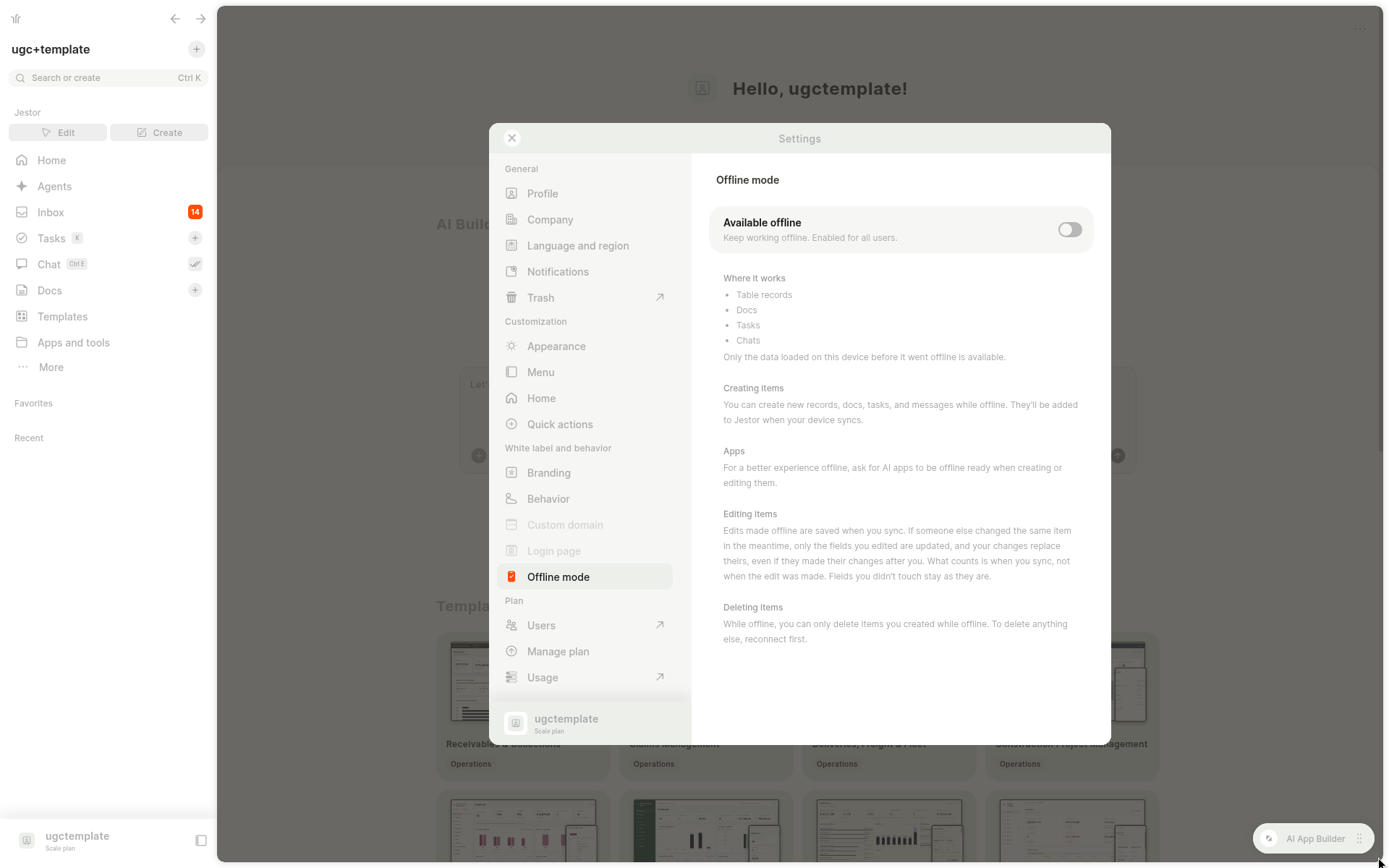
What works offline
Offline Mode works in:
- Tables
- Docs
- Tasks
- AI apps, when they are offline ready. For a better experience offline, ask for AI apps to be offline ready when creating or editing them.
Creating items. You can create new records, docs and tasks while offline. They are added to Jestor when your device syncs. You can also edit records, docs and tasks offline.
Only data already on your deviceOnly the data loaded on this device before it went offline is available. Open the tables, apps and records you will need while you are still connected.
How you know you are offline
- A green offline indicator appears in the top bar.
- A notice tells you that you are offline and that your changes will be saved when the connection returns. This is a notice, not an error.
- On mobile, a banner appears at the top of the screen.
How sync and edits work
When the connection returns, Jestor syncs what you did offline. Items you created offline move from the staging table to Jestor, and the server assigns their IDs.
How offline edits are savedEdits made offline are saved when you sync. If someone else changed the same item in the meantime, only the fields you edited are updated, and your changes replace theirs, even if they made their changes after you. What counts is when you sync, not when the edit was made. Fields you didn't touch stay as they are.
Limitations
- Only loaded data. Data that was not loaded on your device before going offline is not available.
- Deleting. While offline, you can only delete items you created while offline. To delete anything else, reconnect first.
- Comments on new records. You can't comment on a record created offline until it syncs, because the server assigns the record IDs.
- AI apps. For a better experience offline, AI apps should be made offline ready when you create or edit them.
FAQ
1. Is Offline Mode on by default?
No. Open Settings > Offline mode (in White label and behavior) and turn on Available offline. It is then enabled for all users.
2. Which plans include Offline Mode?
It is available on select plans. See Jestor Plans.
3. What can I do offline?
Create and edit records in tables, docs and tasks. For AI apps, ask for them to be offline ready when creating or editing them.
4. Can I see data I never opened on this device?
No. Only the data loaded on this device before it went offline is available.
5. What happens if someone else edits the same record while I am offline?
When you sync, only the fields you edited are updated, and your changes replace theirs, even if they edited after you. What counts is when you sync. Fields you didn't touch stay as they are.
6. Can I delete records offline?
Only items you created while offline. To delete anything else, reconnect first.
7. Why can't I comment on a record I created offline?
The server assigns the record ID when it syncs. You can comment once the record has synced.
8. How do I make an AI app work offline?
Ask for the AI app to be offline ready when you create or edit it.
9. Does turning it on affect all users?
Yes. The switch description says "Enabled for all users."
10. How do I know I am offline?
A green offline indicator appears in the top bar, with a notice that your changes will be saved when the connection returns. On mobile, a banner appears at the top.
Related pages
Updated about 4 hours ago