
Record Data
The Record Data block displays detailed information from a specific table record directly inside an app. It lets you choose which fields to show, how to visually present the record, and how users can interact with it — all within a single configurable block.
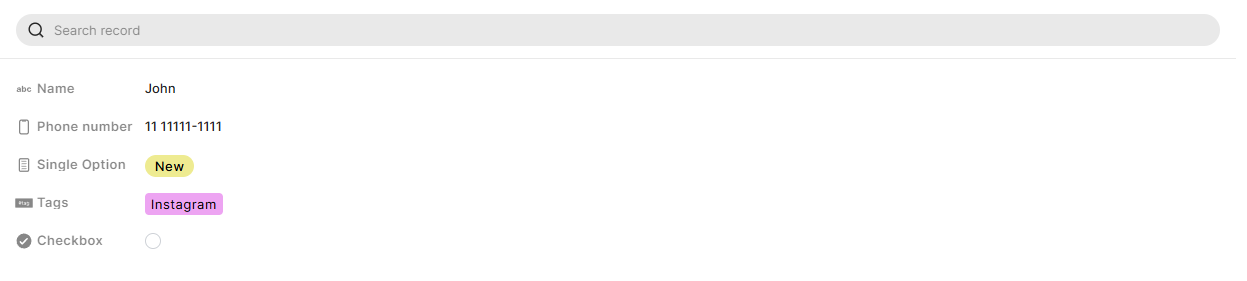
For instructions on how to add a block to your app, see the Blocks page.
Capabilities
- Choose from multiple layout options, including profile picture views, column layouts, and large image displays
- Select which fields from a table are shown
- Set a main image field to visually anchor the record
- Filter which records are eligible to appear
- Toggle a search bar so users can find records by typing
- Toggle a toolbar with additional record actions
- Enable click-to-open so users can open the full record from the block
- Set the background to transparent or a solid color
How to configure
Step 1
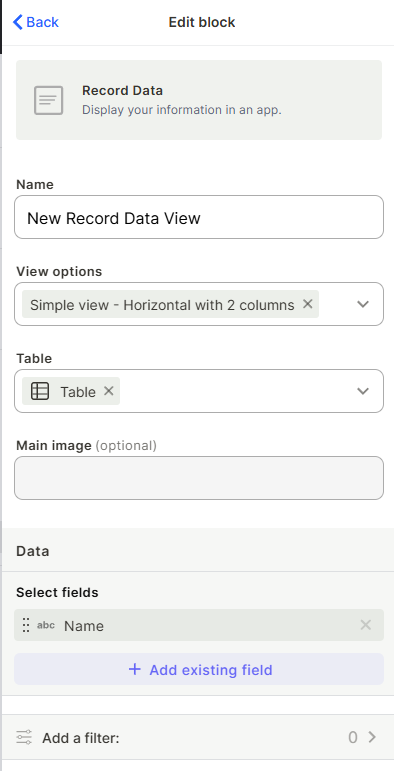
Name your block: Enter a name in the Name field. This label is used internally to identify the block in the editor.
Step 2
Choose a view option: Under View options, select how the record should be displayed. The available layouts are:
- Simple view – Horizontal with 2 columns
- Simple view – Vertical with 1 column
- 2 columns with a large picture
- 1 column with a large picture
- Profile picture with 3 lines
- Round profile picture with 3 lines
Step 3
Select a table: Under Table, choose which table the record data will come from.
Step 4
Set a main image (optional): Under Main image, select an image field from the chosen table. This image anchors the visual display in layouts that support a large picture or profile picture.
Step 5
Add fields: Under Data → Select fields, click + Add existing field to choose which fields to display in the block. Fields appear in the order they are added.
Step 6
Add a filter (optional): Click Add a filter to restrict which records can appear in the block. This works the same as filters in table views.
Step 7
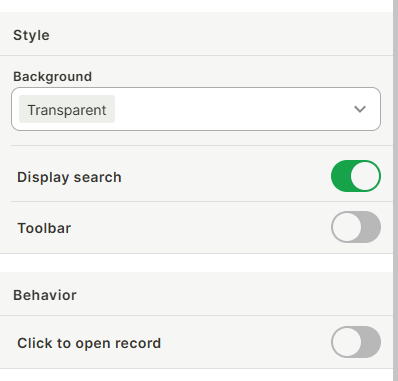
Set the background: Under Style → Background, choose Transparent to blend the block into the page, or select a color to give it a distinct background.
Step 8
Configure display options: Still under Style, toggle the options that fit your use case:
- Display search: Shows a search bar so users can look up records by typing
- Toolbar: Shows a toolbar with additional record actions
Step 9
Set click behavior: Under Behavior, toggle Click to open record to let users click the block and open the full record view.
Use cases and examples
A sales team uses a Profile picture with 3 lines layout to display each client's name, company, and deal stage on a CRM app page. The click-to-open behavior is enabled so reps can jump straight to the full record.
An HR app uses the 2 columns with a large picture layout to show employee profiles, with the photo field set as the main image and key fields like department, role, and start date selected.
A project management app uses the Simple view – Vertical with 1 column layout with Display search enabled, so managers can quickly find and review a specific project record without leaving the page.
Keep in mind
- The block does not automatically select which record to show — the record displayed depends on the context of the page (e.g., which record was opened or linked to the page).
- Adding more fields than the layout supports may cause fields to be cut off or stacked in ways that affect readability.
- The Main image option only works with fields that store images. Selecting a non-image field will not display a visual.
- Filters applied here only affect which records are eligible to display — they do not replace page-level record context.
- The Toolbar toggle shows actions available on the record, but which actions appear depends on the record's table configuration, not the block itself.
FAQ
1 — Can I add the same table more than once?
Yes. You can add multiple Record Data blocks on the same page, even from the same table. This is useful for showing different subsets of fields or using different layout styles side by side.
2 — What is the difference between Display search and a filter?
A filter restricts which records are eligible to appear in the block. Display search lets users type to find a specific record among the eligible ones. Both can be used together.
3 — Does Click to open record work on mobile?
Yes. The block is mobile friendly and the click-to-open behavior works on mobile devices.
4 — Can I control the order of the fields displayed?
Yes. Fields appear in the order they were added under Select fields. To reorder them, remove and re-add them in the desired sequence.
5 — What happens if no record matches the current context or filter?
The block will appear empty. No error is shown, but no data will be displayed until a matching record is in context.
Updated 6 months ago