
Field Composer Agent
Field Composer is a Jestor agent that creates and edits table fields from a prompt, and asks for your approval before changing the table.
In short
- What it is: an AI agent, called Field Composer, that creates and edits the fields (columns) of your tables from a prompt.
- What you can do: describe the fields you need in plain language and the agent sets them up. You can keep refining them in the same chat.
- How to start: click the + button in the composer, then under Agents choose Field Composer.
- Keep in mind: Field Composer asks for your approval before it edits a table. Nothing changes until you click Confirm.
What is it
Field Composer is the Jestor agent for table fields. Instead of opening a table in Build Mode and adding each field by hand, you tell the agent what you need. It chooses the field type for you, using the same field types you can add manually.
Field Composer is an independent agent. It appears in the Agents list next to the other Jestor agents, such as Native Automation and the Block Composer.
What you can do
- Create one or more fields in a table, for example a select field with its options.
- Ask for changes to fields through follow-up messages in the same chat.
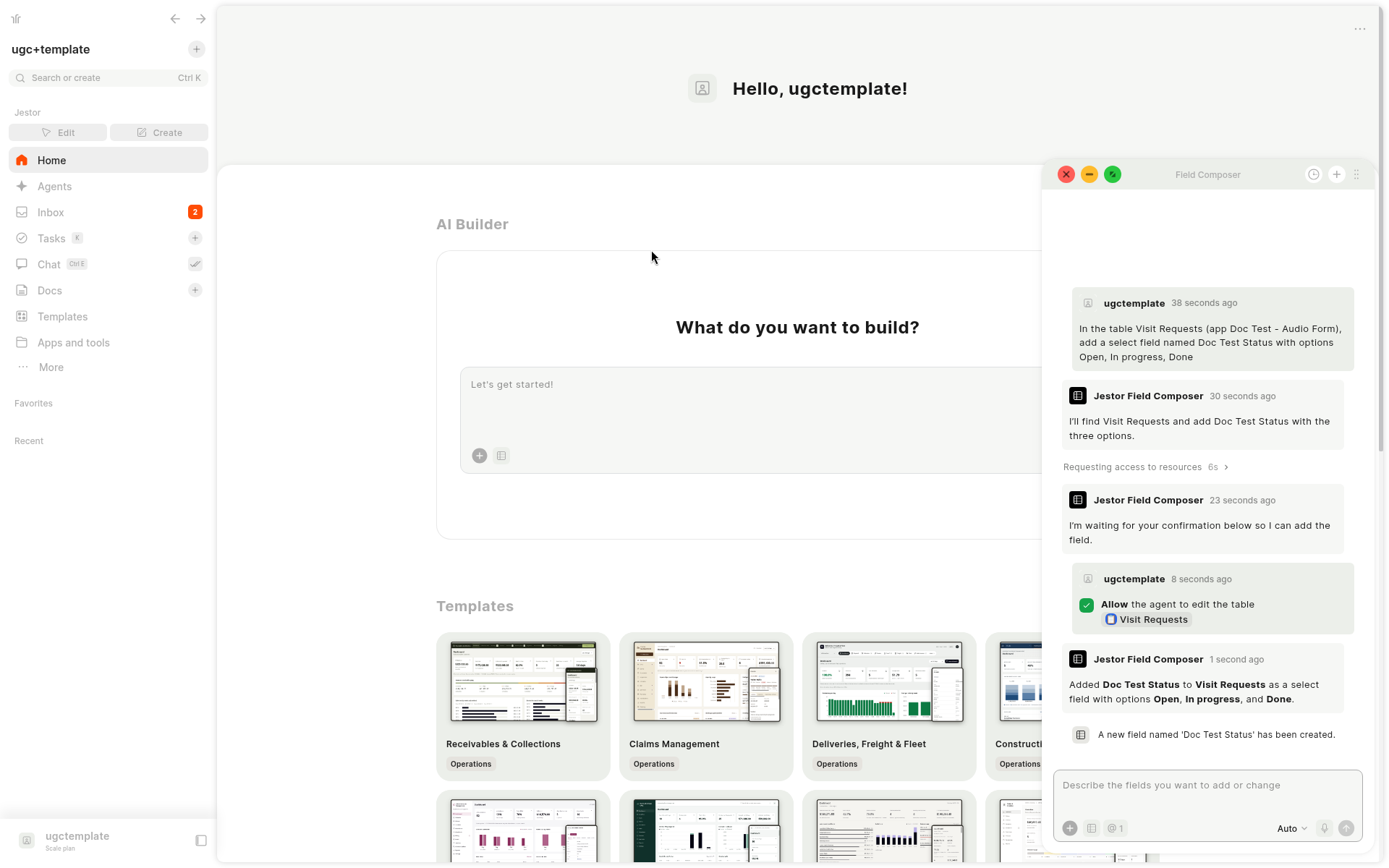
- Confirm the result in the chat. The agent tells you what it added and shows a notice such as "A new field named ... has been created."
How to access
On the home screen, click the + button at the bottom left of the AI Builder composer. The menu has an Add context part and an Agents section. Under Agents, choose Field Composer.
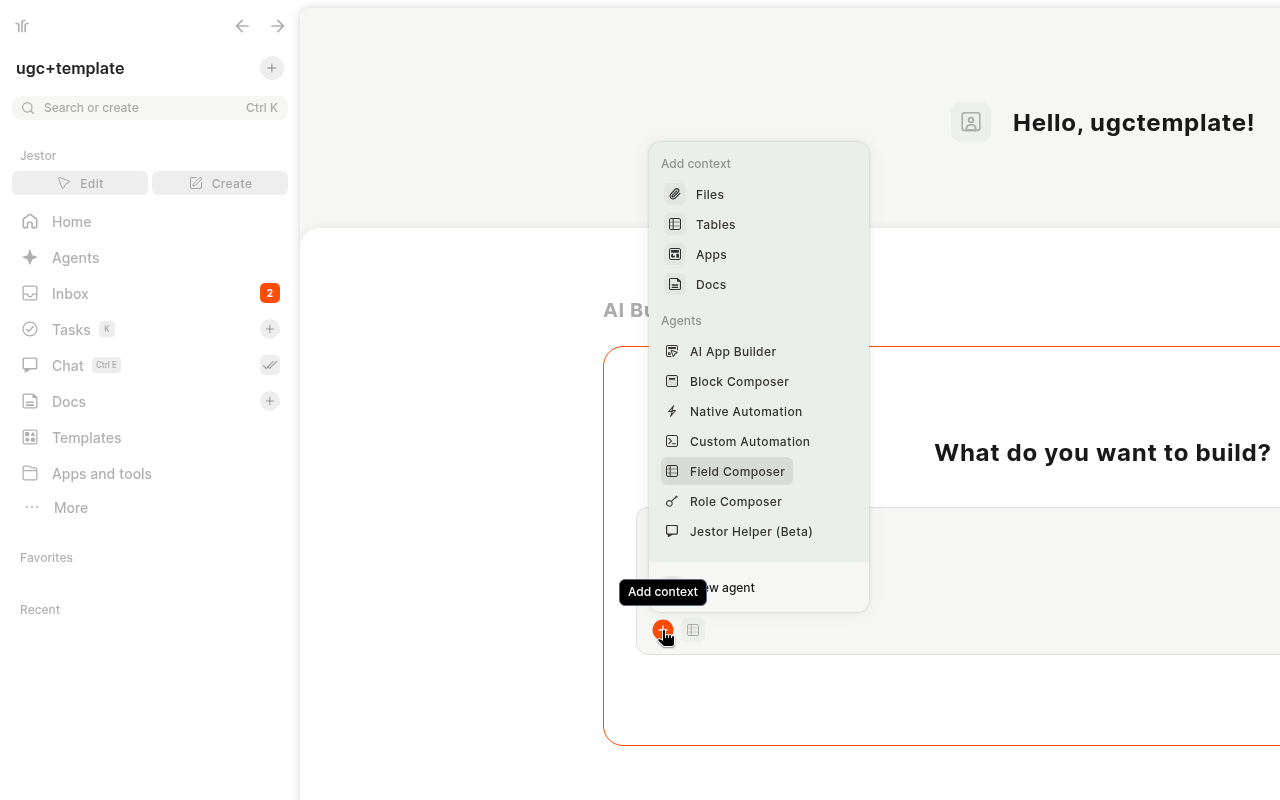
The Agents section lists AI App Builder, Block Composer, Native Automation, Custom Automation, Field Composer, Role Composer and Jestor Helper (Beta), plus New agent. Once you pick an agent, its icon appears next to the + button.
Describe what you need and send the message.
Example prompts
- "Add a Priority select field to Tasks with the options Low, Medium and High."
- "Create fields for Customer name, Phone, Preferred date and Notes in Visit Requests."
- "Change the Due date field so it also shows the time."
Approving a field change
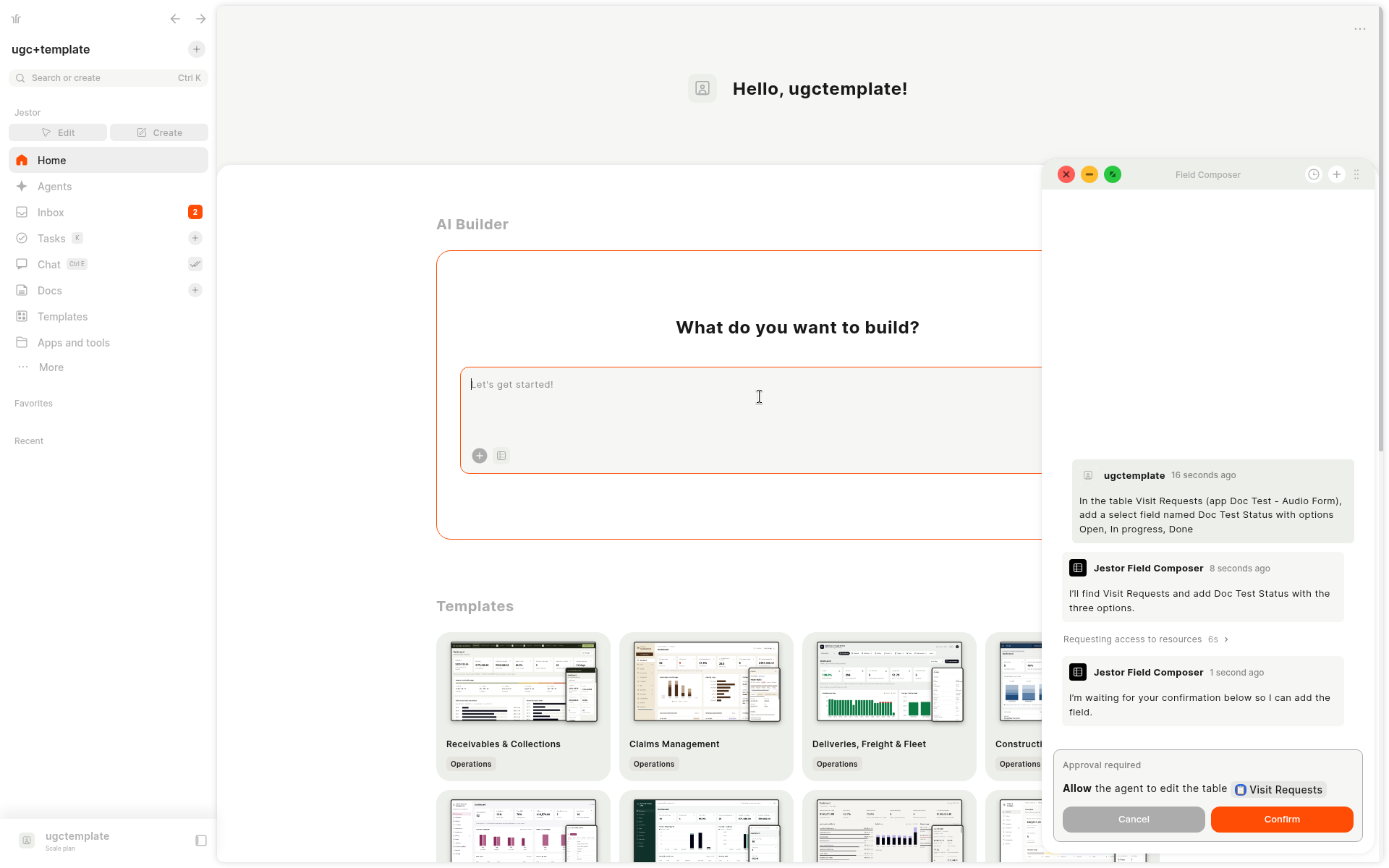
Field Composer does not edit your table on its own. After you describe the change, it replies that it is waiting for your confirmation and shows an Approval required card, with text such as "Allow the agent to edit the table". The card has Cancel and Confirm buttons.
Click Confirm to apply the change, or Cancel to leave the table as it is.
After you confirm, the agent tells you what it added and shows the notice that the new field has been created.
The agent window
The agent opens in a window that floats over the page you are on, so you keep your place. In the header of the window you find the close (red), minimize (yellow) and maximize (green) buttons, plus history, + for a new chat and a menu with more options. The window controls are visible in the screenshots above.
Keep in mind
- Review before relying on it. Check the fields the agent created in your table.
- Fields hold data. Changing a field that already has records can affect those records.
- AI credits. Agent messages consume AI credits. See AI Credits.
Related pages
FAQ
1. Does Field Composer change my table right away?
No. It shows an Approval required card with Cancel and Confirm. It edits the table only after you click Confirm.
2. Where do I find Field Composer?
Click + in the AI Builder composer on the home screen and choose it under Agents.
3. Can I still add fields by hand?
Yes. Fields the agent creates can be edited like any other field, and you can keep adding fields manually in Build Mode.
4. What is the difference from the Block Composer?
The Block Composer builds tables, views, forms and app pages. Field Composer focuses on the fields of a table.
5. Can I minimize the Field Composer window?
Yes. Use the yellow minimize button in the window header.
6. Does using Field Composer consume AI credits?
Yes, like other AI agents. See AI Credits.
Updated about 16 hours ago