
Smart Kanban
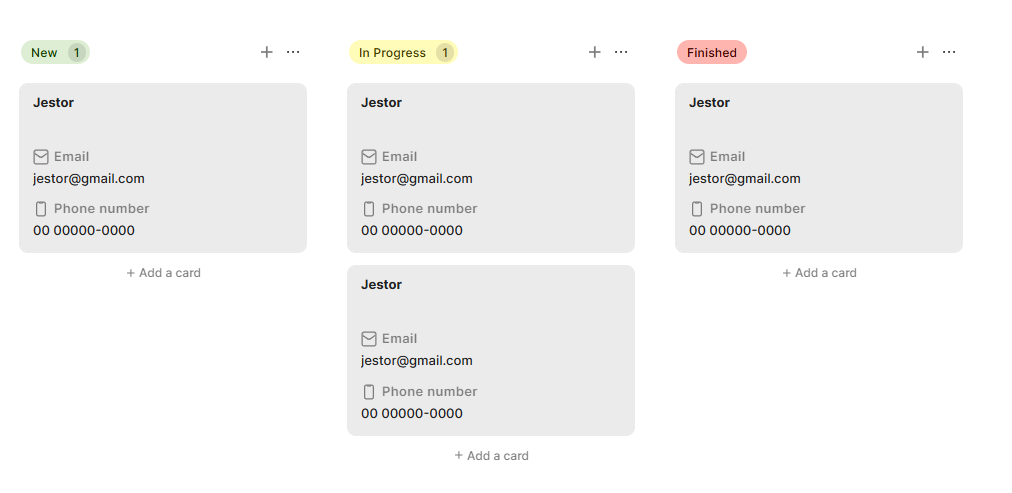
Smart Kanban is a block that displays records from a table as cards organized into columns (stages) based on a selected field. It lets users visualize and manage records by moving cards between stages, and supports customization of card appearance, form behavior, permissions, and stage metrics.
For instructions on how to add a block to your app, see the Blocks page.
Capabilities
- Display records as cards grouped by any field in the table
- Select which fields appear on each card
- Filter and sort records shown in the kanban
- Customize card colors, size, and visual options
- Apply conditional colors to cards based on field values
- Track stage time metrics with Stage SLA
- Control user permissions (read-only, drag and drop, kanban editing)
- Configure record creation and update forms directly in the block
Use Cases and Examples
Smart Kanban works well for sales pipelines, where each stage represents a step in the funnel and cards are deals or leads. Teams can drag cards between stages as deals progress, and use conditional card colors to highlight urgent or high-value records at a glance.
It also fits project and task management workflows — stages become task statuses (To Do, In Progress, Done), and team members can create and update records directly from the kanban without leaving the app.
How to configure
Step 1
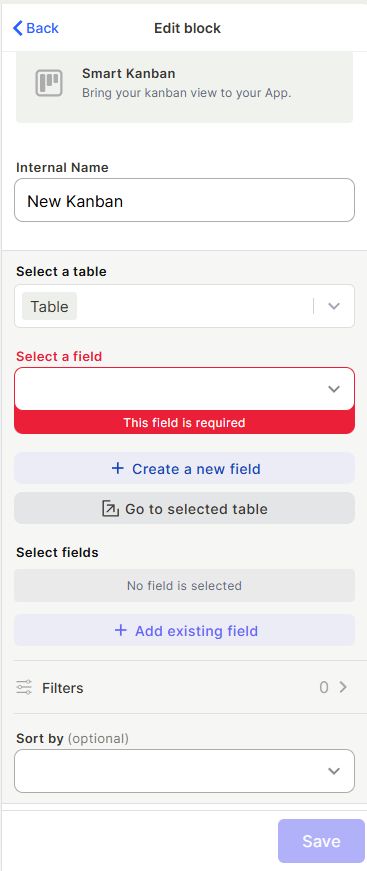
Set the internal name: In the Internal Name field, type a name to identify this kanban block in the editor. This name is not visible to end users.
Step 2
Select a table: Open the Select a table dropdown and choose the table whose records will be displayed as cards.
Step 3
Select a field: Open the Select a field dropdown and choose the field that defines the kanban stages. Each unique value in this field becomes a column. Here you can use Single Selection, Radio, User, and Connected.
Step 4
Select fields: Under Select fields, click + Add existing field to choose which fields appear on each card. Fields are shown in the order they are added and can be reordered by dragging. Click + Create a new field to create a new field in the table and add it to the card at the same time.
Step 5
Set filters (optional): Click Filters to define which records are shown in the kanban. Records that do not match the filters will not appear as cards. To learn how filters work, see the Filters page.
Step 6
Set sort order (optional): Use the Sort by dropdown to define the order of cards within each stage.
Step 7
Configure style, powers, stage indicator, and forms: Use the sections below to customize the kanban's appearance, behavior, and form settings. See Kanban Style, Kanban Powers, Stage Indicator, and Kanban Forms.
Keep in Mind
- The Select a field dropdown defines the stages — only fields with discrete values (like Select or Status) produce meaningful columns.
- Removing a field from Select fields does not delete it from the table — it only hides it from the card.
- Filters applied to the kanban do not affect the underlying table data — they only control which records are visible in this block.
FAQ
1 — Can I use more than one field to group the kanban?
No. The kanban is grouped by a single field. Each unique value in that field becomes one stage column.
2 — Can I have multiple Smart Kanban blocks on the same page pointing to the same table?
Yes. Each block is configured independently, so you can have multiple kanbans from the same table with different fields, filters, or styles.
3 — What happens to a card when I drag it to a different stage?
The value of the grouping field on that record is updated to match the new stage. This change is reflected in the table immediately.
Updated 15 days ago