
Miro
The Miro block embeds a Miro board directly inside an app page, letting users view and interact with boards without leaving the app.
For instructions on how to add a block to your app, see the Blocks page.
Capabilities
- Embed any public Miro board via URL or embed code
- Control whether the preloader screen is shown or skipped on load
Use cases and examples
Use the Miro block when you want to:
- Display a project planning board or roadmap alongside related records in an app
- Embed a brainstorming or whiteboard session directly in a team workspace
- Include a process diagram or flowchart as part of an internal documentation app
How to configure
Step 1
Add the block: Inside your app page in edit mode, add a Miro block. The edit panel will open on the right side.
Step 2
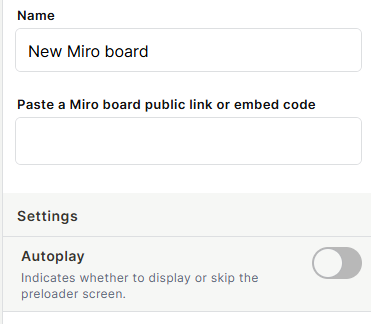
Set the name: In the Name field, enter a label to identify this block inside the editor.
Step 3
Paste the board link: In the Paste a Miro board public link or embed code field, enter either the public URL or embed code of the Miro board you want to display.
Step 4
Configure the settings:
- Autoplay: Toggle on to skip the preloader screen and load the board directly. Off by default.
Step 5
Save: Click Create to apply the configuration.
Keep in mind
- Only public Miro board links or embed codes are supported — private boards will not load.
- The block does not host the board — it embeds it from Miro, so internet access and proper board permissions are required.
- The Autoplay setting controls the preloader screen only; it does not affect the board content or interactivity.
FAQ
1 — What type of Miro link do I need to embed a board?
The board must be set to public or have link-sharing enabled in Miro. Copy the public link or embed code from Miro's share options and paste it into the block.
2 — What does the Autoplay setting do exactly?
When Autoplay is off, a preloader screen is shown before the board loads. When toggled on, this screen is skipped and the board loads immediately.
3 — Can users edit the Miro board from inside Jestor?
Edit permissions depend on the board's settings in Miro, not on the Jestor block. If the board allows editing for anyone with the link, users may be able to interact with it directly in the embed.
4 — What happens if the Miro board is deleted or made private after I embed it?
The block will stop displaying the board. You will need to update the link to a new or accessible board.
Updated 7 months ago