
Bulk Delete
Bulk Delete allows you to select and delete multiple tables, apps, and folders at once directly from the builder, instead of removing items one by one.
Capabilities
- Select multiple tables and apps for deletion in a single action
- Select an entire folder (and all its contents) for deletion at once
- Receive a confirmation code by email before anything is permanently removed
- Recover deleted items from the Trash
How to use
Step 1 — Open the folder where your tables, apps, or other folders are listed.
Step 2 — Enter Builder Mode. Selection circles will appear next to each item.
Step 3 — Click the circles next to the items you want to delete. To delete an entire folder with all its contents, click the circle next to the folder itself.

Step 4 — Click the Delete button. A summary of all selected items will appear for review.
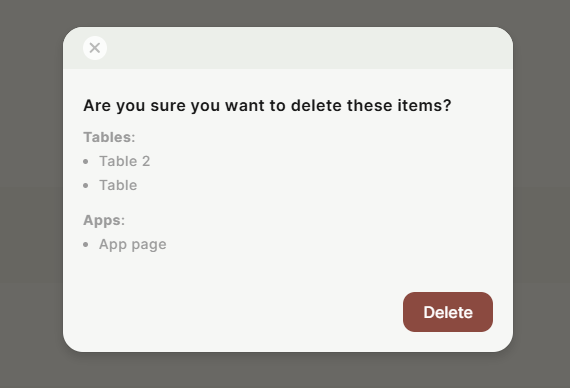
Step 5 — Confirm the deletion. Jestor will send a confirmation code to your email.
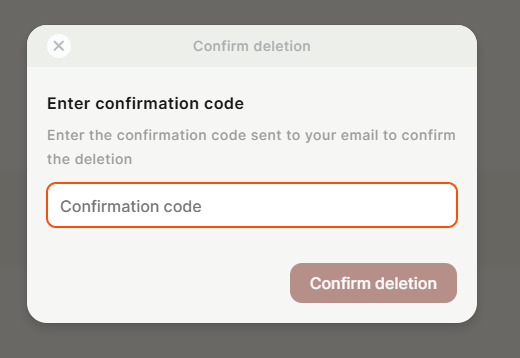
Step 6 — Enter the code to complete the deletion. The items will be moved to the Trash.
Use cases and examples
- Cleaning up test tables, apps, or folders created during development or AI-assisted building
- Removing outdated templates or unused structures in bulk after a project reorganization
- Quickly clearing a workspace that has accumulated many unwanted items over time
Keep in mind
- Bulk Delete does not permanently remove items immediately — they are sent to the Trash, where they can be recovered.
- A confirmation code is always required, even if you are only deleting a single item via this flow. There is no way to skip the email verification step.
- Deleting a folder selects all of its contents for deletion as well. Individual items inside a folder are not previewed separately before confirmation.
- Items in the Trash still count toward your workspace storage. To stop them from being counted, you need to permanently delete them from the Trash.
FAQ
1- Can I recover items deleted with Bulk Delete?
Yes. Deleted items are moved to the Trash, not permanently removed. You can go to the Trash and restore any item from there.
2- Is the email confirmation always required?
Yes. Every bulk deletion requires a confirmation code sent to your email. This is a security step that cannot be skipped.
3- Can I bulk delete items from different folders at the same time?
No. You select items within a specific folder in Builder Mode. To delete items from different folders, you would need to do it separately for each folder.
4- What happens to the data inside a deleted table or app?
The data is preserved in the Trash along with the table or app. If you restore the item, the data comes back as well.
Updated 6 months ago