
Multiple Users Field
The Multiple Users field lets you tag a record to more than one member of your organization in a single field. The list of options is automatically populated with all users in your company's Jestor account — no manual setup required.
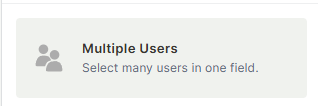
For instructions on how to access field types or how to add one, see Field Types.
Capabilities
- Tag a record to multiple users in your organization simultaneously
- Automatically reflects all users currently in the account
- Option to restrict selection to a single user
- Supports displaying users' names instead of avatars
- Supports tooltip configuration
- Can be set as a required field
- Can be filtered, sorted, and used in automations
Options
All users
When toggled on, the field automatically includes every user in your organization's account. This toggle is enabled by default.
Only allow a single user
When toggled on, the field behaves like a single-user selector, limiting the selection to one user at a time.
Show users' names
When toggled on, the field displays users' full names instead of their profile avatars.
Tooltip
Adds a short description visible on hover, useful for guiding users on how to fill the field.
Required field
When enabled, a record cannot be saved without selecting at least one user in this field.
Use cases and examples
Task assignment with multiple owners — In a project table, use the Multiple Users field to assign more than one person to the same task, such as a developer and a QA reviewer for the same bug.
Approval workflows — Tag all stakeholders who need to review or approve a record, then use automations to notify each of them.
Team tracking — In a process-oriented table, indicate all team members involved in each record, making it easy to filter and manage workload by user.
Keep in mind
- The Multiple Users field does not restrict who can view or edit the record — it only tags users to the record. Access control is managed separately through Jestor's permissions settings.
- It does not automatically notify tagged users — notifications need to be configured via automations.
- The field reflects the current users in the account. If a user is removed from the account, they will no longer appear as an option, but existing records that already have them tagged will retain the value.
- If you only need to tag a single user per record, consider using the Users field instead.
FAQ
1- What is the difference between the Users field and the Multiple Users field?
The Users field allows selecting only one user per record. The Multiple Users field allows selecting several users in the same record.
2- Does the list update automatically when a new user joins the account?
Yes. The list is dynamic and automatically includes any new users added to your organization's account.
3- Can I use the Multiple Users field in automations?
Yes. You can use it as a trigger condition or as a field to be updated in automation actions, such as assigning a team when a record reaches a certain status.
4- Can I limit the Multiple Users field to only one user?
Yes. Enable the Only allow a single user option in the field settings to restrict selection to one user at a time.
Updated 6 months ago