
Documents Block
The Documents block embeds a document directly inside an app page, making it visible to users without requiring them to navigate elsewhere.
For instructions on how to add a block to your app, see the Blocks page.
Capabilities
- Embed any document from your workspace into an app page
- Choose between Light and Dark display modes
- Toggle round corners on or off for visual styling
Use cases and examples
Use the Documents block when you want to:
- Display SOPs, guides, or reference material directly inside an app
- Give users access to a document without leaving the current page
- Embed context-specific documentation next to the tools or tables it relates to
How to configure
Step 1
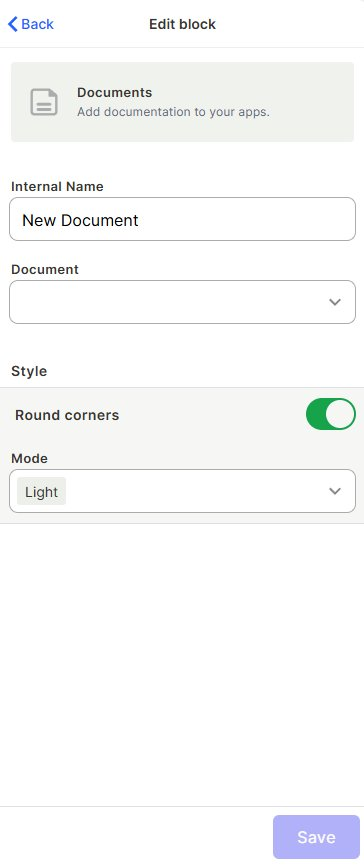
Add the block: Inside your app page in edit mode, add a Documents block. The edit panel will open on the right side.
Step 2
Set the internal name: In the Internal Name field, enter a name to identify this block inside the editor. This name is not visible to end users.
Step 3
Select a document: Click the Document dropdown and choose the document you want to display. Only documents already created in your workspace will appear here. For instructions on how to create a document, see the Documents page.
Step 4
Configure the style:
- Round corners: Toggle on to apply rounded corners to the block container. Enabled by default.
- Mode: Choose Light or Dark to match the visual theme of the page.
Step 5
Save: Click Save to apply the configuration.
Keep in mind
- The Documents block only displays documents that already exist in your workspace — it cannot be used to create or upload new documents.
- The block shows the document in read mode; users cannot edit the document directly from the block.
- The Internal Name is for editor reference only and does not appear anywhere in the published app.
- If the selected document is deleted or moved, the block will stop displaying content.
FAQ
1 — Can users edit the document from inside the block?
No. The Documents block displays the document in read-only mode. To edit the document, the user must access it directly from the workspace.
2 — Can I embed more than one document on the same page?
Yes. You can add multiple Documents blocks to the same page, each linked to a different document.
3 — Will the block update automatically if the document content changes?
Yes. The block always renders the current version of the linked document, so any updates to the document are reflected immediately.
4 — What types of documents can I embed?
Only documents created within the Jestor workspace are available. External files or links cannot be embedded through this block.
5 — What is the difference between Light and Dark mode?
Light and Dark refer to the color scheme of the document display area. Choose the one that best matches the page theme or user preference.
Updated 7 months ago