
Gantt
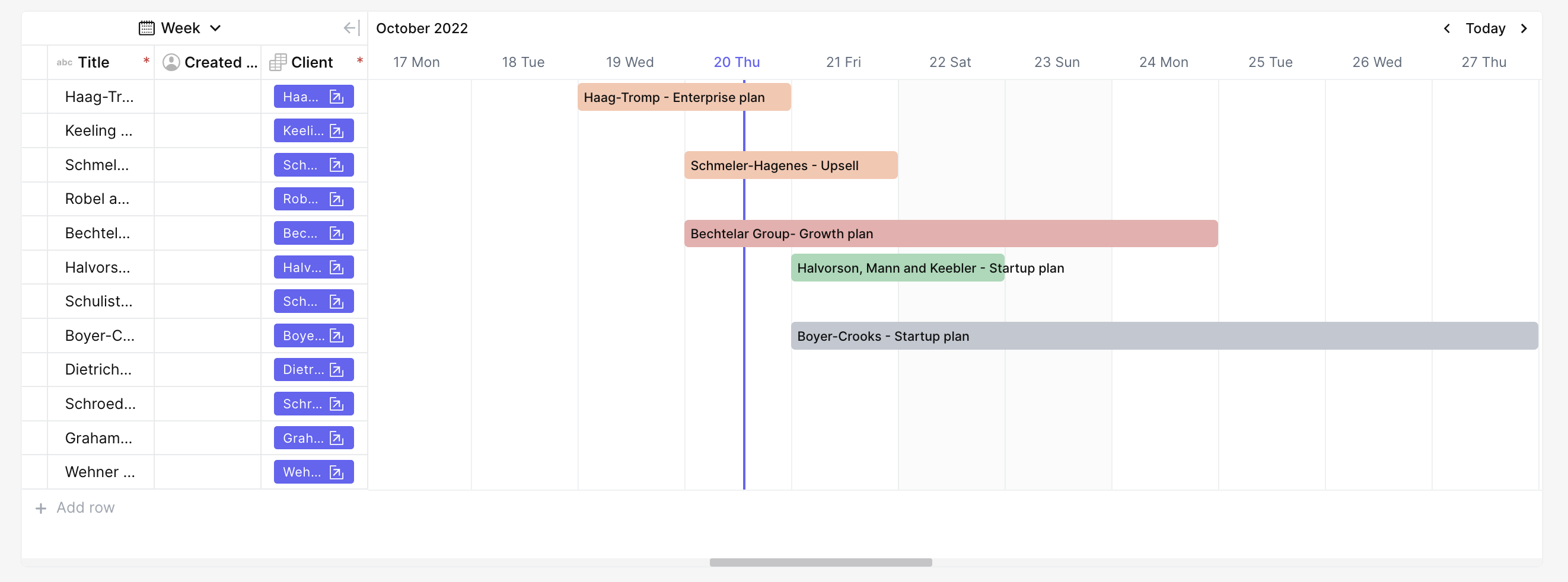
Bring your Gantt view to your App.
For instructions on how to add a block to your app, see the Blocks page.
Capabilities
- Display records from any table as a Gantt chart based on a date range field
- Color Gantt bars using a single select field
- Show additional table fields on a left-side panel alongside the chart
- Filter and sort records displayed in the chart
- Create and update records directly from the block using configurable forms
Setup
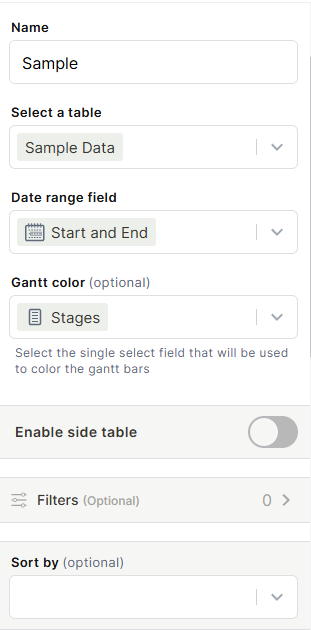
Name
Enter a name for the block.
Select a table
Choose the table the block will pull data from.
Date range field
Select the date range field from the chosen table. This defines the start and end points of each Gantt bar.
Gantt color (optional)
Select a single select field to color the Gantt bars. Each option in the field will correspond to a color on the chart.
Enable side table
Toggle this on to display a panel on the left side of the Gantt chart. Use Add existing field to choose which fields appear there.
Filters (optional)
Add conditions to limit which records are shown in the chart.
Sort by (optional)
Choose a field to sort the records displayed in the chart.
Record Creation and Update Forms
The Gantt block supports forms for creating and updating records directly from the chart. Both Record Creation form and Record Update form share the same configuration options.
For full details on form settings, see the Forms page.
Form source
Choose whether the form uses the Block form (configured within the block) or another existing form.
Edit block form
Opens the form editor to customize which fields appear and their layout.
Window style
Controls how the form opens. Options include:
- Traditional (double window)
- Triple window
- Quadruple window
- Right side window
- Full screen
- Wider form (double window)
Success behavior
Defines what happens after the form is submitted:
- Close and show success notification — closes the form and displays a confirmation message
- Keep form open — keeps the form open after submission, useful for entering multiple records in sequence
Use Cases and Examples
- Project management — visualize task timelines across a project, colored by status or team
- Resource planning — track resource allocation over time with date range fields
- Event scheduling — map out events or campaigns with a clear start-to-end visual
Keep in Mind
- The Gantt block requires a date range field in the selected table. It does not work with single date fields.
- The Gantt color field must be a single select field. Other field types will not appear as options.
- The side table only shows fields beyond the label field — the label field is always shown automatically.
- Filters apply only to what is displayed in the block and do not affect the underlying table data.
FAQ
1- Can I use a date range field from a related table?
No. The date range field must belong to the table selected in the block configuration.
2- What happens if a record has no date range filled in?
Records without a date range will not appear on the Gantt chart.
3- Can I edit records directly from the Gantt block?
Yes. The block supports a Record Update form that opens when you interact with a bar on the chart.
4- Can I have more than one Gantt block in the same app pointing to different tables?
Yes. Each block is configured independently, so you can add multiple Gantt blocks pointing to different tables in the same app.
Updated 6 months ago