
Open Record Button
The Open Record Button is a button field that, when clicked, opens a form to view and edit the record it belongs to. It appears as a clickable button directly inside the table or record view.
For instructions on how to access field types or how to add one, see Field Types.
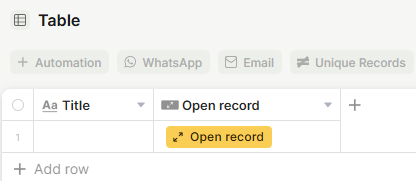
Capabilities
- Opens the assigned record in an editable form with a single click
- Customizable button label, icon, and color
- Supports three form sources: Default table form, Block form, or Import from app page
- Optional tooltip to provide context to users
Use Cases and Examples
- Operations teams can add a button that opens a custom form with only the fields relevant to a specific workflow — such as an approval or status update form — keeping the experience focused.
- Support teams can place an "Open ticket" button in a table view so agents can jump straight into editing a record without extra clicks.
- Managers can configure the button to open a block form tailored for reviewing records, while the full default form remains available for data entry.
- App builders can use multiple Open Record Buttons in the same table, each pointing to a different form, to guide different user roles through different editing flows.
How to set it up
Step 1 — Name the field
Enter a name for the field. This is the column header shown in the table.
Step 2 — Set the button label
Enter the text that will appear on the button itself (e.g., "Open record").
Step 3 — Choose an icon (optional)
Select an icon or emoji to display alongside the button label.
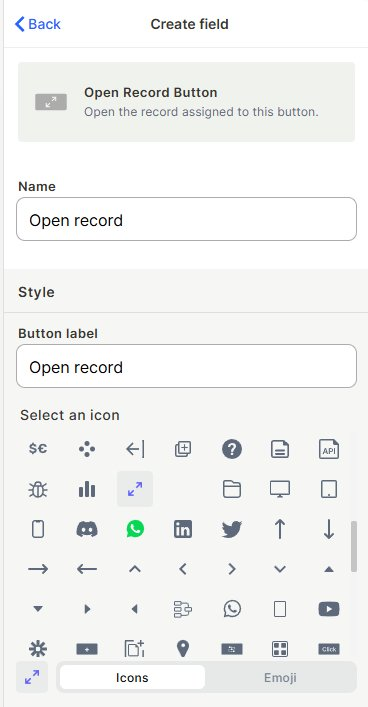
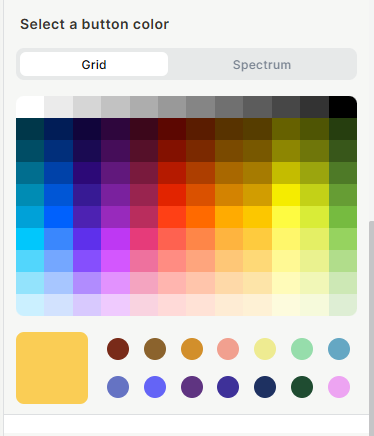
Step 4 — Choose a button color (optional)
Pick a color using the Grid (preset swatches) or Spectrum (full color picker) options.
Step 5 — Select a form source
Choose which form opens when the button is clicked:
- Default table form — uses the table's standard form
- Block form — uses a form defined in an app block
- Import from app page — pulls a form configured in an app page
Step 6 — Enable tooltip (optional)
Toggle the tooltip on to show a short description when users hover over the button.
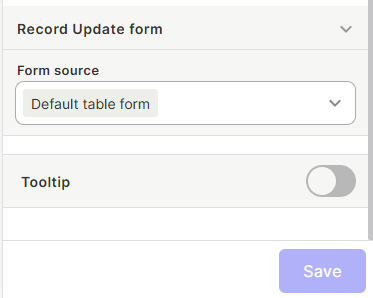
Step 7 — Click Create
Keep in mind
- The button opens the record for editing — it does not create a new record or perform any write action on its own
- The button label is independent of the field name — changing one does not change the other
- If the selected form source is deleted or becomes unavailable, the button may not work as expected
FAQ
1- What is the difference between this and just clicking on the record?
The Open Record Button lets you control exactly which form opens and gives users a clear, labeled action to interact with. Useful in views where records are not otherwise clickable.
2- Can I use a custom form instead of the default one?
Yes. In the Form source dropdown, select Block form or Import from app page to use a custom form.
3- Does clicking the button save changes automatically?
No. The form opens for editing, but the user still needs to save changes within the form.
4- Can I have multiple Open Record Buttons in the same table with different forms?
Yes. Each button field is configured independently, so you can create multiple buttons pointing to different form sources.
5- What is the difference between the field name and the button label?
The field name is the column header shown in the table. The button label is the text displayed on the button inside each record. They can be set independently.
Updated 7 months ago