
Form Conditionals
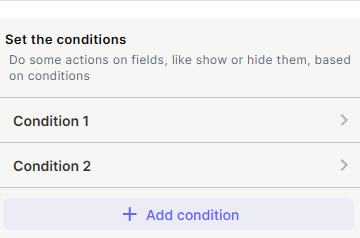
Form Conditionals let you define rules that control how fields and form blocks behave based on user input. Each condition targets one or more fields or form blocks and applies an action — like showing, hiding, or making a field required — when specific rules are met.
Capabilities
- Show or hide fields and form blocks based on conditions
- Make fields required, optional, or read-only based on conditions
- Combine multiple rules within a single condition
- Group rules for more complex logic
- Set default fields that always follow a specific condition
- Add multiple independent conditions to the same form
How to configure
Step 1
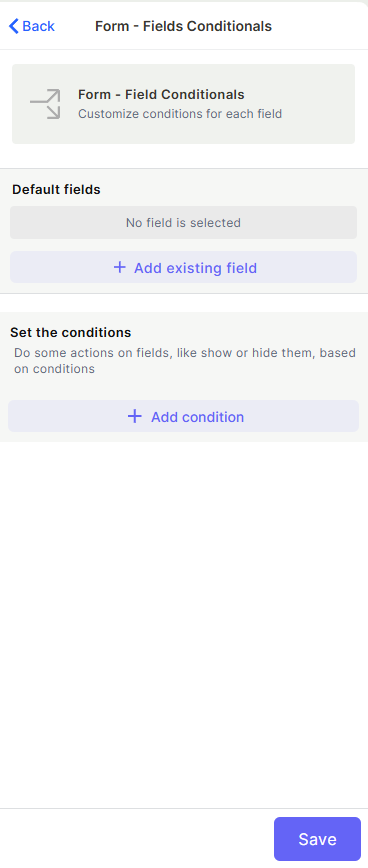
Open Form Conditionals: In the Super Form editor, go to Form Tools and click Form Conditionals.
Step 2
Add default fields (optional): Under Default fields, click + Add existing field to select fields that will have a baseline behavior applied regardless of conditions. This is useful for fields you always want visible or required from the start.
Step 3
Add a condition: Under Set the conditions, click + Add condition. A condition panel will expand.
Step 4
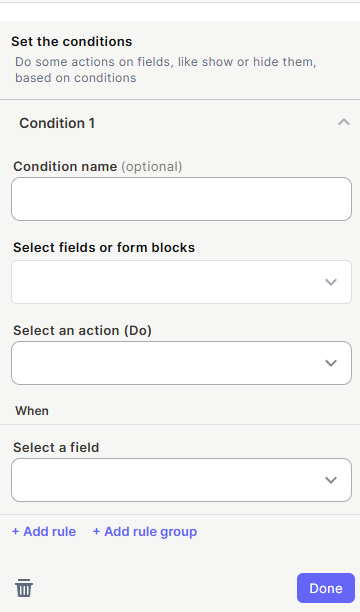
Name the condition (optional): Type a name in the Condition name field to identify this condition. This is only for your reference inside the editor.
Step 5
Select the target: Open the Select fields or form blocks dropdown and choose which fields or form blocks this condition will act on.
Step 6
Select an action: Open the Select an action (Do) dropdown and choose what happens to the selected fields or form blocks when the condition is met. The available actions are:
- Hide — Hides the field or form block
- Show — Makes the field or form block visible
- Make required — Forces the user to fill in the field before submitting
- Make read-only — Displays the field but prevents the user from editing it
- Make optional — Removes the required constraint from the field
- Show and make required — Makes the field visible and required at the same time
Step 7
Define the rules (When): Under When, open the Select a field dropdown to choose which field triggers this condition. Then define the rule — such as the value it must have for the condition to activate. Click + Add rule to add more rules to the same condition, or + Add rule group to create a grouped set of rules with its own logic.
Step 8
Save: Click Done to close the condition panel, then click Save to apply all conditions to the form.
Keep in Mind
- Hiding a field does not clear its value — if a user previously entered data in a field that is then hidden, that value may still be submitted.
- A condition applies its action only when all defined rules are met.
- You can add multiple conditions to the same form — each one is evaluated independently.
FAQ
1 — Can I apply a condition to a form block, not just a field?
Yes. The Select fields or form blocks dropdown includes both fields and form blocks, so you can show or hide structural elements like sections and spacers based on conditions too.
2 — What is the difference between adding a rule and adding a rule group?
A rule is a single criterion (e.g., "field X equals Y"). A rule group lets you combine multiple criteria with their own AND/OR logic, enabling more complex conditions like "field X equals Y AND field Z is not empty."
3 — Can I have two conditions acting on the same field?
Yes. Multiple conditions can target the same field. If their rules conflict, the last matching condition takes effect.
Updated 15 days ago