
Multiple Select
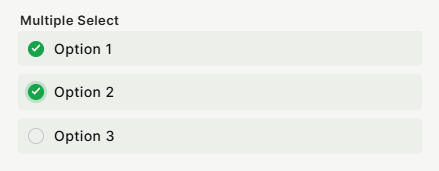
The Multiple Select field lets users pick one or more predefined options from a list. All options are created by you in advance, and users can select as many as needed at the same time.
For instructions on how to access field types or how to add one, see Field Types.
Capabilities
- Define a fixed list of selectable options
- Allow users to select more than one option simultaneously
- Set a minimum number of required selections
- Mark the field as required
- Add a tooltip to guide users on what to select
Setting it up
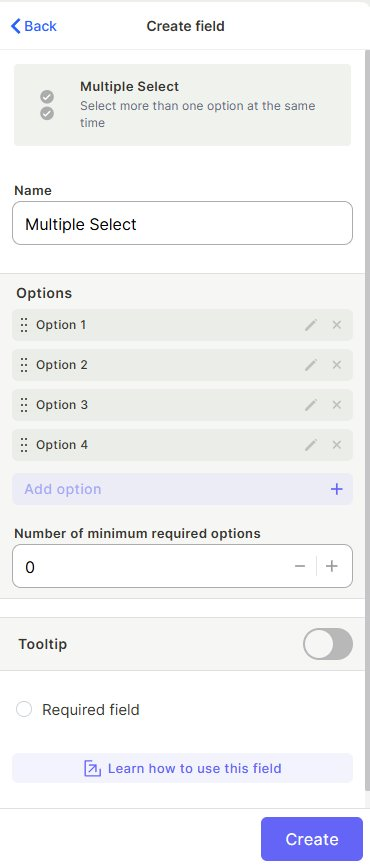
Step 1 — Give the field a name.
Step 2 — Add your options. Click Add option and type each value. You can reorder them by dragging, and edit or delete any option using the icons on the right.
Step 3 (optional) — Set a Number of minimum required options if you want to enforce that users select at least a certain number of items. Default is 0 (no minimum).
Step 4 (optional) — Enable Tooltip to add a helper text that appears when users hover over the field.
Step 5 (optional) — Check Required field to make this field mandatory before a record can be saved.
Step 6 — Click Create.
Use cases and examples
- Tagging a task with multiple labels (e.g., "Bug", "Frontend", "High Priority")
- Selecting which teams are involved in a project
- Choosing multiple product categories for an item
- Marking which channels a campaign will run on
Keep in mind
- The field does not allow users to create new options on the fly — all options must be defined in advance.
- If you delete an option that is already selected in existing records, that selection will be removed from those records.
- The minimum required options setting does not prevent saving unless combined with validation rules in your form or automation.
- Options are not ranked or ordered by selection — they appear in the order you defined them.
FAQ
1- Can I allow users to type a custom option not in the list?
No. Multiple Select only shows the options you define. If you need free-form input alongside selections, consider using a text field separately.
2- What happens to records if I rename an existing option?
The option is updated across all records that already have it selected — the change applies automatically.
3- Is there a limit to how many options I can add?
There is no documented cap, but keeping the list concise improves usability.
4- Can I set a maximum number of selections?
No. The field supports a minimum required number, but not a maximum — users can always select all options if needed.
5- Can I use Multiple Select in filters and automations?
Yes. You can filter records by whether a Multiple Select field contains, does not contain, or is empty, and use it as a condition in automations.
Updated 6 months ago