
AI Chats
AI Chats keeps every conversation you had with Jestor's AI agents in one place, so you can pick up a build, find the app it created or start a new chat.
In short
- What it is: the history of your chats with Jestor's AI building agents, such as the AI App Builder.
- How to open it: click AI Chats in the left sidebar.
- Filter: use the All, Builder and Ask tabs, and keep important chats under Bookmarked.
- Jump to the result: Go to solution opens the app built in a chat.
What is it
Every time you describe an app in the Create window or chat with an agent, Jestor saves the conversation. AI Chats is where those conversations live. Come back to any chat to keep refining your app, see what the agent did, or open the app it built. Nothing gets lost, and you can continue exactly where you stopped.
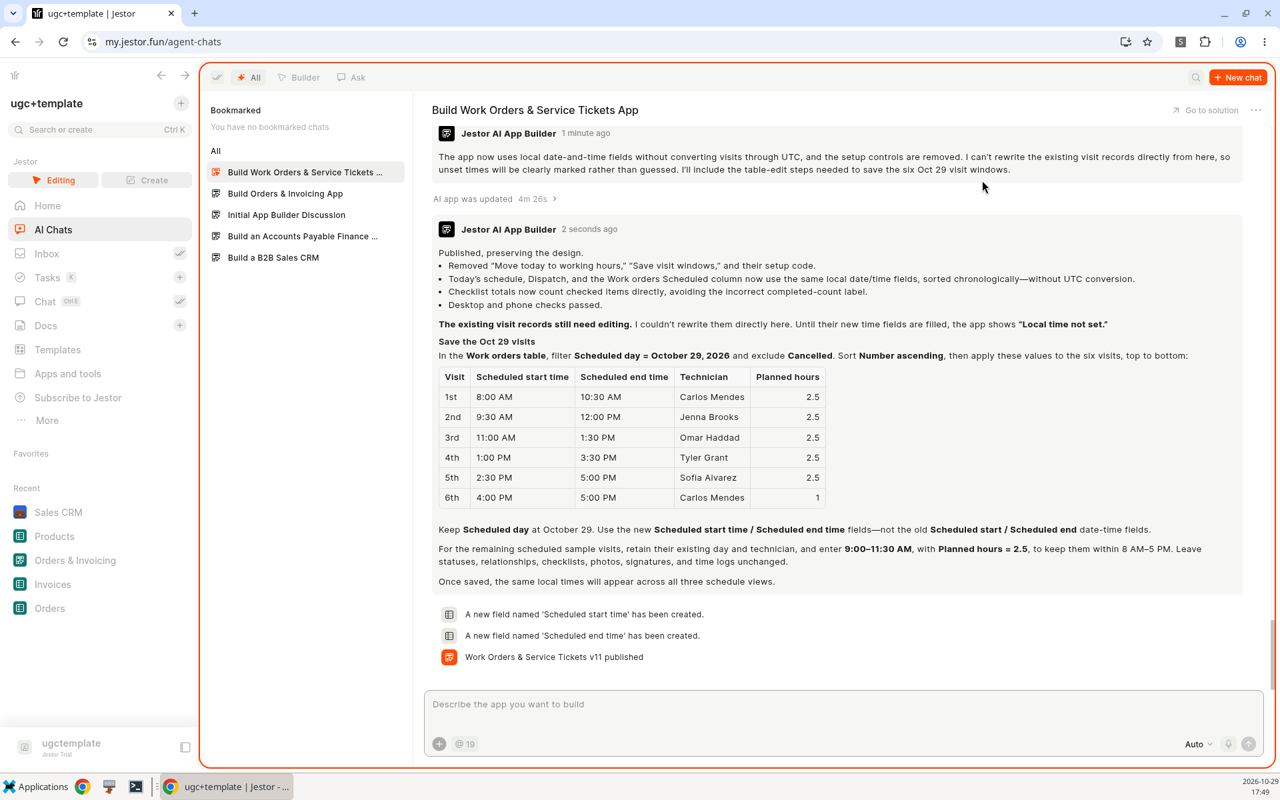
How to access
- Click AI Chats in the left sidebar.
- From the Create window, open More tools and choose New AI Chat in the Work group.
- When an agent answers, you also get a notification in your Inbox, such as "Jestor AI App Builder has a response for you".
Options
| Option | What it does |
|---|---|
| All tab | Shows all your AI chats. |
| Builder tab | Shows the chats where you built apps with the AI App Builder. |
| Ask tab | Shows the Ask chats. |
| + New chat | Starts a new chat. The AI App Builder is selected by default and the box asks you to "Describe the app you want to build". |
| Bookmarked | The list of chats you bookmarked, on the left. |
| All (list) | The list of all your chats, on the left, below Bookmarked. |
| Search | Searches your AI chats. |
| ... menu (inside a chat) | Rename chat, Copy link or Delete chat. |
| Go to solution (inside a chat) | Opens the app built in that chat. |
The chat box has the same controls as the Create window: + to add context or pick an agent, @ for table context, Auto for the mode and the microphone to record audio.
How to use
- Click AI Chats in the left sidebar.
- Pick a tab: All, Builder or Ask, or search for a chat.
- Click a chat to open it and keep the conversation going in the prompt box at the bottom, or click + New chat to start a new one.
- To open the app a chat created, click Go to solution.
- To rename a chat, copy its link or delete it, use the ... menu at the top right.
Keep in mind
- A chat and the app it built are separate items. Apps live in Apps and tools, and a deleted AI app can be restored from the Trash (see Recovering and Deleting).
- The AI building agents build apps, tables and pages. They don't create automations.
Maximize to see everythingThe AI App Builder panel can be maximized to show all your AI chats side by side with the one you're working on.
Related pages
- AI App Builder: build a complete app by chatting.
- Block Composer: build with Jestor's no-code components.
- Create window: where most chats start.
- Ask Agent: answers questions about your data.
FAQ
Where do I find a chat I had with the AI App Builder?
Click AI Chats in the left sidebar and open the Builder tab.
How do I open the app a chat created?
Open the chat and click Go to solution.
Can I rename a chat?
Yes. Open the chat, click ... at the top right and choose Rename chat.
How do I get a link to a chat?
Open the chat, click ... at the top right and choose Copy link.
How do I find an old chat?
Use the search box in AI Chats, or open the Builder tab to see the chats where you built apps.
Where are my bookmarked chats?
In the Bookmarked list in AI Chats.
Updated 5 days ago