
To-dos
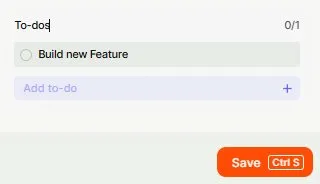
The Todo List field lets you create a checklist of activities inside a record to track the progress of your work. Each list displays the percentage of completed items, giving you and your team a clear, real-time view of how things are progressing.
For instructions on how to access field types or how to add one, see Field Types.
Capabilities
- Displays the completion percentage of checked items out of the total
- Supports multiple independent Todo List fields in the same table
- Optional setting to repeat the same checklist across all records automatically
- Allows individual, custom to-do lists per record when the repeat option is disabled
- Optional tooltip to provide context to users
Use Cases and Examples
- Project managers can use a Todo List field in a Projects table to track the required steps for each project — such as kickoff, design review, and delivery — with the progress indicator showing completion at a glance.
- HR teams can add a Todo List to a Hiring table to track each candidate's stages, such as resume review, interview, and offer, without needing to open individual records to check status.
- Operations teams can use it in a Client Onboarding table to ensure every required step is completed before marking a client as active.
- Support teams can attach a Todo List to tickets to track internal resolution steps, keeping the workflow structured without creating separate records for each sub-task.
How to Set It Up
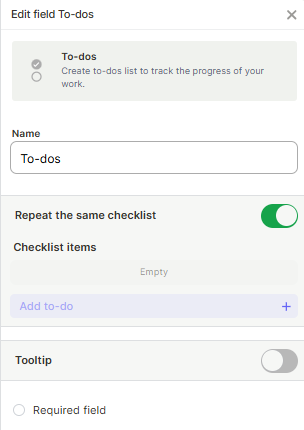
Step 1 — Name the field
Enter a name for the field. This is the column header shown in the table.
Step 2 (optional) — Enable Repeat the same checklist
Toggle this option on if you want the same to-do list to be replicated automatically across all records. Leave it off if you prefer to create individual to-do lists per record.
Step 3 (optional) — Enable Tooltip
Toggle the tooltip on to show a short description when users hover over the field.
Step 4 (optional) — Mark as Required field
Enable this if the field must be filled before a record can be saved.
Step 5 — Click Create
Keep in Mind
- The progress indicator shows the percentage of checked items out of the total. It does not calculate time, priority, or weight — all items count equally.
- When Repeat the same checklist is enabled, the same list applies to every record in the table. It is not possible to have different tasks per record while this option is on.
- This field does not support subtasks or nesting — all items are at the same level. If you need hierarchical tasks, consider using a separate linked table instead.
- The Todo List field does not trigger automations based on individual item checks — only record-level triggers are supported.
- Deleting a to-do item from a record does not affect other records, unless Repeat the same checklist is enabled.
FAQ
1 — Can I have more than one Todo List field in the same table?
Yes. You can add as many Todo List fields as needed. Each field tracks its own independent list and progress percentage.
2 — If I enable "Repeat the same checklist," will existing records update automatically?
The shared list is applied going forward. Existing records that already have custom lists may not be updated automatically — review them manually after enabling the option.
3 — Can I reorder items inside a to-do list?
Yes. You can drag and drop items to reorder them within a record's to-do list.
4 — Can I use a Todo List field to trigger an automation when all items are checked?
Not directly. The field does not have a native trigger for 100% completion. As a workaround, use a Formula field to detect when the value reaches 100% and trigger the automation from that field instead.
5 — What is the difference between a Todo List field and a Checklist field?
The Todo List field is designed for tracking progress within a single record using a dynamic checklist. If you need a simpler binary checked/unchecked structure without progress tracking, consider using a different field type depending on your use case.
Updated 6 months ago