
Top Bar
The Top Bar is a fixed navigation block at the top of your app, allowing users to move between pages, access system shortcuts, and reflect your brand through custom colors and logo.
What is it
The Top Bar is a persistent navigation block that appears at the top of every app page. It lets users switch between app pages and tables, access system shortcuts like Login, Chat, and Apps, and display a custom logo or color that reinforces the app's visual identity.
Unlike the Title Bar — which is a content block placed inside a single page — the Top Bar is part of the app's global structure and stays consistent across all pages.
When to use
Use the Top Bar when you want to:
- Let users navigate between multiple pages or tables within the same app
- Give the app a branded look with a custom color or logo
- Expose system shortcuts (Login, Chat, Apps, Notifications, etc.) directly in the navigation
- Control which pages and tables are accessible from the top navigation
How to configure
Step 1
Access the Top Bar: Open your app in edit mode and select Top Bar from the app structure panel.
Step 2
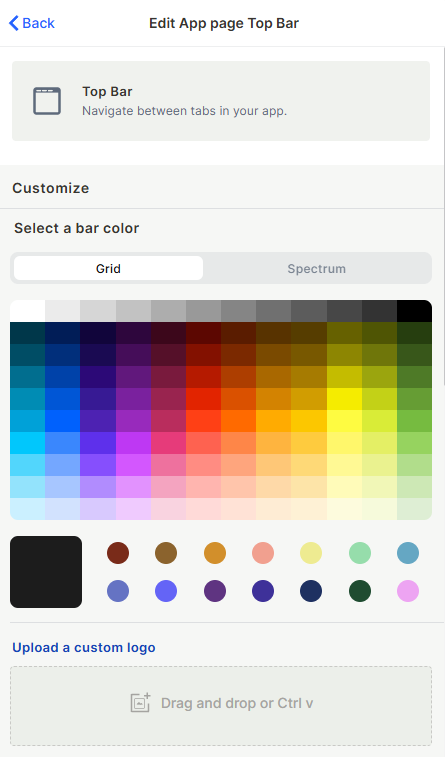
Choose a bar color: Under Customize, select a color from the Grid (preset swatches) or switch to Spectrum for the full color range. The selected color fills the entire Top Bar background. Use this to visually differentiate apps or align with a brand identity.
Step 3
Upload a custom logo (optional): In the Upload a custom logo section, drag and drop an image file or paste it with Ctrl+V. The logo appears inside the Top Bar alongside the navigation tabs.
Step 4
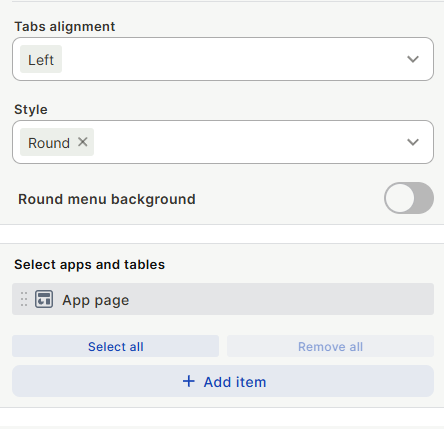
Set tabs alignment: Under Tabs alignment, choose how the navigation tabs are positioned: Left, Center, or Right. Left is the default and works well for most multi-page apps.
Step 5
Set the tab style: Under Style, choose the visual appearance of the tabs. The Round style is the default. Enable Round menu background to apply a background highlight to the active tab area.
Step 6
Select apps and tables: Under Select apps and tables, define which pages and tables appear as navigation items. Click + Add item to include a page or table. Use Select all to include everything or Remove all to clear the list. Items can be reordered by dragging.
Step 7
Configure System Shortcuts:
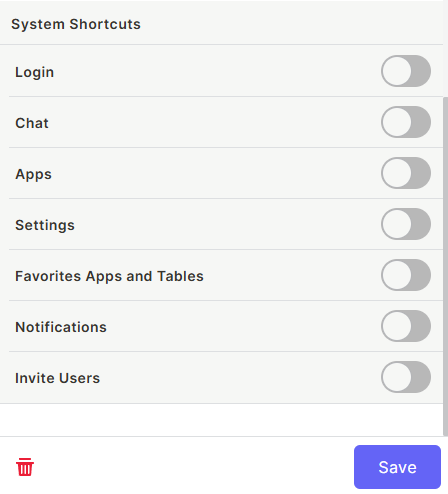
Under System Shortcuts, toggle on the shortcuts you want visible in the Top Bar:
- Login: Opens the login/logout option
- Chat: Opens the in-app chat
- Apps: Shows the apps menu
- Settings: Opens workspace settings
- Favorites Apps and Tables: Shows the user's favorited items
- Notifications: Shows the notifications panel
- Invite Users: Opens the user invitation flow
Step 8
Save: Click Save to apply all settings.
Keep in Mind
- The Top Bar is global to the app, it cannot be configured differently per page.
- The custom logo does not resize automatically, oversized images may not display correctly.
- System Shortcuts are fixed options, ou cannot add custom shortcuts beyond what is listed.
- The bar color applies only to the Top Bar background and does not affect the rest of the page layout.
FAQ
1 — What is the difference between the Top Bar and the Title Bar?
The Top Bar is part of the app's global structure and handles navigation between pages. The Title Bar is a block placed inside a specific page and handles page-level actions like record creation and search. They serve different purposes and can be used together.
2 — Can I show only some pages in the Top Bar, not all of them?
Yes. Under Select apps and tables, add only the pages and tables you want to expose. Pages not added will still exist in the app but won't appear in the top navigation.
3 — If I upload a logo, does it replace the bar color?
No. The logo and the bar color are independent. The color fills the Top Bar background and the logo displays on top of it. You can use both together.
4 — Can users reorder the navigation tabs themselves?
No. The order of tabs in the Top Bar is set by the app editor and is the same for all users.
5 — What happens if I toggle off all System Shortcuts?
The shortcuts area will be empty, but the Top Bar will still display the navigation tabs and logo/color normally.
Updated 7 months ago