
Last Message Date
The Last Message Date field updates on its own with the date and time of the last message in the record's chat, WhatsApp or email.
In short
- What you can do: track the date and time of the last message; choose the message source; choose the date format.
- How to start: Choose which source the field should track: Comments, WhatsApp, or Email.
- Keep in mind: This field only tracks one message source per field: to track Comments, WhatsApp, and Email separately, create one field for each source.
For instructions on how to access field types or how to add one, see Field Types.

Capabilities
- Track the date and time of the last message sent through a chosen source, without manual updates.
- Choose the message source the field tracks: Comments (the record's chat), WhatsApp, or Email.
- Choose the date format used to display the value.
- Add a tooltip to help users understand what the field represents.
- Use the value in automations and views to rank, sort, or flag records based on how recently a message was sent.
How to Add
Step 1
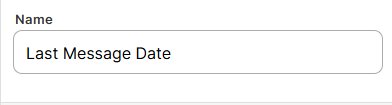
Name the field: Enter a name in the Name field to identify it in your table.
Step 2
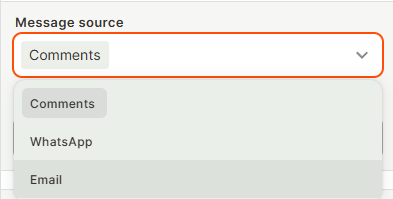
Select a message source: Choose which source the field should track: Comments, WhatsApp, or Email.
Step 3
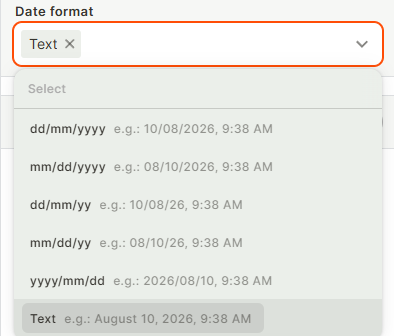
Select a date format: Choose how the date and time value is displayed.
Step 4 (optional)
Add a tooltip: Enable the Tooltip toggle and enter a short description to help users understand what this field represents.
Step 5
Create: Click Create to add the field to your table.
Use Cases and Examples
Stale conversation alerts: Combine with an automation or a colored card rule to flag records where no one has responded in a while.
Ranking and sorting: Sort records by Last Message Date to surface the ones that need a reply first.
Ticket and approval tracking: Track the last WhatsApp message or last email sent on a ticket or approval flow to monitor cases still in progress.
Automations: Use the field as a trigger condition, for example to notify a team when a set amount of time has passed since the last message.
Keep in Mind
- This field only tracks one message source per field: to track Comments, WhatsApp, and Email separately, create one field for each source.
- It does not backfill historical data: records that already existed before the field was created won't have a value until a new message is sent through the selected source.
- The field is read-only: its value is set automatically and cannot be entered or edited manually.
- It does not send notifications or trigger automations on its own: you need to build an automation using this field as a condition to act on elapsed time.
FAQ
1- What message sources can I track with this field?
You can choose between Comments (the record's own chat), WhatsApp, or Email. Each field tracks only one source.
2- Will this field show a value for messages sent before I created the field?
No. The field only starts recording data from the moment it's created. It doesn't retroactively fill in dates for messages sent earlier.
3- Can I use Last Message Date to trigger an automation?
Yes. You can use it as a trigger condition, for example to fire an automation when a certain amount of time has passed since the last message.
4- Can I track both WhatsApp and email activity on the same record?
Yes, but you'll need to add a separate Last Message Date field for each source: one set to WhatsApp and another set to Email.
5- Can I manually set or edit the value of this field?
No. The field is read-only and is always set automatically based on the last message sent through the selected source.
Updated 7 days ago