
Login Page
Login Page lets you customize the appearance of your workspace's login screen with your own branding, colors, and title.
Capabilities
- Upload a company logo to the login page
- Set a custom title for the login page
- Choose between a solid color or a custom image as the login page background
- Set a separate background color for the login options block
- Customize the login button color
- Choose which login options (Email/magic link, Username, Google, Microsoft) appear on the login page
- Reorder login options and add back any that were removed
Login page settings
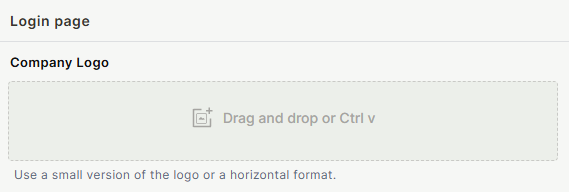
Company Logo — upload the logo to display on the login page. Use a small or horizontal format for best results. You can drag and drop the file or paste it using Ctrl+V.
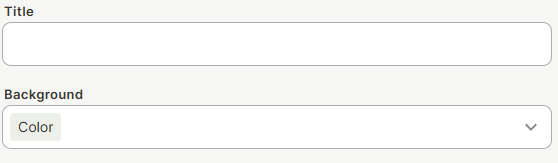
Title — add a custom title that appears on the login page, such as your company or workspace name.
Background — choose the background type using the dropdown: Color for a solid background color, or Image to upload a custom background image.
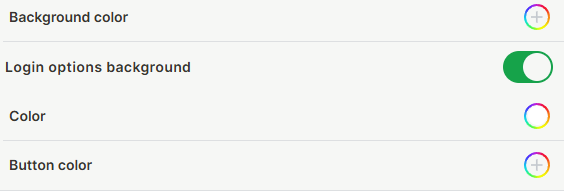
Background color — select the background color using the color picker. Only visible when Color is selected as the background type.
Login options background — toggle on to set a custom background color for the login options block (where Email, Username, Google, Microsoft, etc. are listed). When enabled, a Color picker appears to choose that color.
Button color — select the color for the login button using the color picker.
Click Save to apply changes.
Login options
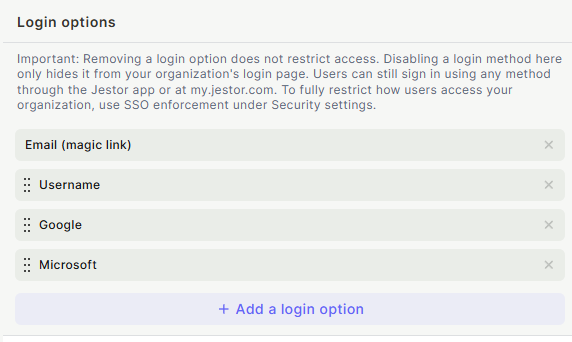
The Login options list controls which login methods are shown on the login page and in what order. Each option (for example Email (magic link), Username, Google, Microsoft) appears as a row with a drag handle to reorder it and an x to remove it from the page.
To remove a login method from the page, click the x next to it. To bring back a removed method, click + Add a login option and select it from the list. Drag any row using the handle icon to change the order the options appear in.
Important: Removing a login option does not restrict access. Disabling a login method here only hides it from your organization's login page. Users can still sign in using any method through the Jestor app or at my.jestor.com. To fully restrict how users access your organization, use SSO enforcement under Security settings.
Click Save to apply changes.
Use cases and examples
- Creating a fully branded login experience for clients accessing a white-labeled Jestor workspace
- Matching the login page colors and logo to your company's visual identity
- Simplifying the login page by showing only your organization's preferred methods, such as Google and Microsoft, while keeping the page visually clean
- Reordering login options to put your organization's preferred method first
Keep in mind
- Login Page settings are independent from the main Branding settings — changes here only affect the login screen, not the navigation bar or platform background
- The logo upload accepts drag-and-drop or Ctrl+V paste only — there is no file browse button
- Removing a login option does not restrict access — it only hides that method from your organization's custom login page. Users can still sign in with any method through the Jestor app or at my.jestor.com. To fully restrict how users can authenticate, use SSO enforcement under Security settings.
- To actually restrict which methods users can authenticate with, you need SSO enforcement in Security settings, not the Login options list
- The login options background color is separate from the main login page background color and only affects the block listing the login methods
FAQ
1- Does the login page logo need to be the same as the main bar logo set in Branding?
No. The login page logo and the main bar logo are configured independently. You can use different images for each.
2- Can I set a background image instead of a color?
Yes. The Background dropdown includes both Color and Image options. Select Image to upload a custom background image for the login page instead of a solid color.
3- Do these settings apply to all users who access the workspace login?
Yes. The login page customizations are workspace-wide and apply to anyone who opens your workspace's custom login screen.
4- If I remove a login option, does that stop users from logging in with it?
No. Removing a login option only hides it from your organization's custom login page. Users can still sign in with that method through the Jestor app or at my.jestor.com.
5- How do I actually restrict which login methods my users can use?
Use SSO enforcement under Security settings. The Login options list only controls what is displayed on the custom login page, not what is allowed.
6- Can I change the order the login options appear in?
Yes. Drag any option using its handle icon to reorder the list.
7- Can I add back a login option after removing it?
Yes. Click + Add a login option at the bottom of the list and select the method you want to add back.
8- Can the login options block have its own background color?
Yes. Turn on Login options background and pick a color with the color picker that appears.
Updated 2 months ago