
Single Option
The Single Option field lets you define a fixed list of choices and assign one of them to each record. It's also the field used to build the stages of a Kanban — each option becomes a column that cards can move between.
For instructions on how to access field types or how to add one, see Field Types.
Capabilities
- Create a custom list of selectable options
- Assign one option per record
- Use options as Kanban stages for card visualization
- Track time spent in each stage using the SLA metric
- Mark the field as required to enforce selection before saving
- Add a tooltip to guide users on how to fill the field
Setting it up
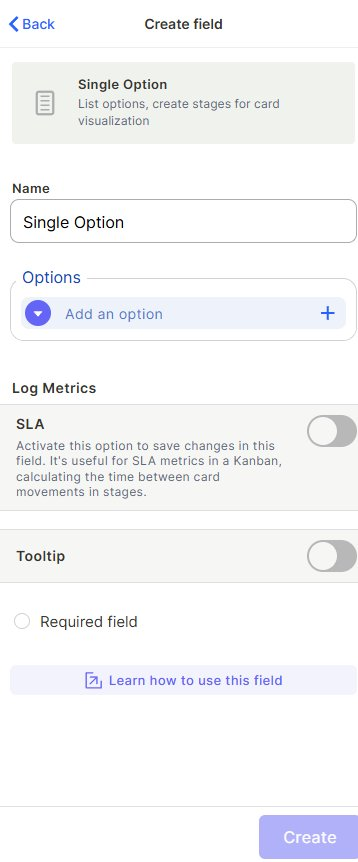
Name — Enter a label for the field that will appear in the table and on records.
Options — Click + Add an option to create each selectable value. You can add as many options as needed and reorder them by dragging. If you're using this field for a Kanban board, each option will become a stage/column.
SLA (Log Metrics) — Enable this toggle to automatically record how long a record stays in each option. Useful for measuring time between stage transitions in a Kanban workflow.]
Style — Available within the form settings, this controls how the options are displayed to the user when filling out a record. The available styles are: Standard, Standard horizontal, Standard vertical, Radio horizontal, Radio vertical, and Button like.
Tooltip — Enable to add a helper text that appears when a user hovers over the field, useful for guiding how the field should be filled.
Required field — Enable to make selecting an option mandatory before saving a record.
Use Cases and Examples
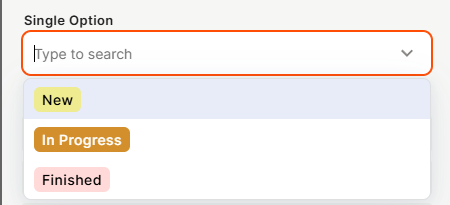
Project status tracking — Create options like "New", "In Progress", and "Finished" to track where each task or project stands. When combined with a Kanban view, each option becomes a column and cards move across the board as status changes.
Recruitment pipeline — Define stages like "Applied", "Interview", "Offer", and "Hired" to manage candidates through a hiring workflow visually on a Kanban board.
Support ticket triage — Use options like "Open", "In Review", and "Resolved" to categorize tickets and monitor resolution flow.
SLA (Log Metrics)
When you enable SLA, Jestor logs every time a record moves from one option to another, recording how long it stayed in each stage. This is useful for measuring cycle times and identifying bottlenecks in Kanban workflows.
Keep in Mind
- A record can only hold one option at a time — if you need to select multiple values, use the Multi Option field instead.
- Enabling SLA only starts logging from the moment it's activated — it does not retroactively capture previous stage transitions.
- Deleting an option does not automatically clear it from records that already have it selected.
- The field itself does not create a Kanban view — it just provides the stages. You need to configure the Kanban view separately in the table settings.
- Renaming an option may cause the system to treat it as a new stage in certain contexts — for example, renaming "New" to "News" can be interpreted as a different value in automations, SLA logs, and filters that referenced the original name. Review any dependent configurations before renaming.
FAQ
1- Can I change the order of the options after creating them?
Yes, you can reorder options by dragging them within the options list when editing the field.
2- What happens to records if I delete an option they're using?
The option is removed from the list, but records that already had it selected may retain the value as orphaned data. It's recommended to update those records before deleting an option.
3- Can I use this field to build a Kanban board?
Yes. The Single Option field is the field type used to define Kanban stages. Once you have a Single Option field with your desired stages, you can set up a Kanban view using that field to visualize and move cards between columns.
4- Does SLA measure time automatically?
Yes, once SLA is enabled, Jestor automatically records how long a record stays in each option/stage whenever it changes. No manual input is needed.
5- Can I make this field required?
Yes. Toggle Required field when creating or editing the field to prevent records from being saved without a value selected.
Updated 6 months ago