
Button
The Button block adds a clickable button to your app page that can open a URL, navigate within Jestor, or create a new record in a table.
For instructions on how to add a block to your app, see the Blocks page.
Capabilities
- Choose from three button types: go to a website or link, navigate in Jestor, or add a record
- Set a custom label for the button
- Pick a button color from a preset grid or a full color spectrum
- When using Add a record: select the target table, configure the creation form, choose the window style, and set the success behavior
Use cases and examples
Use the Button block when you want to:
- Add a shortcut that opens an external tool, documentation, or link directly from your app
- Let users navigate to another page or table in Jestor without using the top navigation
- Place a prominent "New record" button on a dashboard so users can create entries without opening a table view
- Build action-oriented pages where each button drives a specific workflow step
How to configure
Step 1
Add the block: Inside your app page in edit mode, add a Button block. The edit panel will open on the right side.
Step 2
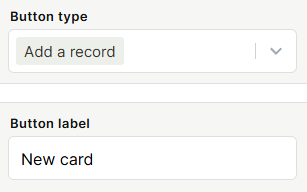
Choose the button type: Open the Button type dropdown and select one of the three options:
- Go to a website or link — opens a URL when the button is clicked
- Navigate in Jestor — redirects the user to another page or table within the platform
- Add a record — opens a form to create a new record in a selected table
Step 3
Set the button label: In the Button label field, type the text that will appear on the button. The default is "New card".
Step 4
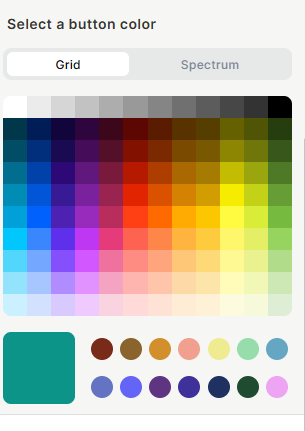
Select a color: Under Select a button color, choose a color from the Grid (preset swatches) or switch to Spectrum for the full color range.
Step 5 — Go to a website or link
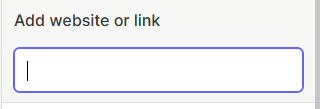
If you selected Go to a website or link, enter the full URL in the link field. The button will open that URL when clicked.
Step 5 — Navigate in Jestor
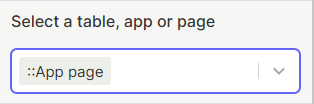
If you selected Navigate in Jestor, choose the target app page or table from the destination selector.
Step 5 — Add a record
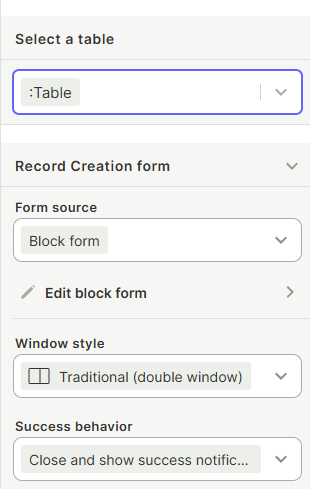
If you selected Add a record, configure the record creation settings:
- Select a table: Choose the table where new records will be created.
- Form source: Choose Block form to configure a custom form directly in the block, or select an existing form. To customize the form fields shown on creation, click Edit block form.
For more on forms, see the Forms page.
- Window style: Choose how the creation form opens — Traditional (double window), Right side window, Full screen, or Wider form (double window).
- Success behavior: Define what happens after a record is successfully created, such as closing the window and showing a success notification.
Step 6
Save: Click Save to apply all settings.
Keep in mind
- The Button block does not support conditional visibility — it always appears for all users who can see the page, regardless of permissions on the target table or URL.
- The Go to a website or link type does not validate the URL — if the link is broken or incorrect, the button will still appear but will lead to an error.
- The Add a record type creates records only in the table you select — it cannot create records across multiple tables in a single click.
- Button color is purely visual and does not affect behavior or permissions.
FAQ
1 — Can I have more than one Button block on the same page?
Yes. You can add as many Button blocks as needed to a page, each configured independently with a different type, label, color, and destination.
2 — Can I control who sees or can use the button?
The button is visible to all users who have access to the app page. Access control is handled at the table or app level, not at the block level. If a user does not have permission to create records in the target table, the form will still open but the submission may fail.
3 — What is the difference between Block form and another form source in the Add a record type?
Block form lets you define a custom set of fields specifically for this button's creation flow, independently of other forms in your workspace. Selecting an existing form reuses a form already configured elsewhere. Use Block form when you want a focused, minimal creation experience tailored to this button.
4 — Can the button open the link in a new tab?
This depends on the browser and app configuration. The Go to a website or link type follows standard browser behavior — external URLs typically open in a new tab.
5 — Can I rename the button after creating it?
Yes. Open the block's edit panel at any time and update the Button label field. The change takes effect after saving.
Updated 6 months ago