
Custom Automation Agent
Custom Automation creates and edits Python low-code functions and triggers from a prompt, and shows the code in the chat.
In short
- What it is: an AI agent, called Custom Automation, that creates and edits Python low-code functions and triggers from a prompt, inside Agents.
- You don't need to know how to code. The agent still generates custom, powerful code for more complex implementations and integrations.
- What you can do: generate or change low-code functions and triggers through conversation, review the code in the chat, open it with Go to function, and test it from a test card that you run yourself.
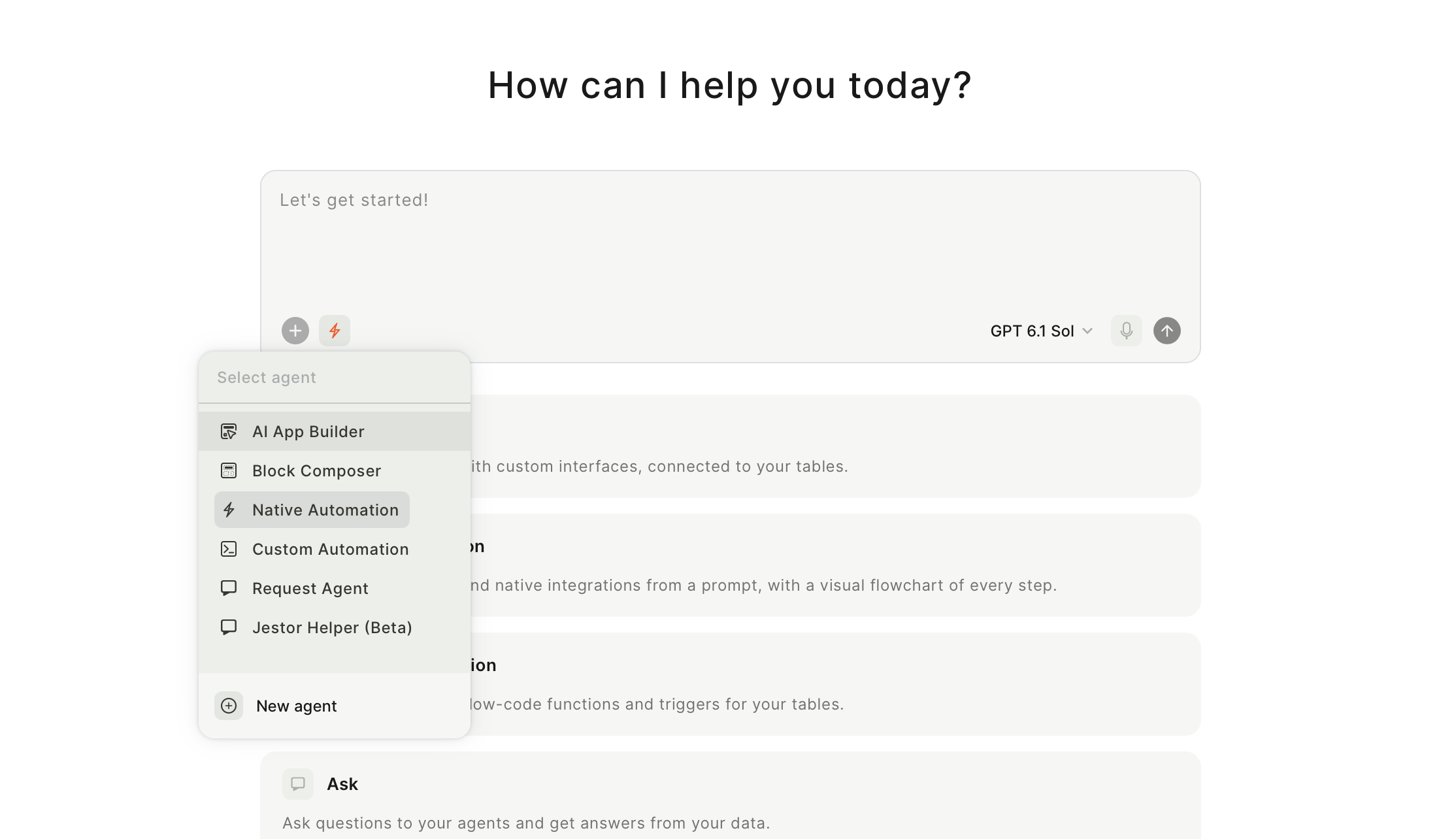
- How to start: in the left sidebar, click Agents, then click the lightning icon in the composer and choose Custom Automation in Select agent.
- Keep in mind: the agent does not run the function for you. A test card appears in the chat, you click Run test, and the agent then confirms whether it worked. This agent uses AI credits.
What is it
Custom Automation is Jestor's in-product agent for Python low-code functions and triggers. You describe what you need, and the agent creates or edits the function through the conversation, the same way Native Automation does for automations.
You don't need to know how to code. The agent still generates custom, powerful code for more complex implementations and integrations.
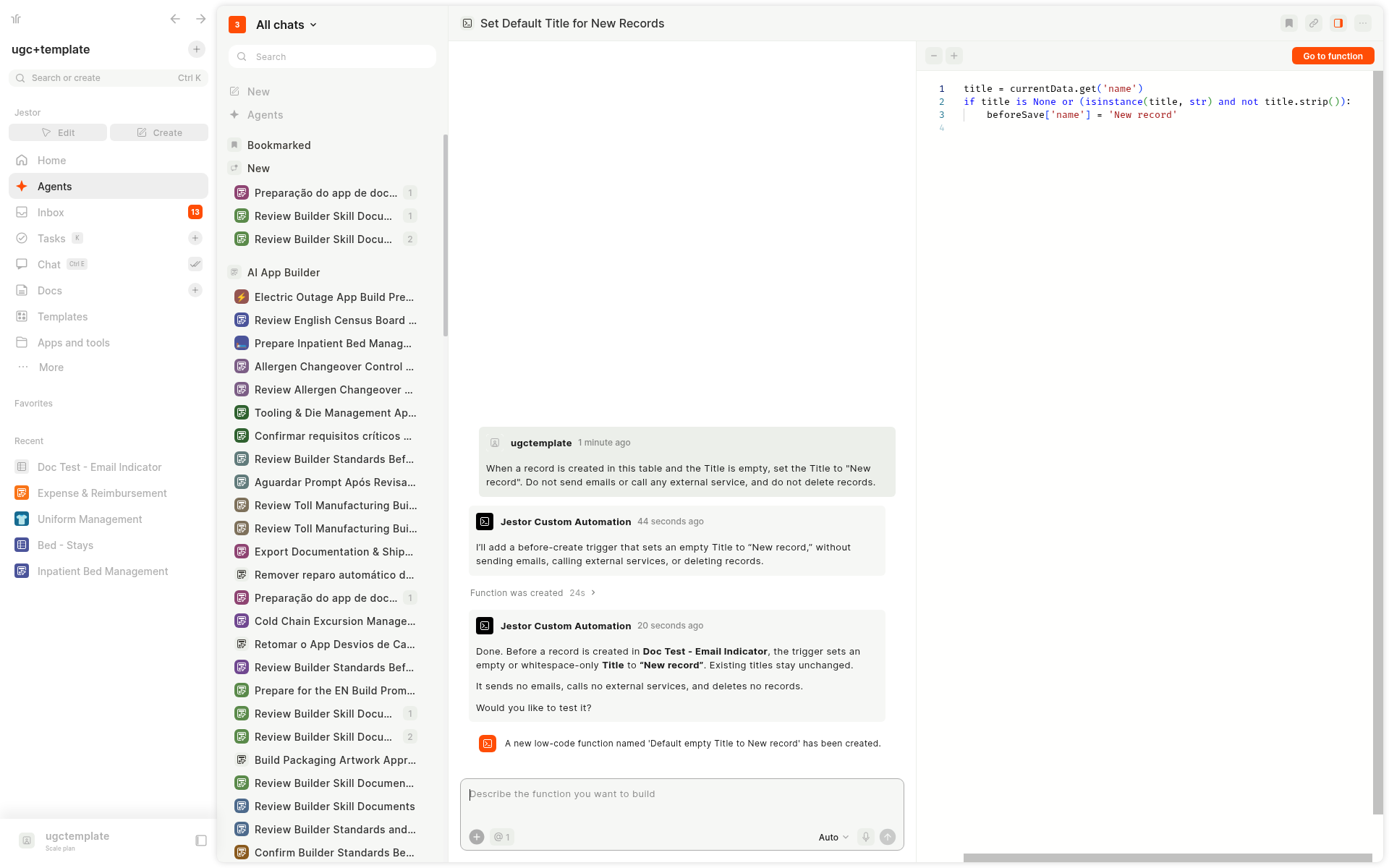
In the chat, the agent appears as Jestor Custom Automation. It greets you with: "Hey! Jestor Custom Automation here! I can create and edit Python low-code functions and triggers for your tables, just describe what you need."
When a function is created, the chat confirms it with a message such as "A new low-code function named '...' has been created." A side panel icon in the chat header opens the generated code, and Go to function in the header opens the function in the low-code editor. See Accessing the Developer Area and The code editor.
Describe the function you want to build. The agent writes the code and shows it in the side panel. Use Go to function to open it in the editor.
When to use
Use Custom Automation when you want to:
- Create or edit a Python low-code function or trigger from a prompt, instead of writing all of the code by hand
- See the code in the chat as the agent works
- Test a function with the agent's help, while you stay in control of when the test runs
Use Native Automation when you want an automation or a native integration, with a visual flowchart of every step. Native Automation is the default agent in Select agent.
Open the Developer Area when you prefer to write or finish the code yourself in the low-code editor.
How to access
The main way to open Custom Automation is from Agents. In the left sidebar, click Agents. In the composer, click the lightning icon and choose Custom Automation in Select agent. The list also includes AI App Builder, Block Composer, Native Automation (the default), Request Agent, Jestor Helper (Beta) and New agent.
You can also open it in these ways:
- From a table. In the top right of the table, open the ... menu, click Manage automations, then Create new automation. The panel has the AI Automation Builder and Manual tabs. In the composer, click the lightning icon and choose Custom Automation.
- From Create. Click Create, open More tools, then New Automation, and choose Custom Automation in Select agent.
- From the New tab. In Agents, open the New tab and pick the Custom Automation card.
On the full-page chat, the placeholder reads Describe the function you want to build. In the table panel, it reads Describe your automation and we'll compose it ...
How to use
- Open Custom Automation using one of the paths above.
- Select a table if one is not already in context. The composer can show how many tables you have selected (for example, @ 1).
- Describe the function or trigger you want to create or edit.
- Review the code in the side panel. Use Go to function to open it in the low-code editor (see The code editor).
- If you want to test it, use the test card in the chat (see Testing below).
Your conversations live in Agents, like other AI chats. See AI Chats.
Example prompts
- "When a record is created and the Title is empty, set the Title to New record."
- "Update this trigger so it only runs when the priority is High or Urgent."
The code editor
To open the low-code editor from the chat, click Go to function in the header, or open the function in the Developer Area.
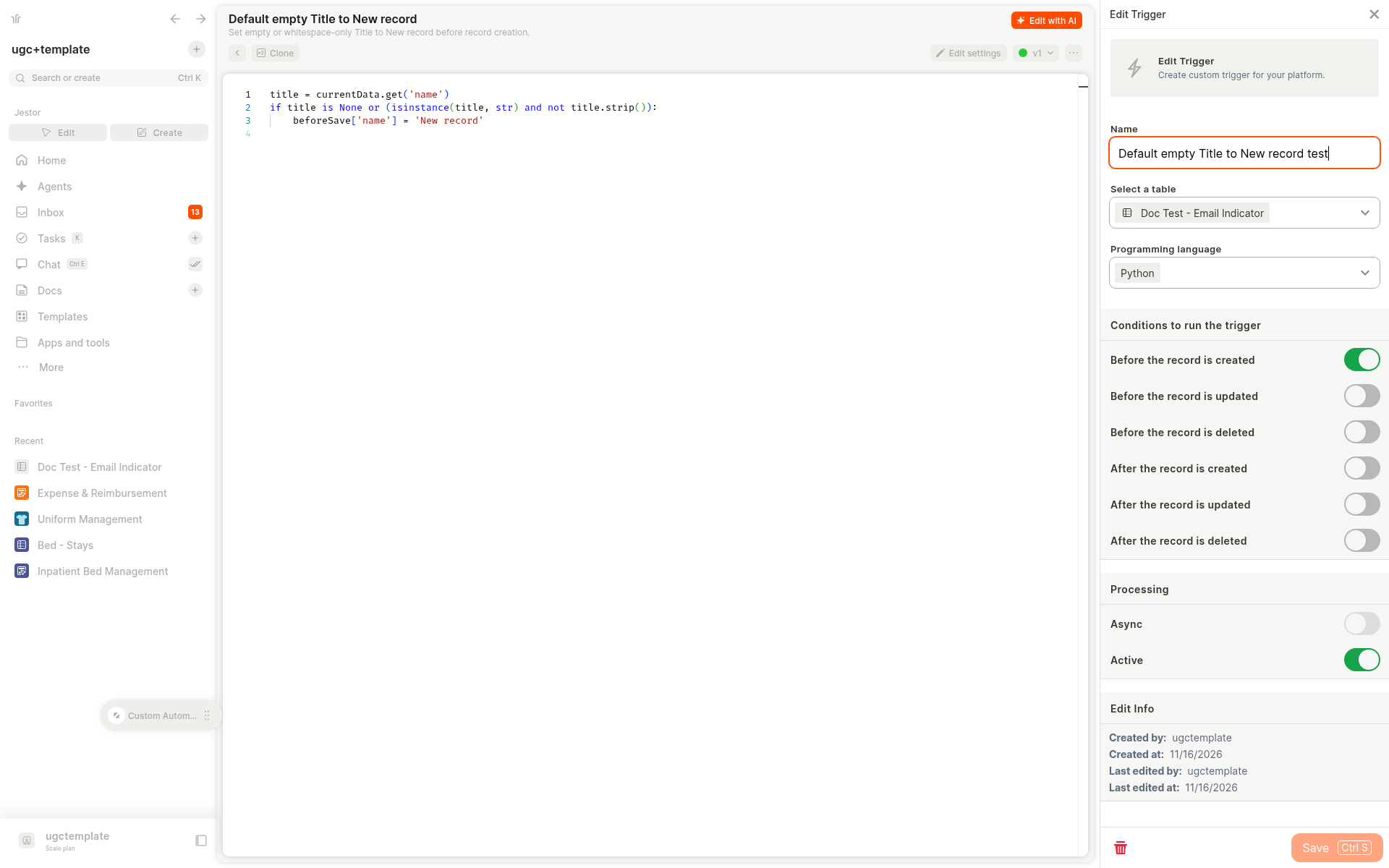
The editor has the code in the middle. The header has:
- <, which goes back to the Developer Area
- Clone, which creates a copy
- Edit settings, which opens the settings panel
- A version tag, such as v1
- Edit with AI
Save (Ctrl+S, ⌘S on Mac) appears at the bottom right after you make an edit.
If you are editing a trigger, Edit settings opens the Edit Trigger panel. You can set the name, the table, and the programming language (for example, Python). Under Conditions to run the trigger, you can turn on Before or After the record is created, updated, or deleted. Under Processing, you can set Async and Active.
For more detail, see Accessing the Developer Area.
Testing
Custom Automation does not run the function itself. Running it would use your tokens. Instead, the agent prepares a test and shows a test card in the chat. The card is titled Test of the function followed by the function name. The subtitle says A test record will be created in the table with: and lists the field values. Click Run test when you are ready. While it runs, the card can show Running test.... After it finishes, the card shows Test executed, and the agent confirms the result, for example The test passed: the record's empty Title became "New record".
The agent also warns that this creates a real record, and that any other table automations and triggers also run. Read the test card before you run it.
Testing also works for external tests. In that case, the agent guides you through what to do outside Jestor and then helps you confirm the result.
The same kind of testing flow is available in Native Automation.
Even so, it is always important to test your automations before relying on them. Use the test card in the chat.
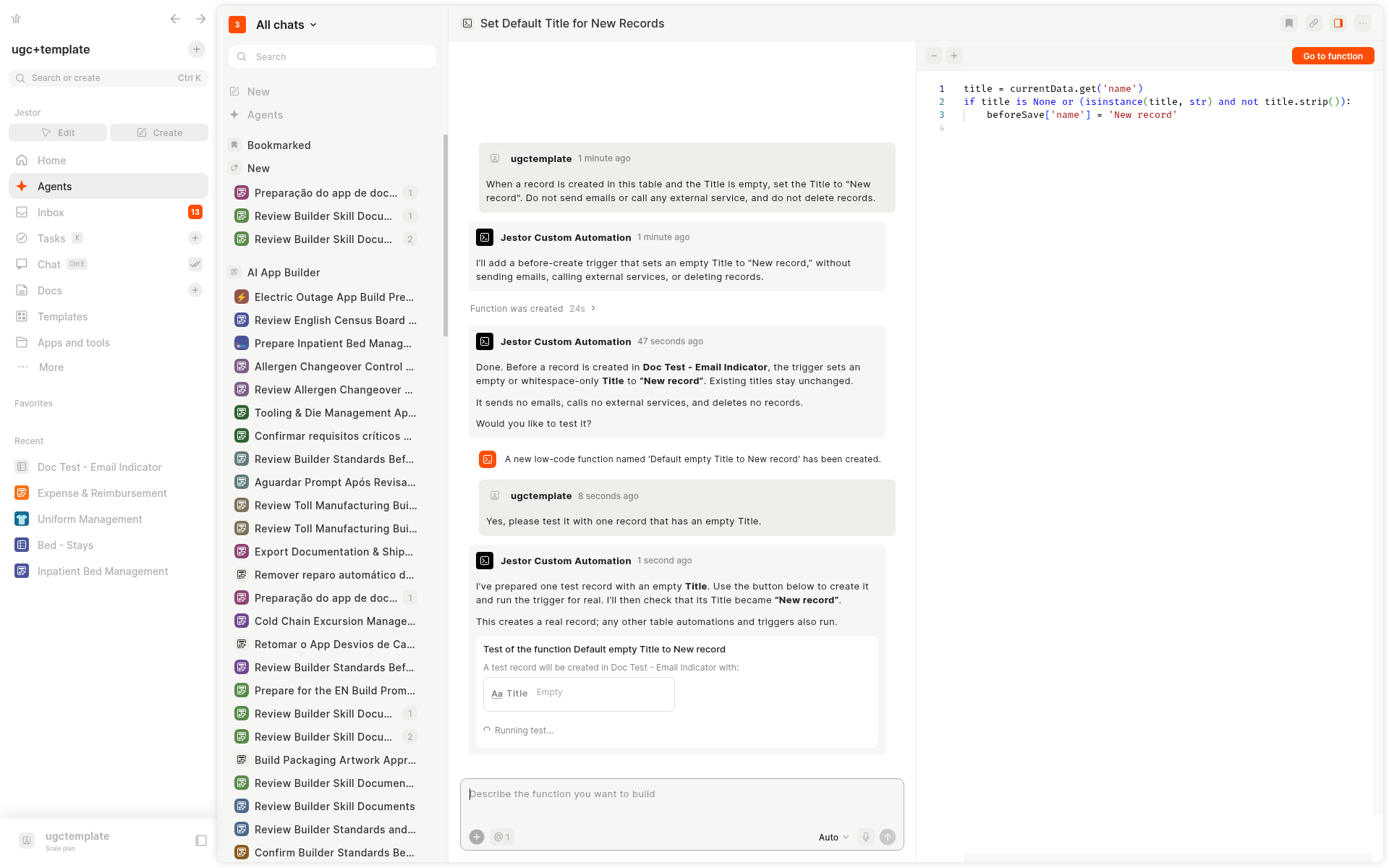
After the test finishes, the card shows Test executed, and the agent confirms the result.
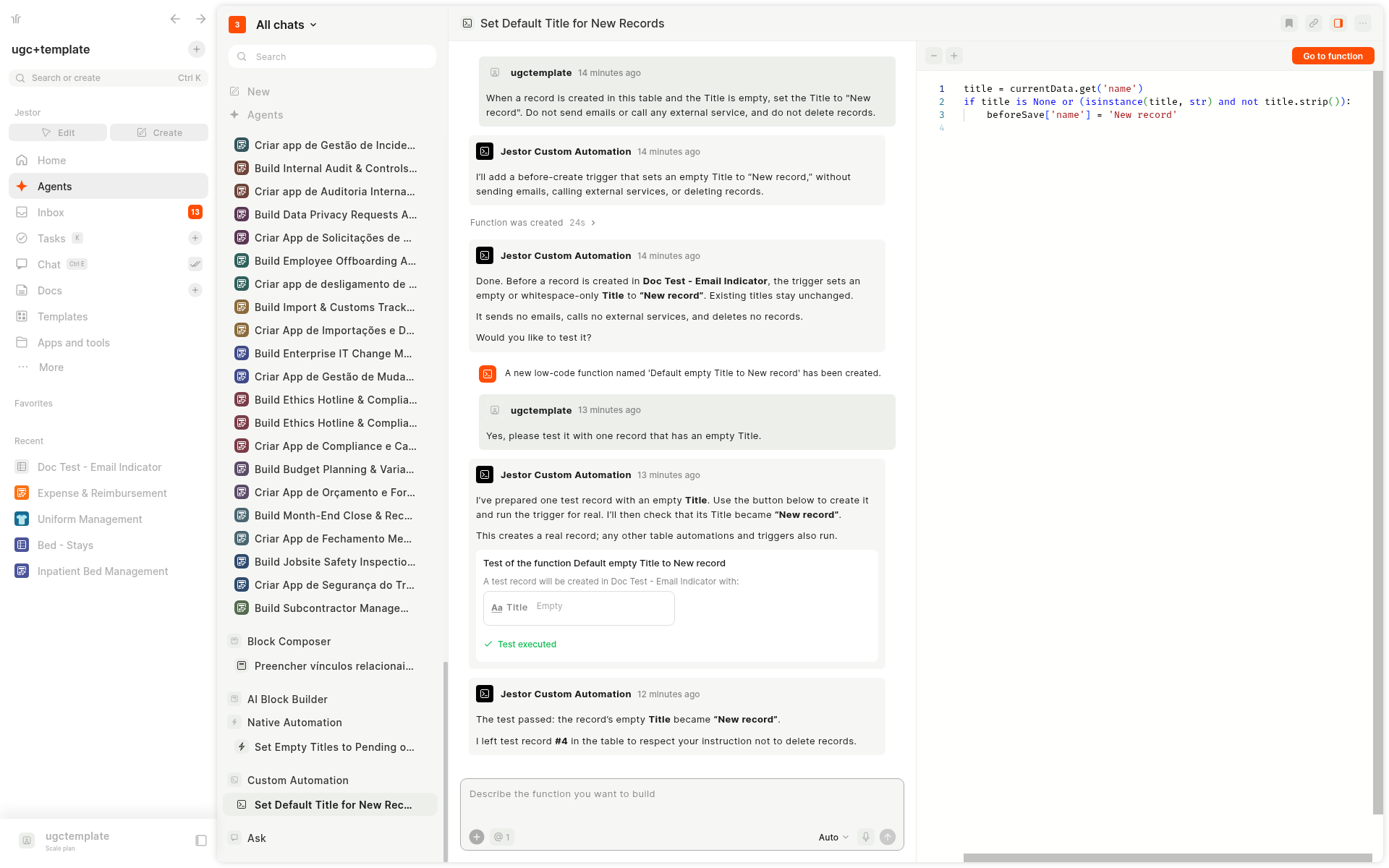
You run the testThe agent prepares the test and reads the result, but you are the one who runs it. That keeps your tokens under your control. The test creates a real record, and other automations and triggers on the table also run.
Keep in mind
- This agent uses AI credits. See AI Credits.
- It creates Python low-code functions and triggers. You can open them in the Developer Area to review or edit the code.
- The agent does not run tests for you. Use Run test on the test card, then wait for the agent to confirm the result.
- Tests create a real record, and other automations and triggers on the table also run. Review the test card first.
Related pages
- Native Automation: the agent that generates automations and native integrations from a prompt. It is the default in Select agent.
- Accessing the Developer Area: open the low-code editor to write or review code yourself.
- Native AI Agents
- AI Chats: conversations live in Agents.
- Automation
- AI Credits
FAQ
1. How is this different from Native Automation?
Native Automation builds automations and native integrations from a prompt, and shows a visual flowchart of the steps. It is the default agent in Select agent. Custom Automation creates and edits Python low-code functions and triggers through conversation, and shows the code in the chat.
2. Does the agent run the function when it tests it?
No. The agent prepares a test card in the chat. You click Run test, then the agent confirms whether it worked, for example The test passed: the record's empty Title became "New record".
3. Can I still edit the code myself?
Yes. Click Go to function in the chat header, or open the function in the Developer Area. See The code editor.
4. Does this use AI credits?
Yes. Custom Automation uses AI credits from your plan. See AI Credits.
5. Where do I find a past Custom Automation chat?
Click Agents in the left sidebar and look in the conversation list, or use the search box. See AI Chats.
6. Do the functions this agent creates use anything besides AI credits?
Yes. The agent uses AI credits while it creates or edits the function. When the function or trigger later runs, it also consumes Processing Units (PUs). See Usage and Rate Limits.
Updated about 6 hours ago