
Radio Select
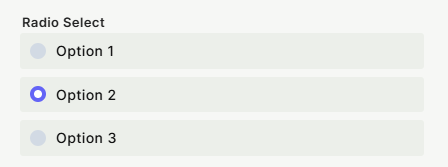
A single-choice selection field that displays options as radio buttons. Users can pick only one option from a predefined list.
For instructions on how to access field types or how to add one, see Field Types.
Capabilities
- Define a fixed list of selectable options
- Restrict selection to one option at a time
- Use options as Kanban stages for card visualization
- Add a tooltip to guide users on what to select
- Mark the field as required
Setting it up
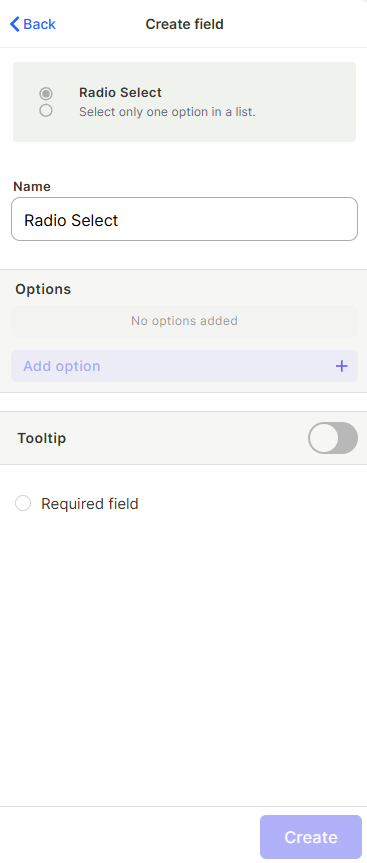
Step 1 — Give the field a name.
Step 2 — Add your options. Click Add option and type each value. You can reorder them by dragging, and edit or delete any option using the icons on the right.
Step 3 (optional) — Enable Tooltip to add a helper text that appears when users hover over the field.
Step 4 (optional) — Check Required field to make this field mandatory before a record can be saved.
Step 5 — Click Create.
Use cases and examples
- Selecting a priority level for a task (e.g., Low, Medium, High)
- Choosing the status of a request from a fixed set of stages
- Picking a payment method from a list of predefined options
- Defining the type of a record when only one category applies
- Building a Kanban board — each option becomes a stage/column that cards can move between
Keep in mind
- This field does not allow selecting multiple options — only one option can be chosen per record. For multi-selection, use the Multiple Select field instead.
- This field does not support free-text input — users can only select from the options you define.
- Deleting an option after records have been created does not automatically clear existing records that already have that option selected.
- The field does not display a default selected option — it starts empty unless a value is set via automation.
FAQ
1- What is the difference between Radio Select and Single Option?
Both allow selecting only one value, but Radio Select displays all options as visible radio buttons, making it easier to compare choices at a glance. Single Option uses a dropdown menu, which works better when you have many options or want a more compact layout.
2- Can I reorder the options after creating the field?
Yes. You can edit the field at any time to reorder, rename, or remove options.
3- Can I add more options after the field is already in use?
Yes. Adding new options does not affect data already stored in existing records.
4- What happens if I delete an option that is already selected in some records?
Those records will retain the value visually until they are edited. Review existing records before removing an option.
5- Can I use Radio Select values in formulas or automations?
Yes. The selected option is treated as text and can be referenced in formula fields and used as conditions or values in automations.
Updated 6 months ago