
App Versioning
App Versioning allows you to edit your application without affecting what your users see. You can build, test, and refine new versions while keeping a stable published version running for everyone else.
Capabilities
- Create multiple versions of your app automatically as you edit
- Set any version as the published version (visible to all users)
- Edit freely without impacting users on the published version
- Navigate between versions to review changes
- Restore a previous version by selecting and editing it
How it works
Every time you make a change and save — by clicking Build, pressing F5, or letting auto-save run — Jestor generates a new version of your app. You can then choose which version is published and which one you are actively editing. Users always see only the published version.
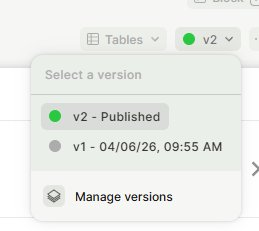
Step 1 — Open the version selector by clicking the version tag (e.g., v2) in the top bar of your app.
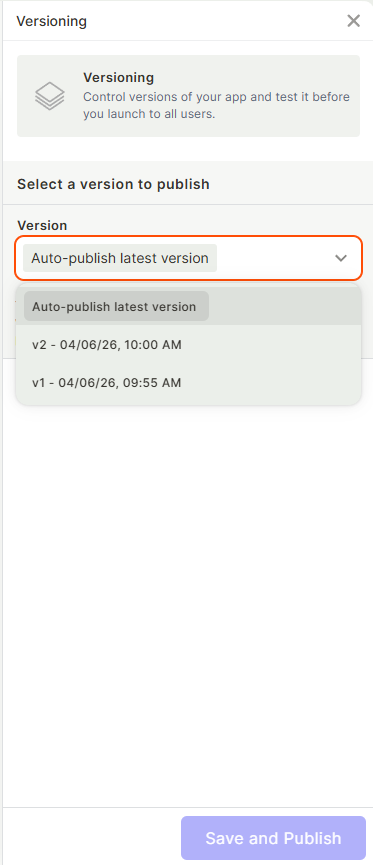
Step 2 — Click Manage versions to see all saved versions and control which one is published.
Step 3 (optional) — To pin a specific stable version as the published one, select it in Manage versions and set it as the published version. By default, Jestor is set to auto-publish the most recent version.
Step 4 (optional) — To branch off a previous version, navigate to it in the version selector and click Edit. Jestor creates a new version based on it, which you can then modify and publish.
Use cases and examples
Editing without disrupting operations — Your app is being used in real time. Set a stable version (e.g., V4) as the published version, then make all your changes freely. Users continue seeing V4 while you work on newer versions.
Rolling back to a working state — You made changes that didn't work out. Navigate to a previous stable version, open it for editing, and publish it — without having to rebuild anything from scratch.
Testing layout or design changes — You want to try a new color, resize a component, or reorganize blocks. Make the changes in an unpublished version and preview the result before deciding to go live.
Keep in mind
- New versions are generated when you click Build, press F5, or when auto-save runs. Auto-save happens as you edit, so you do not need to force it manually.
- Navigating to a previous version and clicking Edit does not overwrite that version — it creates a new version based on it.
- If auto-publish most recent version is enabled, every new version you generate immediately becomes the published version. Users will see changes right away.
- Only builders see the version selector. Members and users always see the published version, regardless of what version the builder is currently editing.
FAQ
1- What is the difference between the version I am editing and the published version?
The published version is what your users see when they open the app. The version you are editing is your working draft — changes there do not affect users until you publish that version.
2- Do I need to manually save each version?
No. Jestor auto-saves and generates versions as you work. You can force a new version immediately by clicking Build or pressing F5.
3- Can I go back to a version I created days ago?
Yes. All saved versions are listed in Manage versions. You can navigate to any of them, open it for editing, and publish it at any time.
4- If I am on auto-publish, will users see my changes immediately?
Yes. With auto-publish most recent version enabled, every new version generated becomes the published version right away. To prevent this, manually set a specific stable version as the published one in Manage versions.
5- Does editing a previous version overwrite it?
No. When you select a previous version and click Edit, Jestor creates a new version based on it. The original version is preserved.
Updated 6 months ago