
Apps and tools
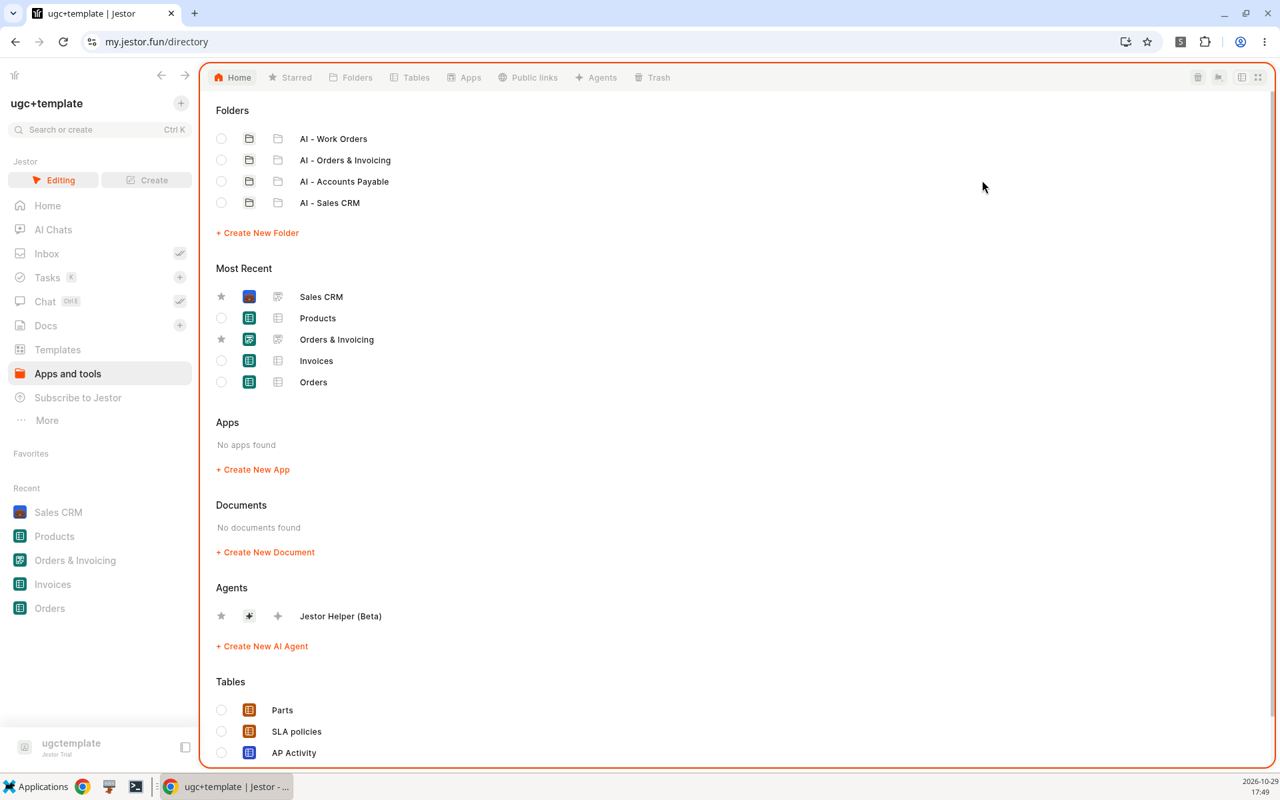
Apps and tools is the directory of your workspace: folders, apps, tables, public links and agents in one place, plus a Trash to restore what was deleted.
In short
- What it is: the directory of your workspace, with tabs for Home, Starred, Folders, Tables, Apps, Public links, Agents and Trash.
- How to open it: click Apps and tools in the left sidebar.
- Organize: star what you use most and group apps and tables into folders.
- Restore: open Trash to bring back deleted app pages, AI apps and tables.
What is it
As your workspace grows, Apps and tools keeps it easy to find your way around. It brings together your folders, apps, tables, documents, public links and AI agents, so you can open any of them in one click. It is also home to the Trash, where deleted app pages, AI apps and tables wait until you restore them or delete them for good.
How to access
- Click Apps and tools in the left sidebar.
- To open the Trash directly, open Settings and click Trash in the General group, or search for "Recovery" in the Action Bar.
Options
Tabs
The tabs on the left organize everything in your workspace:
| Tab | What it shows |
|---|---|
| Home | An overview with sections for Folders, Most Recent, Apps, Documents, Agents and Tables |
| Starred | The items you starred |
| Folders | Your folders |
| Tables | Your tables |
| Apps | Your apps |
| Public links | Your public links |
| Agents | Your AI agents |
| Trash | Deleted app pages, AI apps and tables |
Create from the Home tab
The sections on the Home tab have their own buttons to create something new: + Create New Folder, + Create New App, + Create New Document and + Create New AI Agent.
You can also create a folder from the Create window: press C, click More tools and choose New Folder in the More group.
Trash
The Trash has one section for each type of structure:
| Section | What it lists |
|---|---|
| Excluded App Pages | App pages that were deleted |
| Excluded AI Apps | AI apps that were deleted |
| Excluded Tables | Tables that were deleted |
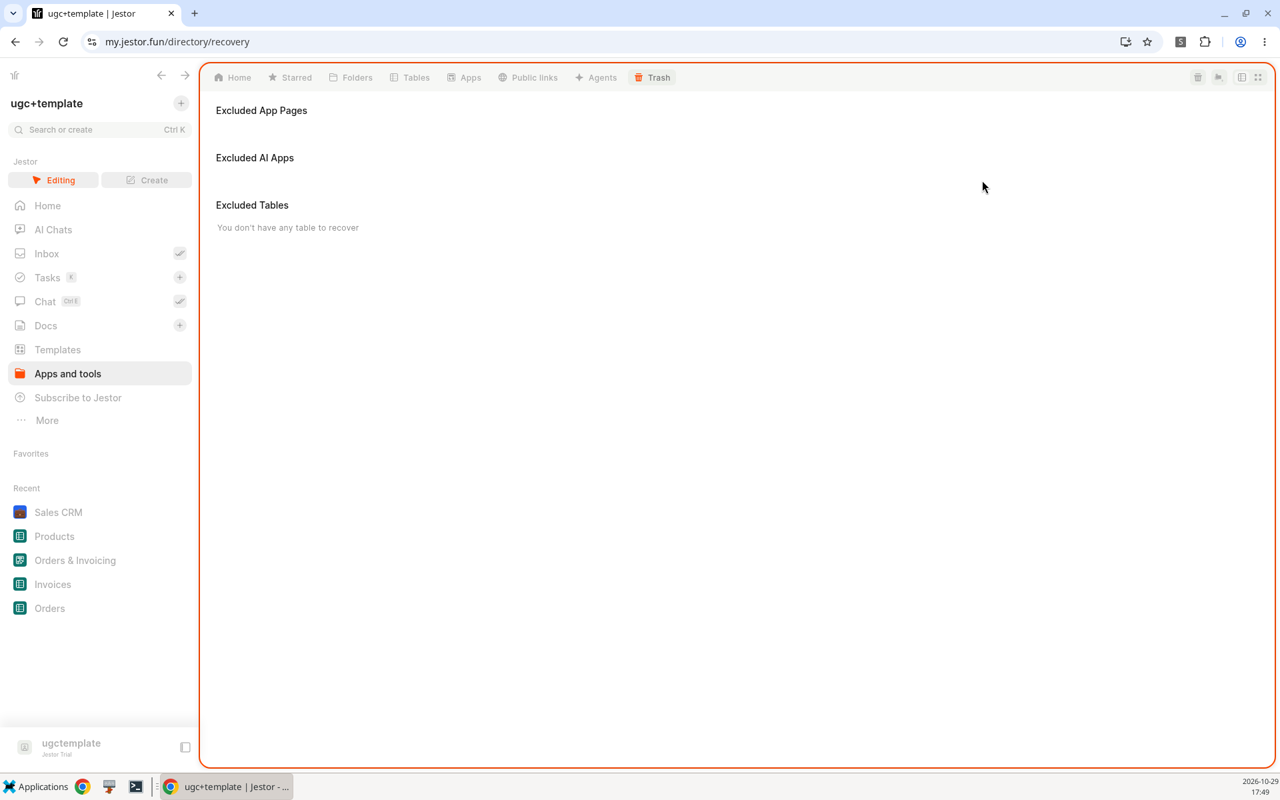
Deleted records and table fields are not here. They are in each table's own trash. See Recovering and Deleting.
How to use
Find an app or table
- Click Apps and tools in the left sidebar.
- Pick a tab on the left, such as Tables or Apps, or stay on Home to see the most recent items.
- Click an item to open it.
Restore a deleted app page, AI app or table
- Open Apps and tools > Trash, or Settings > Trash.
- Go to the section you need: Excluded App Pages, Excluded AI Apps or Excluded Tables.
- Select the item and restore it.
Keep in mind
- An item stays in the Trash until someone deletes it permanently from there. After that it can't be recovered.
- Records and fields have their own trash inside each table (table > tools > trash).
Deleted an AI app by mistake?Open Apps and tools > Trash, go to Excluded AI Apps and restore it.
Related pages
- Recovering and Deleting Structures and Data: what can be recovered and when a deletion becomes permanent.
- Menu: the left sidebar and its sections.
- Create window: create apps, tables and folders.
- AI App Builder: build a complete app from a description.
- Bulk Delete: delete several tables, apps and folders at once.
FAQ
Where is the Trash?
In Apps and tools > Trash, or in Settings > Trash. You can also search for "Recovery" in the Action Bar.
Can I restore a deleted AI app?
Yes. Open the Trash, go to Excluded AI Apps, select the app and restore it.
Why can't I find a deleted record in the Trash?
Records and fields are kept in the table's own trash, not in the workspace Trash. Open the table and go to tools > trash.
How do I group apps and tables?
Create a folder with + Create New Folder on the Home tab of Apps and tools, or with New Folder in the Create window (More tools > More).
Where do I find my AI agents?
In the Agents tab of Apps and tools. The Home tab also has an Agents section with + Create New AI Agent.
Updated 5 days ago