
YouTube
The YouTube block embeds a YouTube video directly inside an app page, letting users watch content without leaving the app.
For instructions on how to add a block to your app, see the Blocks page.
Capabilities
- Embed any YouTube video via URL or embed code
- Control autoplay, loop, and video controls visibility
Use cases and examples
Use the YouTube block when you want to:
- Embed a tutorial or onboarding video inside an app page
- Display a product demo or walkthrough alongside related tools or records
- Include a training video directly in an internal app for team reference
How to configure
Step 1
Add the block: Inside your app page in edit mode, add a YouTube block. The edit panel will open on the right side.
Step 2
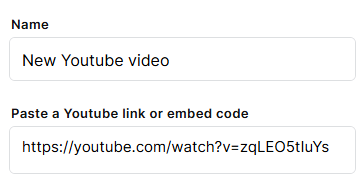
Set the name: In the Name field, enter a label to identify this block inside the editor.
Step 3
Paste the video link: In the Paste a YouTube link or embed code field, enter either the YouTube video URL (e.g. https://youtube.com/watch?v=...) or an embed code.
Step 4
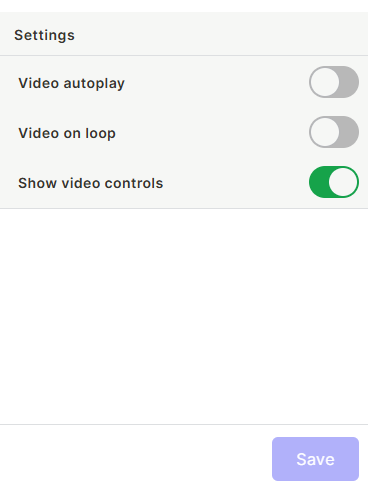
Configure the settings:
- Video autoplay: Toggle on to start the video automatically when the page loads. Off by default.
- Video on loop: Toggle on to replay the video continuously after it ends. Off by default.
- Show video controls: Toggle on to display the native YouTube playback controls (play, pause, volume, etc.). On by default.
Step 5
Save: Click Save to apply the configuration.
Keep in mind
- Only YouTube URLs and embed codes are supported — links from other video platforms will not work.
- Autoplay may be blocked by the user's browser depending on their settings.
- The block does not host the video — it embeds it from YouTube, so internet access is required for playback.
FAQ
1 — Can I embed a video from Vimeo or another platform?
No. This block only supports YouTube URLs and YouTube embed codes.
2 — Will the video autoplay on mobile?
Autoplay behavior on mobile depends on the device and browser settings. Most mobile browsers block autoplay with sound by default.
3 — Can I embed a private or unlisted YouTube video?
Unlisted videos can be embedded as long as you have the URL. Private videos cannot be embedded and will not play.
4 — Does the block save the video or store it in Jestor?
No. The block only embeds the video from YouTube. The content is streamed directly from YouTube and is not stored in your workspace.
5 — What happens if the YouTube video is deleted or made private after I embed it?
The block will stop displaying the video. You will need to update the link to a new video.
Updated 7 months ago