
Generate an Audio from a Text
Converts any text into an audio file using OpenAI's TTS model and saves it directly to a file field in your Jestor record.
When to Use
- You want to convert text stored in a Jestor record into an audio file automatically
- You are building accessibility flows that require spoken versions of written content
- You need to generate voice narrations, announcements, or audio messages from dynamic text fields
How to Configure
Step 1
Create a new automation: This page covers only the action. For instructions on how to access automations and create a new one, see the Automations page.
Step 2
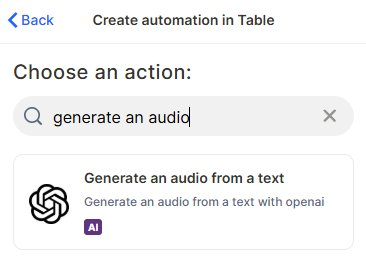
Choose the action: In the action search bar, type generate an audio and select Generate an audio from a text.
Step 3
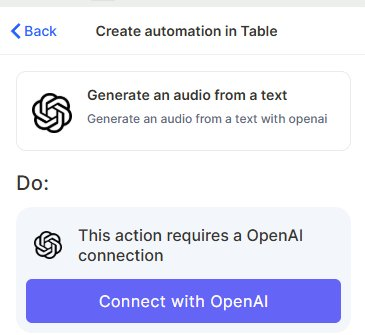
Connect your OpenAI account: This action requires an OpenAI connection. Click Connect with OpenAI and authorize access.
Step 4
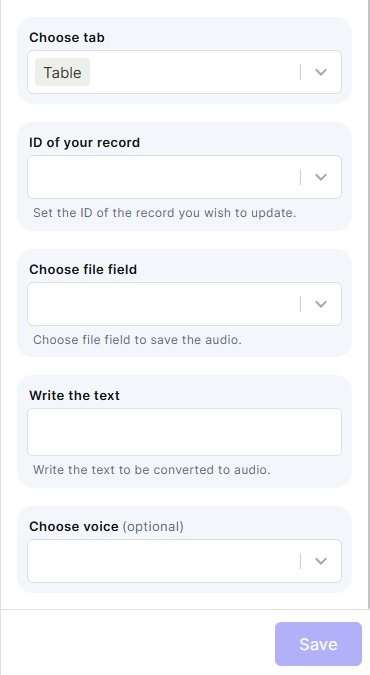
Choose tab: Select the table that contains the records you want to work with.
Step 5
ID of your record: Map the field that holds the ID of the record you want to update with the generated audio.
Step 6
Choose file field: Select the file field where the generated audio will be saved.
Step 7
Write the text: Enter the text to be converted to audio. You can type static text or map a field from your record to use dynamic content.
Step 8 (optional)
Choose voice: Select the voice style for the audio output. If left blank, the default OpenAI voice will be used.
Step 9
Save: Click Save to apply the automation.
Keep in Mind
- This action does not transcribe audio to text — it only converts text into audio. For the reverse, use a different action.
- The generated audio is saved as a file in a file field. It cannot be saved directly into a text, formula, or any non-file field.
- This action does not support multiple voices or voice mixing in a single run — only one voice can be selected per execution.
- The action does not edit or append to existing audio files — each run generates a new audio file and saves it to the selected field.
- This action does not support SSML (Speech Synthesis Markup Language) — formatting tags for pauses, emphasis, or pronunciation are not interpreted.
- A valid OpenAI connection is required. The action will not run without an authorized OpenAI account linked.
- Very long texts may be truncated or result in errors depending on OpenAI's token limits for the TTS model used.
FAQ
1 — What audio format does this action generate?
The action generates audio using OpenAI's TTS model. The output format depends on OpenAI's defaults — typically MP3. Make sure the file field in Jestor accepts the generated format.
2 — Can I use a formula field as the text input?
Yes. You can map any text-based field, including formula fields, as the source for the text to be converted. Just select the field in the Write the text step.
3 — What happens if I don't choose a voice?
If the Choose voice field is left blank, the action will use OpenAI's default voice. You can always update the automation later to set a specific voice.
4 — Can this action generate audio in languages other than English?
Yes, as long as the text is written in the target language. OpenAI's TTS model supports multiple languages, but the quality may vary depending on the language.
Updated 7 months ago