
Generate a .Net Code to Lowcode with ChatGPT (beta)
This action sends a text prompt describing an algorithm to OpenAI, which returns a .Net code snippet ready to be used inside Jestor's lowcode editor. Instead of writing code manually, you describe what you want to happen and the AI generates the logic for you.
This action is currently in beta.
When to Use
- You want to automate a logic or calculation that is not covered by native Jestor actions
- You need to generate dynamic .Net code snippets based on data from your records
- You are building a lowcode automation and want a starting point for the script
How to Configure
Step 1
Create a new automation: This page covers only the action. For instructions on how to access automations and create a new one, see the Automations page.
Step 2
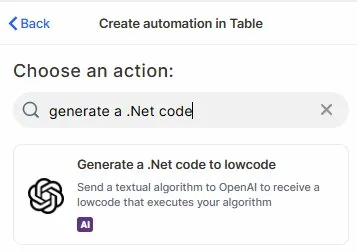
Choose the action: In the action search bar, type generate a .Net code and select Generate a .Net code to lowcode.
Step 3
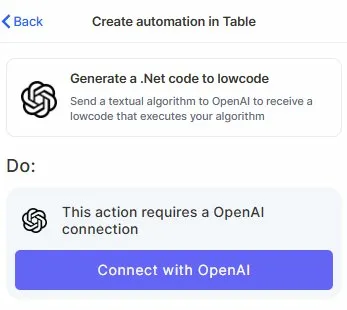
Connect your OpenAI account: This action requires an OpenAI connection. Click Connect with OpenAI and authorize access.
Step 4 (optional)
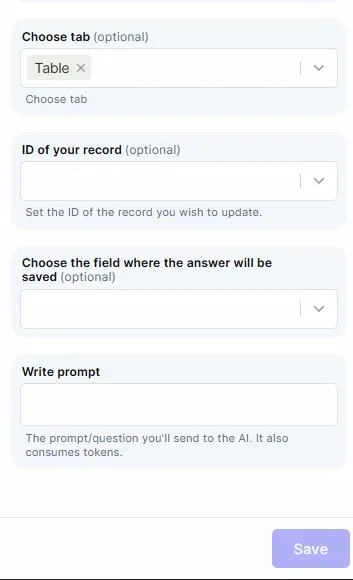
Choose tab: Select the table that contains the records you want to work with in the generated code.
Step 5 (optional)
ID of your record: Map the field that holds the ID of the record you want to reference or update.
Step 6 (optional)
Choose the field where the answer will be saved: Select the field where the generated .Net code will be stored.
Step 7
Write prompt: Describe the algorithm or logic you want OpenAI to generate. Be as specific as possible — the more detail you provide, the more accurate and usable the output will be. This field also consumes tokens from your OpenAI account.
Step 8
Save: Click Save to apply the automation.
Keep in Mind
- This action generates code, it does not execute it. You still need to paste the output into Jestor's lowcode editor and run it from there.
- The action does not validate whether the generated code is correct, functional, or safe to use — always review the output before applying it.
- The generated code is saved as plain text in a single field. It is not automatically formatted or syntax-checked.
- This action does not have access to your table structure or field names unless you explicitly describe them in the prompt.
- An OpenAI connection is required. The action will not run without an authorized OpenAI account linked.
- Each execution consumes tokens from your OpenAI account. Complex or long prompts will consume more tokens.
- The action does not retry if OpenAI returns an error or an incomplete response — the automation will fail silently or save an empty result.
FAQ
1 — Does this action run the code automatically?
No. The action only generates the .Net code and saves it to a field. You need to copy the output and paste it into Jestor's lowcode editor to execute it.
2 — Can I use field values from my records inside the prompt?
Yes. You can map fields from your records into the prompt text, so the generated code can be tailored to the specific data of each record.
3 — Where is the generated code saved?
The code is saved into the field you select in the Choose the field where the answer will be saved step. Use a long text field to avoid truncation.
4 — What happens if the prompt is too vague?
OpenAI will still return a response, but the generated code may not match what you need. Write prompts that describe the exact inputs, outputs, and logic you expect.
5 — Do I need an OpenAI paid account?
You need an OpenAI account with API access enabled. Free-tier accounts may have limitations depending on OpenAI's current policies.
Updated 7 months ago