
Exclude Record Button
The Exclude Record Button is a button field that, when clicked, deletes the record it belongs to. It appears as a clickable button directly inside the table or record view.
For instructions on how to access field types or how to add one, see Field Types.
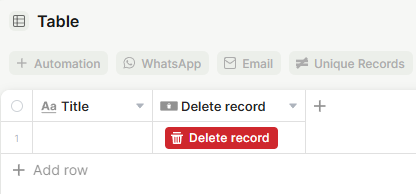
Capabilities
- Deletes the record assigned to the button with a single click
- Customizable button label, icon, and color
- Optional tooltip to provide context to users
Use Cases and Examples
- Operations teams can add a delete button to a staging or inbox table where records are processed and then removed once handled, keeping the table clean without manual selection.
- Support teams can place the button in a view for resolved tickets that no longer need to be kept, making cleanup faster for agents.
- Admins can use the button in internal tools where quick record removal is part of the workflow, such as clearing test entries or temporary data.
- App builders can combine the Delete Record Button with view filters and permissions to create controlled environments where only certain users can remove records.
How to set it up
Step 1 — Name the field
Enter a name for the field. This is the column header shown in the table.
Step 2 — Set the button label
Enter the text that will appear on the button itself (e.g., "Delete record").
Step 3 — Choose an icon (optional)
Select an icon to display alongside the button label.
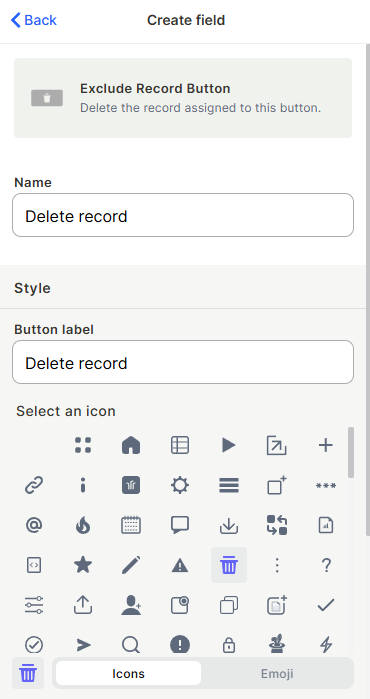
Step 4 — Choose a button color (optional)
Pick a color using the Grid (preset swatches) or Spectrum (full color picker) options.
Step 5 — Enable tooltip (optional)
Toggle the tooltip on to show a short description when users hover over the button.
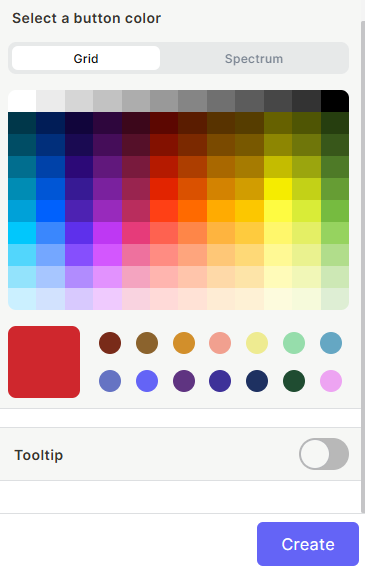
Step 6 — Click Create
Keep in mind
- The button deletes the record, but it can be recovered through the trash — access the trash from your workspace to restore deleted records
- It does not trigger automations linked to record deletion unless those automations are specifically set up to listen for this action
- The button label is independent of the field name — changing one does not change the other
- This field does not ask for confirmation by default before deleting
FAQ
1- Can I customize what happens when the button is clicked?
No. This button performs only one action: deleting the record it belongs to. For more flexible button behaviors, use the Button field type instead.
2- Will the deletion trigger my automations?
Only if your automation is configured with a trigger that listens for record deletion in that table.
3- Is the deletion reversible?
Yes. Deleted records go to the trash and can be restored from there.
4- Can I restrict who can see or use this button?
Visibility and permission control depend on the table and view permissions configured in your workspace settings, not on the field itself.
5- What is the difference between the field name and the button label?
The field name is the column header shown in the table. The button label is the text displayed on the button inside each record. They can be set independently.
Updated 7 months ago