
Whatsapp Agent
The WhatsApp Agent is an AI-powered assistant that reads incoming WhatsApp messages and replies automatically based on instructions you define. It connects to a Jestor table so it can reference your data when generating responses — useful for support workflows, lead qualification, or any process where consistent, context-aware replies save time.
What is it
The WhatsApp Agent is a type of AI agent available in Jestor's Agent Builder. Once configured and connected to a WhatsApp number, it monitors incoming messages and responds automatically using the conversation context and response instructions you provide. It can access records from a linked Jestor table and, optionally, update field values directly from the conversation.
Capabilities
- Reply to WhatsApp messages automatically — the agent monitors incoming messages and responds based on the instructions and context you define
- Reference table data in responses — connects to a Jestor table so replies can be informed by real records (e.g., order status, account details)
- Update record fields from the conversation — can modify fields you explicitly allow based on information extracted from the message
- Use context links and files — supplement table data with external URLs or uploaded documents (FAQs, product manuals, process guides)
- Follow custom response instructions — define tone, format, length, and escalation rules to shape how the agent replies
- Draft replies for human review — enable monitored mode so the agent generates suggested replies instead of sending them directly
When to Use
Use the WhatsApp Agent when you want to:
- Automatically reply to WhatsApp messages based on rules and context
- Use data from a Jestor table to personalize or inform responses
- Handle repetitive or high-volume conversations without manual intervention
- Route or qualify leads before handing off to a human agent
How to Configure
Step 1
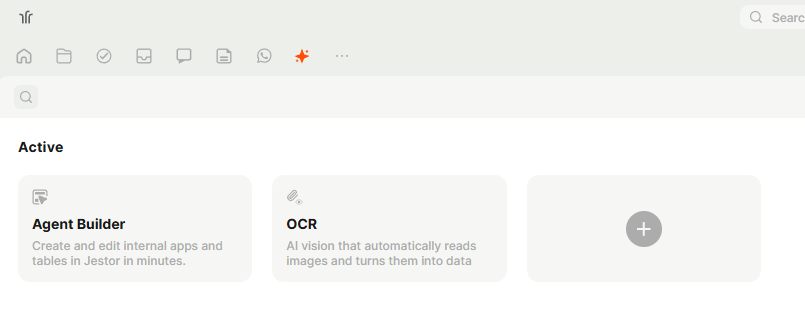
Access the Agent Builder: In the left sidebar, click the ★ (AI) icon to open the AI section. Under Active, click the + button to create a new agent.
Step 2
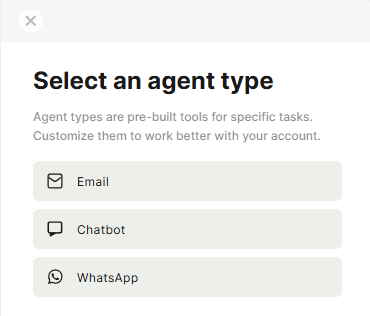
Select the agent type: In the Select an agent type panel, choose WhatsApp. This option is pre-built for WhatsApp message handling.
Step 3
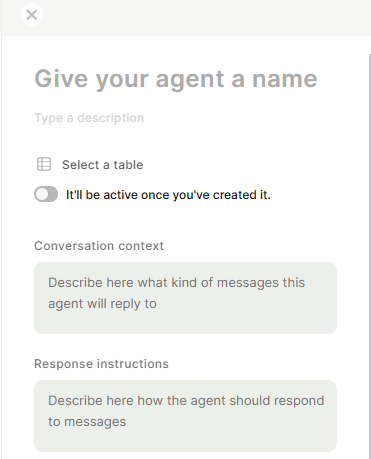
Name and describe the agent: Enter a name for your agent and, optionally, a description to help identify its purpose.
Step 4
Select a table: Choose the Jestor table the agent will use as its data context. The agent can reference records from this table when composing replies.
Step 5
Toggle activation: Enable It'll be active once you've created it if you want the agent to start running immediately after saving. Leave it off to configure and test before going live.
Step 6
Set the Conversation context: In the Conversation context field, describe what kind of messages this agent should handle. Be specific — the more precise the context, the more accurate the replies.
Example: This agent handles support messages from customers asking about order status and delivery timelines.
Step 7
Set the Response instructions: In the Response instructions field, define how the agent should write its replies — tone, format, length, what to avoid, and when to escalate to a human.
Example: Reply in a friendly and concise tone. Never share pricing information. If the customer asks to speak to a human, respond that the team will follow up shortly.
Step 8 (optional)
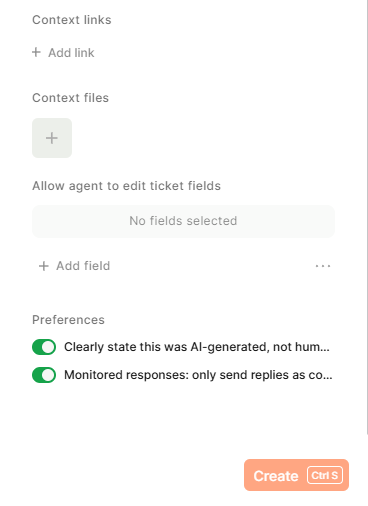
Add Context links: Under Context links, click + Add link to include URLs the agent can reference — such as a help center, a product page, or an internal knowledge base.
Step 9 (optional)
Upload Context files: Under Context files, upload documents the agent can use as reference when generating replies — such as FAQs, product manuals, or process guides(.txt only).
Step 10 (optional)
Allow agent to edit ticket fields: Under Allow agent to edit ticket fields, select which fields in the linked table the agent is allowed to update based on the conversation. Only fields explicitly selected here can be modified by the agent.
Step 11 (optional)
Configure Preferences: At the bottom of the configuration panel, set the following:
- Clearly state this was AI-generated, not human: When enabled, the agent adds a disclosure to its replies indicating they were generated by AI.
- Monitored responses: only send replies as comments When enabled, the agent does not send messages automatically — it generates suggested replies for a human to review and approve before sending.
Step 12
Save: Click Save to create the agent. If activation was toggled on, the agent will begin monitoring and responding to WhatsApp messages immediately.
Keep in Mind
Context files must be in .txt
- The agent does not have memory between separate conversations. Each new conversation starts without context from previous ones.
- It can only edit fields that are explicitly selected under Allow agent to edit ticket fields — it cannot write to other fields automatically.
- Connecting the agent to a WhatsApp number is managed separately through Jestor's WhatsApp integration settings — this page covers only the agent configuration.
- The Monitored responses preference does not pause the agent — it changes the delivery mode to suggestions. The agent still processes every message.
FAQ
1 — Can the WhatsApp Agent handle multiple WhatsApp numbers at the same time?
Each agent is connected to one WhatsApp number. To handle multiple numbers, you need to create a separate agent for each one.
2 — Will the agent reply to every message it receives, including messages from other agents or automated systems?
Yes, by default the agent processes all incoming messages on the connected number. Use the Conversation context field to narrow the scope of what it should respond to.
3 — Can the agent look up records in the linked table to personalize replies?
Yes. When a table is selected, the agent can reference its records to provide context-aware responses — such as pulling a customer's order status or account details.
4 — What is the difference between Conversation context and Response instructions?
Conversation context tells the agent what types of messages it should handle. Response instructions tell the agent how to write its replies. Both fields work together — one defines scope, the other defines behavior.
5 — If I enable Monitored responses, where do I review and approve the suggestions?
Suggested replies appear inside Jestor's chat or inbox interface, depending on your workspace setup, and must be approved there before being sent to the WhatsApp contact.
6- Why I can´t acess this feature?
Whatsapp agent is currently available only in Jestor Fun mode
Updated 6 months ago