
Tasks
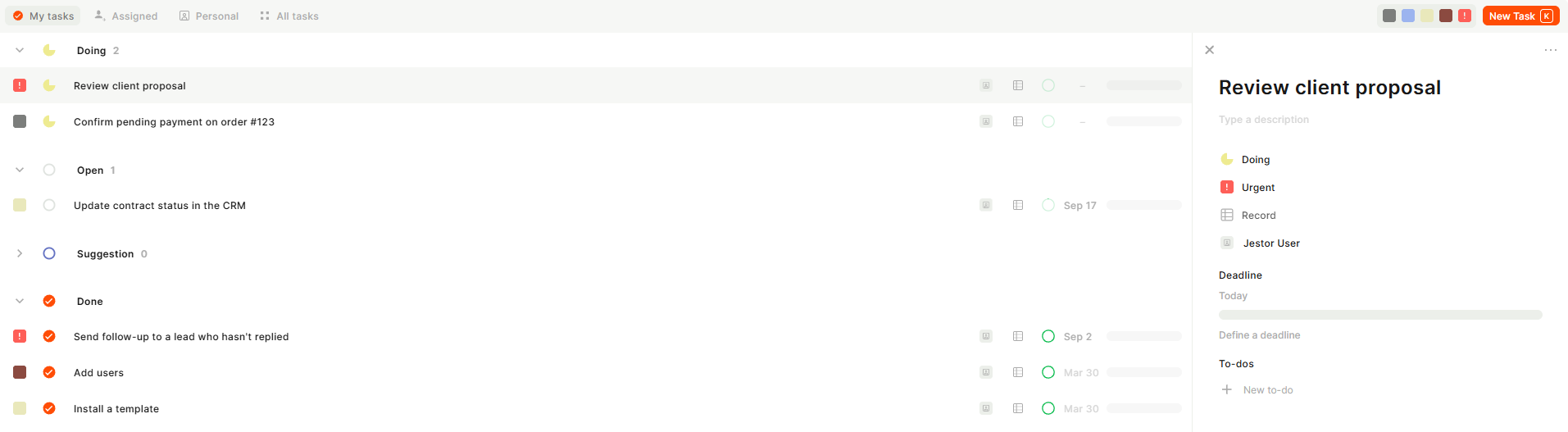
Create tasks on their own or linked to any record, with status, priority, deadline, owners and to-dos, and see them in views by owner.
In short
- What you can do: create tasks with a title, description, status, priority, deadline, owner, and to-dos; group tasks automatically by status: Doing, Open, Suggestion, Done, and Ignored; filter tasks by priority using the color swatches at the top of the page.
- Keep in mind: The status selector on the New Task panel only offers Open, Doing, and Suggestion.
Tasks created from a record use the same task system described on this page. For instructions on adding a Tasks field to a table so tasks are linked to that record automatically, see the Tasks Field page.
Capabilities
- Create tasks with a title, description, status, priority, deadline, owner, and to-dos
- Group tasks automatically by status: Doing, Open, Suggestion, Done, and Ignored
- Filter tasks by priority using the color swatches at the top of the page
- Switch between the My tasks, Assigned, Personal, and All tasks views
- Link a task to a record in any table
- Assign one or more owners to a task
- Set a deadline for today or a custom date
- Break a task down into to-dos (subtasks)
- Open the task creation panel from anywhere with the keyboard shortcut K
Use Cases and Examples
A builder uses Tasks to keep a personal to-do list alongside their work in Jestor: quick reminders go in as standalone tasks, without a linked record, and get marked Done as they're finished.
A team uses Tasks linked to records to track follow-ups on specific rows, such as a client or an order. Creating the task from the record links it automatically, so anyone opening that record sees the related task, its owner, and its deadline.
A manager reviews the Suggestion group to see tasks proposed for a project before accepting them into the active workflow, then uses the Assigned view to check what has been handed off to each teammate.
Task Views
- My tasks: tasks assigned to or owned by you. This is the default view.
- Assigned: tasks you have assigned to other users.
- Personal: tasks you created for yourself, without an assignee.
- All tasks: every task you have access to across the workspace.
Task Statuses
Tasks are grouped into five statuses, each shown as a collapsible section with a count of how many tasks are currently in it:
- Doing: tasks currently in progress
- Open: tasks that have not been started yet
- Suggestion: tasks proposed for review that have not yet been accepted
- Done: completed tasks
- Ignored: tasks that were dismissed instead of completed
Priority Levels
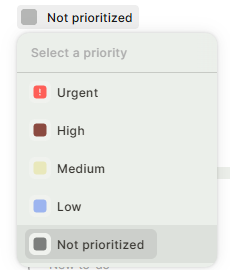
Tasks can carry one of five priorities, shown as color swatches at the top of the Tasks page for quick filtering:
- Urgent (red)
- High (dark red)
- Medium (yellow)
- Low (blue)
- Not prioritized (gray): the default for new tasks
Creating a Task
Step 1
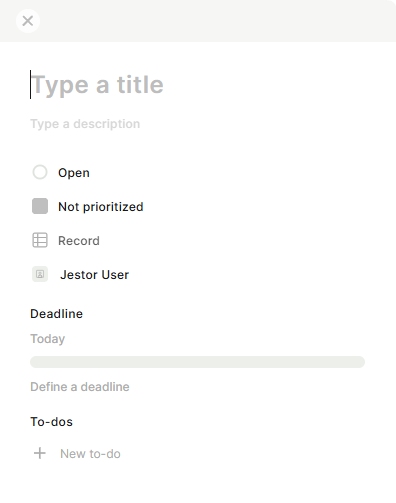
Open the New Task panel: Click New Task in the top-right corner of the Tasks page, or press K from anywhere in the workspace.
Step 2
Add a title and description: Type a title for the task and, optionally, a description with more context.
Step 3
Set the status: Choose Open, Doing, or Suggestion. New tasks default to Open.
Step 4
Set the priority: Choose Urgent, High, Medium, Low, or Not prioritized. New tasks default to Not prioritized.
Step 5 (optional)
Link a record: Click Record and select a table to attach the task to a specific row.
Step 6 (optional)
Assign an owner: Click Jestor User and select one or more owners for the task.
Step 7 (optional)
Set a deadline: Toggle Today to set the deadline to the current date, or click Define a deadline to pick a specific date from the calendar.
Step 8 (optional)
Add to-dos: Click + New to-do to break the task down into smaller checklist items.
Step 9
Save: Click Create (or press Ctrl+S) to save the task.
Automations
All task automations are free. Triggering an automation from a task event, such as a task being created, updated, or its status changing, does not consume your workspace's automation run credits.
This is subject to fair use. If your monthly volume of task automation runs goes above 5,000, Jestor reserves the right to disable this free usage.
Keep in Mind
- The status selector on the New Task panel only offers Open, Doing, and Suggestion. Done and Ignored are reached by changing a task's status after it already exists, not at creation.
- The counter next to each status group reflects tasks currently in that status, not a running total of tasks ever created.
- To-dos are checklist items inside a task. They don't have their own status, priority, or deadline.
- My tasks, Assigned, Personal, and All tasks are different ways of filtering the same set of tasks, not separate task types or lists.
- Linking a task to a record does not copy the task's data into that record's fields. The record only stores the connection.
FAQ
1- Can I create a task without linking it to a record?
Yes. The Record field is optional. Leaving it empty creates a standalone task that isn't attached to any table row.
2- What's the difference between My tasks and All tasks?
My tasks shows only the tasks assigned to or owned by you. All tasks lists every task you have access to across the workspace, regardless of owner.
3- Can more than one person own a task?
Yes. The owner field accepts more than one Jestor User, so a task can have multiple owners at once.
4- Can I move a task directly to Done or Ignored when creating it?
No. The status selector at creation only offers Open, Doing, and Suggestion. To move a task to Done or Ignored, change its status after it's created.
5- Does toggling Today keep the deadline updated to the current date automatically?
No. Today only sets the deadline to the current date at the moment you create or edit the task. To change it later, open the task and pick a new date.
6- Can I add to-dos after the task has already been created?
Yes. Open the task at any time and click + New to-do to add checklist items. They aren't limited to the creation step.
Updated 7 days ago