
Image Block
Add any picture to your App

For instructions on how to access blocks and add one to your app, see the Blocks page.
Capabilities
- Upload any image file directly from your computer
- Display an image dynamically from a table's image field
- Display static visuals anywhere inside your app
- Name the block for internal organization
Use cases and examples
- Logo — place your company or brand logo at the top of an app
- GIFs — embed animated images to illustrate a process or add visual interest
- Slides and blueprints — show reference materials like diagrams, floor plans, or presentations
- Product design — display mockups or visual specs alongside records
Configuring the Image block
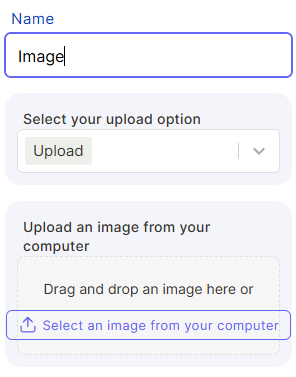
Name
The internal identifier for the block. Not visible to end users.
Select your upload option
Choose how the image will be sourced:
- Upload — add a static image file directly from your computer
- Table — pull the image dynamically from an image field in a table. Requires the table to have an image field configured.
Upload an image from your computer (Upload option)
Drag and drop an image into the upload area, or click Select an image from your computer to browse your files.
Keep in mind
- When using the Table option, the table must have an image field — the block cannot pull images from other field types.
- It does not support video files or interactive content.
- When using the Upload option, the image is static and the same for all users and records.
FAQ
1- Can I display an image from a URL instead of uploading a file?
No. The Image block supports uploading from your computer or pulling from a table's image field, but not from external URLs.
2- Can I update the image after saving the block?
Yes. You can edit the block at any time and upload a new image to replace the current one.
3- Does the Image block support animated GIFs?
Yes. GIF files can be uploaded and will display with their animation preserved inside the app.
4- Can I use the Image block to show a different image per record?
Yes, if you use the Table option and select a table that has an image field. The block will display the image stored in that field for each record. If you use the Upload option, the image is static and the same for all records.
Updated 6 months ago