
Text Block
Add texts or titles to your App

For instructions on how to access blocks and add one to your app, see the Blocks page.
Capabilities
- Write static or dynamic text content inside your app
- Apply rich text formatting: bold, italic, strikethrough, bullet lists, numbered lists, and headers
- Customize font family, weight, and size
- Control letter spacing, line height, text alignment, and vertical alignment
- Set a custom text color using a color picker (grid or spectrum)
- Enable a stroke effect around the text
- Set corner rounding and background style for the block container
Use cases and examples
- Section titles — label areas of your app to guide navigation
- Instructions and guides — explain how a form or process works directly inside the app
- Tooltips and helper text — add context next to fields or buttons
- Commentaries — include notes or observations alongside data
- Static labels — display fixed information like terms, descriptions, or category names
Configuring the Text block
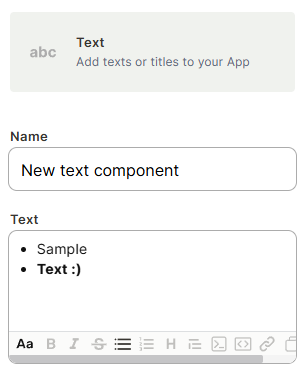
Name
The internal identifier for the block. Not shown to end users.
Text
The main content of the block. Supports rich text formatting via the toolbar.
Style
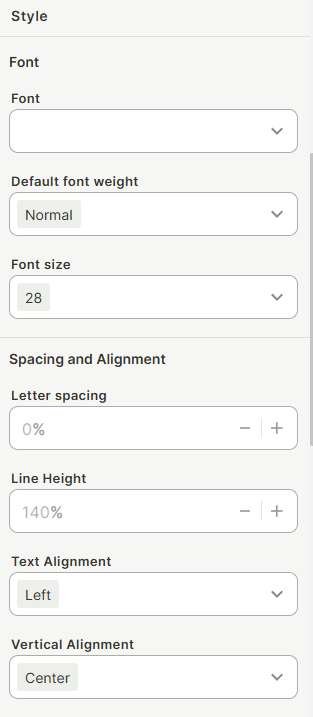
Font
Choose a font family from the dropdown.
Default font weight
Set the base weight of the text (e.g., Normal, Bold).
Font size
Define the text size. Default is 28.
Letter spacing
Adjust spacing between characters. Default is 0%.
Line height
Control vertical spacing between lines. Default is 140%.
Text Alignment
Align text horizontally: Left, Center, or Right. Default is Left.
Vertical Alignment
Align text vertically within the block: Top, Center, or Bottom. Default is Center.
Color
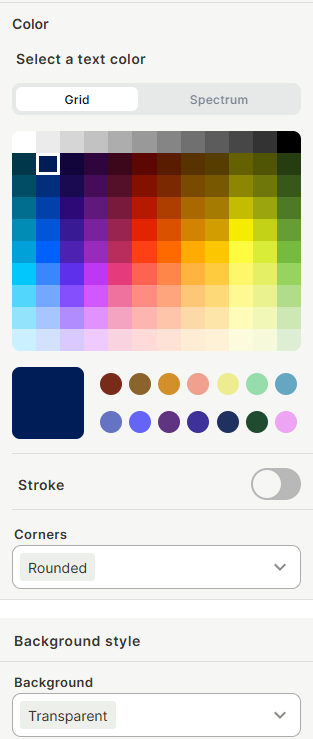
Select a text color
Pick a color using the Grid (preset palette) or Spectrum (custom) modes.
Stroke
Toggle to add an outline around the text characters.
Corners
Choose the border-radius style of the block container (e.g., Rounded).
Background
Set the background color of the block. Default is Transparent.
Keep in mind
- The Text block displays static content only — it does not pull data dynamically from table fields. Use a field block for dynamic values.
- Formatting applied via the toolbar affects the entire text or selected portions, but does not cascade to other blocks.
- The Name field is for internal organization and does not appear in the published app.
FAQ
1- Can I use the Text block to display values from a record?
No. The Text block only supports static content. To show field values from a record, use the appropriate field block instead.
2- Can I add multiple font styles in the same text block?
Yes. You can select different portions of the text and apply different formatting (bold, italic, heading, etc.) independently.
3- Does the font size affect the whole text block or just selected text?
The font size set in the Style panel applies to the entire block. For mixed sizes, consider using separate Text blocks.
4- What does the Stroke option do?
It adds an outline border around each character in the text, which can improve readability on colorful or image backgrounds.
5- Can I make the background of the Text block transparent?
Yes. The default background is Transparent. You can change it to any color using the Background style option.
Updated 6 months ago