
Goal
The Goal field displays a progress bar that tracks how close a record is to reaching a target value or deadline. It compares a current value against a defined goal and visualizes the result as a percentage bar. Supported return types are Number, Currency, Percentage, and Date.
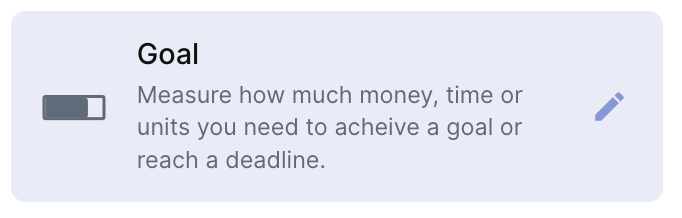
For instructions on how to access field types or how to add one, see Field Types.
Capabilities
- Displays a visual progress bar comparing a current value to a target
- Supports Number, Currency, Percentage, and Date as return types
- Allows individual targets per record (Dynamic Goal) or a shared target across all records (Static Goal)
- Optional deadline mode that shifts the bar color from green to red as the deadline approaches
- Optional tooltip to provide context when hovering over the bar
Use Cases and Examples
- Sales teams can track how many deals each rep has closed against their monthly quota, with each record showing individual progress toward a dynamic target.
- Project managers can set a deadline for a project phase and use the deadline toggle to visually signal urgency as the date approaches.
- Operations teams can monitor how many bugs or support tickets have been resolved out of a total, using a static goal shared across all records.
- Finance teams can measure progress toward a revenue milestone, displaying the current MRR against a fixed monthly target in currency format.
How to configure
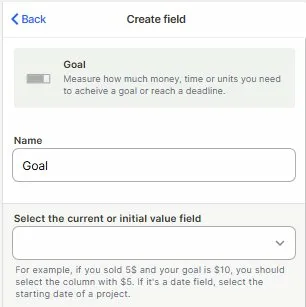
Step 1 — Name the field
Enter a name for the field. This is the column header shown in the table.
Step 2 — Select the current or initial value field
Choose the field that holds the starting or current value. For numeric goals, select the field with the current amount (e.g., deals closed so far). For date-based goals, select the field with the start date of the process.
Step 3 — Choose the goal method
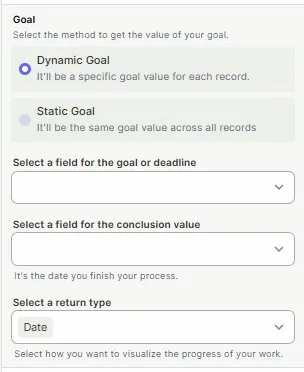
Select how the target value is defined:
- Dynamic Goal — each record has its own individual target value
- Static Goal — all records share the same fixed target value
Step 4 — Select a field for the goal or deadline
Choose the field that contains the target value or the deadline date. This is what the current value will be measured against.
Step 5 (optional) — Select a field for the conclusion value
Choose the field that marks when the process is considered finished. For date-based goals, this is typically the field that holds the completion date.
Step 6 — Select a return type
Choose how progress is displayed: Percentage, or Date.
Step 7 (optional) — Enable "It's a deadline"
Toggle this on if the goal represents a time-based deadline. When enabled, the bar starts green and gradually shifts to red as the deadline approaches.
Step 8 (optional) — Enable Tooltip
Toggle this on to show additional information when users hover over the progress bar.
Step 9 — Click Create
Keep in mind
- The Goal field does not perform calculations — it only reads values from existing fields. The current and target values must already exist as separate fields in the table
- It does not send alerts or notifications when a goal is reached or a deadline passes
- It does not update automatically based on related tables — if your current value comes from a connected table, you may need an automation to keep it in sync
- The progress bar does not go above 100%, even if the current value exceeds the goal
- It does not support goals defined by a formula directly — the goal value must come from a field, not an inline expression
- Changing the return type after creation may affect how the bar is displayed
FAQ
1 — What is the difference between Dynamic Goal and Static Goal?
Dynamic Goal sets an individual target for each record, pulled from a field. Static Goal applies the same fixed target value to all records in the table. Use Dynamic when each record has a different objective, and Static when the target is the same for everyone.
2 — Can I use a formula field as the current value or goal?
Yes, as long as the formula field returns a numeric or date value compatible with the selected return type.
3 — What happens if the current value exceeds the goal?
The bar displays at 100% and does not exceed it. The field does not flag overachievement or change color automatically beyond what the deadline toggle controls.
4 — Does the "It's a deadline" toggle change how progress is calculated?
No, the calculation remains the same. The toggle only changes the visual behavior of the bar — it starts green and turns red as the deadline approaches, giving a time-urgency signal.
5 — Can I display the Goal field in a Kanban or Dashboard?
The Goal field is a table field and displays wherever that table appears. Visibility in Kanban cards or Dashboard blocks depends on how those views are configured.
Updated 6 months ago