
Embedded
The Embed block loads an external application, website, or widget directly inside an app page using an iframe, without the user ever leaving the app.
For instructions on how to add a block to your app, see the Blocks page.
Capabilities
- Embed any external URL or iframe-compatible link inside an app page
- Supports standard shareable links as well as raw
<iframe>src URLs - Control the position, background, border (stroke), corners, and title display of the block
Use cases and examples
Use the Embed block when you want to:
- Embed a third-party tool (e.g. a Typeform, Google Maps, Figma file, or dashboard) inside an app page
- Display an internal web app or external widget alongside other Jestor data
- Integrate any iframe-compatible service that doesn't have a dedicated Jestor block
How to configure
Step 1
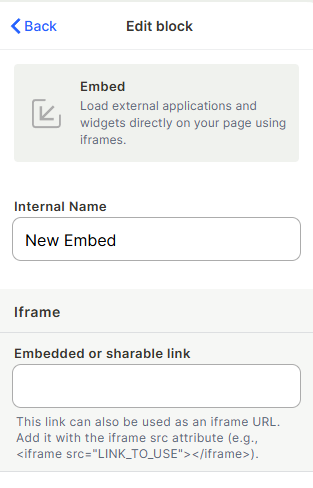
Add the block: Inside your app page in edit mode, add an Embed block. The edit panel will open on the right side.
Step 2
Set the name: In the Internal Name field, enter a label to identify this block inside the editor.
Step 3
Add the link: In the Embedded or sharable link field, paste the URL of the page or widget you want to embed. This can be a standard shareable link or a direct iframe URL (the value you'd put in <iframe src="..."></iframe>).
Step 4
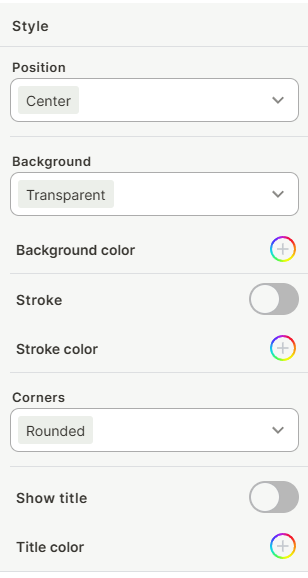
Configure the style:
- Position: Choose how the block is horizontally positioned — Left, Center, or Right.
- Background: Select the background style — Transparent or a solid color.
- Background color: Pick a specific background color using the color picker.
- Stroke: Toggle on to display a border around the block.
- Stroke color: Pick a color for the border when Stroke is enabled.
- Corners: Choose the corner style — Rounded or Sharp.
- Show title: Toggle on to display the internal name as a visible title above the block.
- Title color: Pick a color for the title text when Show title is enabled.
Step 5
Save: Click Save to apply the configuration.
Keep in mind
- The block does not host the external content — it embeds it from the source, so an active internet connection is required and the external service must remain available.
- Not all websites allow themselves to be embedded in iframes. If the target site sets an
X-Frame-OptionsorContent-Security-Policyheader that blocks embedding, the block will not load. - The block does not pass any Jestor data or field values to the embedded content automatically.
- Jestor form links cannot be embedded using this block. Jestor blocks iframes from loading its own URLs for security reasons. To display a form inside an app page, use the Form block instead.
FAQ
1 — What is the difference between a shareable link and an iframe URL?
A shareable link is the regular URL you copy from a browser or app (e.g. https://example.com/page). An iframe URL is the specific address used as the src attribute in an <iframe> tag — some tools provide a dedicated embed URL that differs from their regular link. Both formats are accepted in the Embedded or sharable link field.
2 — Why is my embed showing a blank page or an error?
The external service may be blocking iframe embedding. Many websites set security headers that prevent their content from being loaded inside iframes. Check if the service provides a dedicated embed or shareable link specifically for iframe use. Note that Jestor URLs (including form links) will always fail to load in the Embed block — use the Form block for Jestor forms instead.
3 — Can I embed a Google Maps location?
Yes. Use the embed URL provided by Google Maps (available in the Share > Embed a map option). Do not use the regular browser URL, as Google Maps blocks standard URLs from being iframed.
4 — Can I pass field values from a Jestor record into the embedded URL?
Not directly through the Embed block itself. The URL is static and does not support dynamic field injection from Jestor records.
5 — Does the Embed block work on mobile?
Yes, the block renders on mobile, but the behavior of the embedded content depends entirely on whether the external service is mobile-responsive.
Updated 6 months ago