
Search Filter
The Search Filter block lets users dynamically filter and search data across multiple components in an app at the same time. With it you can:

For instructions on how to add a block to your app, see the Blocks page.
Capabilities
- Create custom filter buttons with preset conditions
- Activate more than one filter simultaneously
- Connect the filter to multiple blocks at once
- Add a search bar that searches across all connected blocks
Use Cases and Examples
- A CRM app where users filter a client table by status, owner, or date range with a single click
- A project dashboard where a search bar scans tasks across multiple table and kanban blocks at once
- An operations panel where preset filters quickly segment records by region, priority, or responsible user
How to configure
Step 1
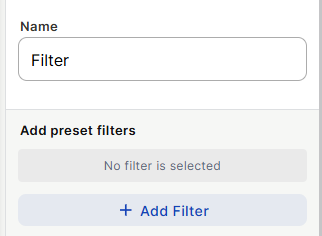
Open your app in edit mode, add a Search Filter block, and give it a name.
Step 2
Click + Add Filter to create preset filter buttons. For each button:
- Enter a Button name and select a button color using the Grid or Spectrum color picker.
- Choose the filter type from the flexible filter options: Select, Select from field, Text, Number, Checkbox, List, Date, Field is empty, Field is not empty, Record ID, User, or Date range.
- Configure the filter condition according to the chosen type.
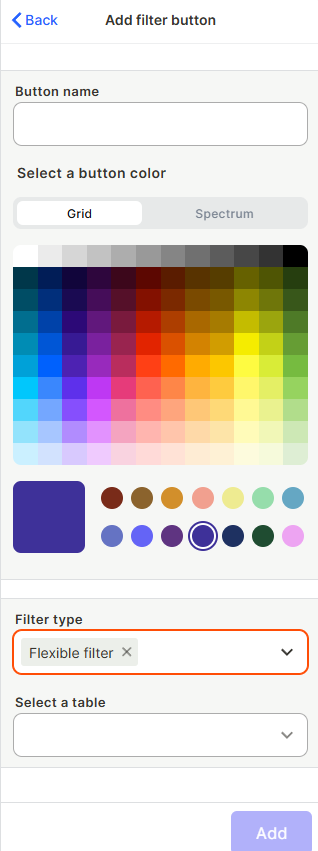
Repeat this step to add as many filter buttons as needed. Multiple filters can be active at the same time.
Step 3
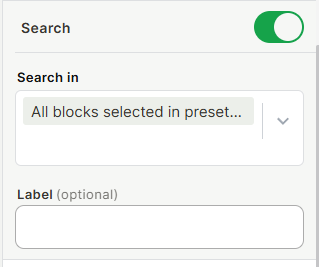
Configure the Search toggle (optional). When enabled:
- Set Search in to either All blocks selected in preset filters (searches across every block already connected via preset filters) or Custom blocks selection (manually choose which blocks the search bar applies to).
- Add an optional Label to display inside the search bar.
Step 4
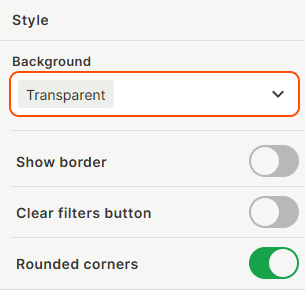
Configure the Style settings:
- Background: Choose Transparent, Color, or Blur.
- Show border: Toggle on to add a border around the block.
- Clear filters button: Toggle on to show a button that resets all active filters at once.
- Rounded corners: Toggle on or off to adjust the visual shape of the block.
Step 5
Click Save to apply all changes.
Keep in Mind
- The Search Filter block does not store or modify data — it only controls what is displayed in connected blocks.
- Preset filter buttons do not apply automatically when the page loads; users must click them to activate.
- The search bar only searches within the blocks defined in the Search in setting — blocks outside that scope are not affected.
- Filter types like "Field is empty" and "Field is not empty" do not require the user to input a value; they apply as-is when the button is clicked.
- The Search Filter can also be added inside a Title Bar block, keeping the filter controls anchored at the top of the page.
FAQ
1 — Can I have more than one filter active at the same time?
Yes. Multiple preset filter buttons can be active simultaneously, and their conditions are combined to filter the connected blocks.
2 — What is the difference between "All blocks selected in preset filters" and "Custom blocks selection" in the Search in setting?
"All blocks selected in preset filters" automatically applies the search to every block already linked through your preset filter buttons. "Custom blocks selection" lets you manually pick which blocks the search bar targets, independently of the preset filters.
3 — Can the Search Filter block connect to blocks on different pages?
No. It only connects to blocks on the same app page where it is placed.
4 — Does the Clear filters button also clear the search bar text?
Yes. When enabled, the Clear filters button resets all active preset filters and clears the search bar at once.
Updated 6 months ago