
Obtain information from a Brazilian Product Tax Invoice (Gemini)
The Obtain information from a Brazilian Product Tax Invoice action uses Google Gemini to extract data from a Brazilian fiscal invoice (Nota Fiscal) image or file stored in Jestor. It reads the invoice content and saves the extracted information directly into a field of your choice.
When to use
Use this action when you want to:
- Automatically extract data from Brazilian Notas Fiscais attached to records
- Reduce manual data entry when processing invoices at scale
- Feed invoice data (such as values, items, or dates) into fields for further automation or reporting
How to configure
Step 1
Create a new automation. (This page covers only the action. For instructions on how to access automations and create a new automation, see the Automations page.)
Step 2
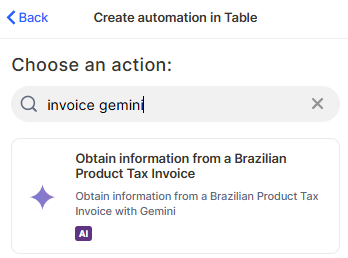
Select the action: In the action search bar, type Product Tax Gemini and select Obtain information from a Brazilian Product Tax Invoice.
Step 3
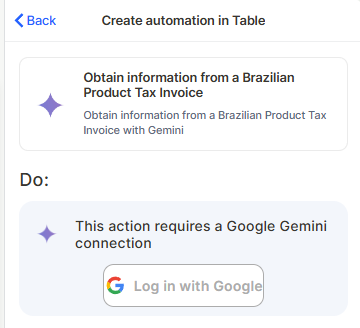
Connect your Google account: This action requires a Google Gemini connection. Click Log in with Google and authorize access. This only needs to be done once per workspace.
Step 4 (optional)
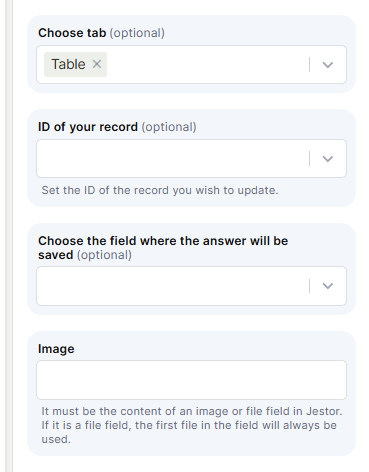
Choose tab: Select the table that contains the records you want to update with the extracted data.
Step 5
ID of your record: Set the ID of the record you want to update. This is typically a dynamic value mapped from the trigger.
Step 6 (optional)
Choose the field where the answer will be saved: Select the field where Gemini's extracted output will be written.
Step 7
Image: Enter the content of the image or file field that contains the invoice. If the field holds multiple files, the first file will always be used.
Step 8
Save the automation and set it to active.
Keep in Mind
- You also can use the Attachment Vision (OCR) feature, instead of this automation
- This action only processes the first file in a file field — additional attachments in the same field are ignored.
- The action does not validate whether the uploaded file is actually a valid Brazilian Nota Fiscal. If the image is unreadable or the wrong document type, the output may be empty or incorrect.
- It does not extract data into multiple fields at once — you need one action per piece of information you want to save.
- The Google Gemini connection is required. The action will not run without an active connection.
- This action does not send or submit the invoice anywhere — it only reads and extracts data within Jestor.
- File fields with no attachment will cause the action to return no output, without throwing an error.
FAQ
1 — Does this action work with PDF invoices or only images?
It works with both images and file fields. If the field is a file field, the first file in the field will be used, regardless of format. However, results may vary depending on file quality and readability.
2 — What happens if the invoice image is blurry or low quality?
Gemini may return incomplete or incorrect data. There is no built-in quality check — the action will still run and save whatever it interprets.
3 — Do I need a paid Google account to use this action?
The action uses Google Gemini via a standard Google login. Depending on usage volume, Google's own limits may apply. Jestor does not control Gemini's quota or billing.
Updated 7 months ago