
SSO
SSO with OIDC lets you connect your organization's identity provider to Jestor, so members sign in through your provider instead of using email/password or magic link.
Capabilities
- Connect one OIDC identity provider (Google, Microsoft, or JumpCloud) to your Jestor organization
- Configure the provider-specific credentials needed to establish the connection (Client ID, Client secret, and, depending on the provider, Tenant ID or Issuer URL)
- Associate the connection with one or more email domains, identifying which domains that configuration manages
How to access
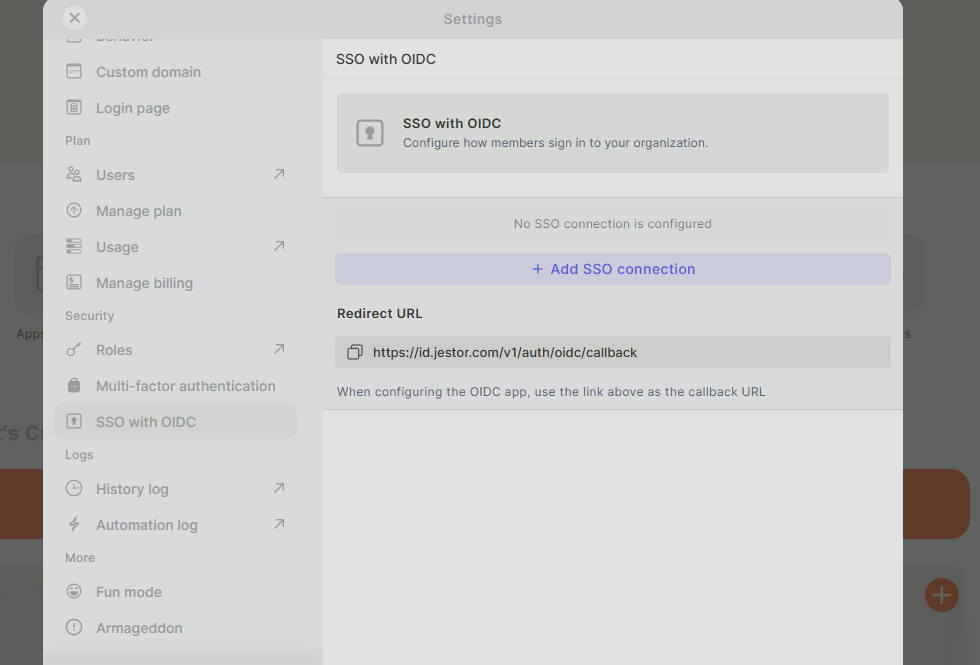
Open Settings, then go to Security > SSO with OIDC.
Setting up an SSO connection
Step 1
Copy the Redirect URL: On the SSO with OIDC page, copy the Redirect URL shown. You'll need to register this as the callback URL when configuring the OIDC app on your provider's side.
Step 2
Click + Add SSO connection: This opens the Create SSO connection panel.
Step 3
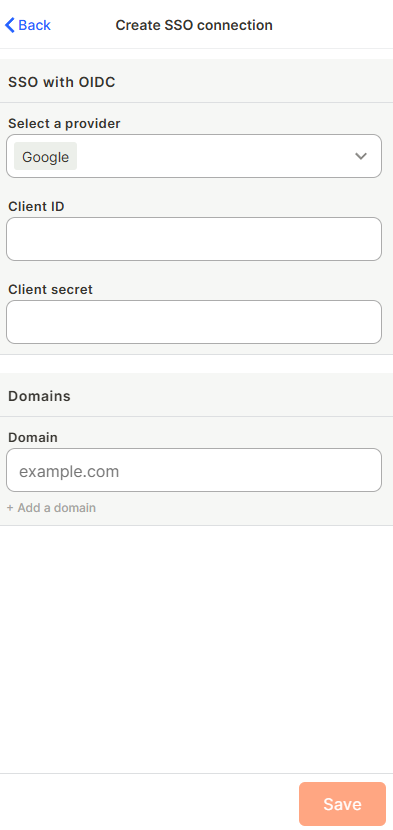
Select a provider: Choose Google, Microsoft, or JumpCloud from the Select a provider dropdown. The fields below change depending on the provider you pick.
Step 4
Fill in the provider credentials:
- Google: Client ID and Client secret
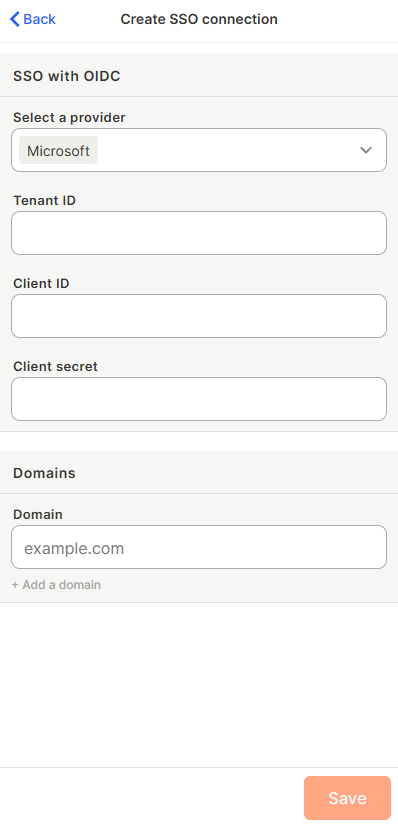
- Microsoft: Tenant ID, Client ID, and Client secret
- JumpCloud: Issuer url, Client ID, and Client secret
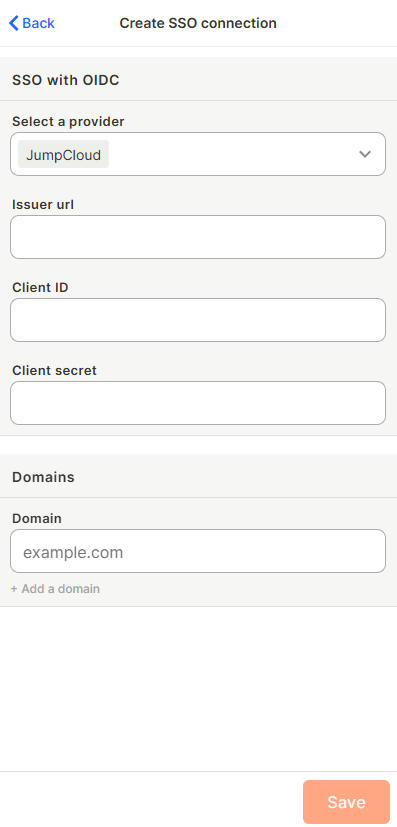
These values come from the app you configure on your identity provider's side, using the Redirect URL from Step 1 as the callback URL.
Step 5
Add a domain: Under Domains, enter the email domain (for example, example.com) that this connection applies to. Click + Add a domain to add more than one domain to the same connection.
Step 6
Save: Click Save to create the connection. Once saved, it replaces the No SSO connection is configured message on the SSO with OIDC page.
Use cases and examples
- Using Google as the identity provider so members authenticate with their Google Workspace account
- Connecting JumpCloud as a central identity provider for a team that already manages user access through it
- Restricting the connection to your company's domain so only members with a matching email are routed through SSO
Keep in mind
- Jestor only supports Google, Microsoft, and JumpCloud as OIDC providers. There's no generic/custom OIDC option
- The required fields change based on the provider you select: Tenant ID only appears for Microsoft, and Issuer url only appears for JumpCloud
- The Domains field identifies which email domain(s) an SSO connection is for. It doesn't restrict who can access your Jestor organization. A user added manually with any email, including one outside those domains, can still log in normally through their own login method
- You can have more than one active SSO connection in the same organization at the same time, each covering different domains
FAQ
1- Which identity providers can I connect for SSO with OIDC?
You can connect Google, Microsoft, or JumpCloud.
2- What fields do I need to fill in for each provider?
Google needs Client ID and Client secret. Microsoft needs Tenant ID, Client ID, and Client secret. JumpCloud needs Issuer url, Client ID, and Client secret.
3- Can I connect more than one identity provider at the same time?
Yes. Your organization can have more than one active SSO connection at the same time, each associated with its own domain(s).
4- Can I add more than one domain to a single connection?
Yes. Click + Add a domain in the Domains section to add additional domains to the same connection.
5- If I add a domain to my SSO connection, does that mean only users with that domain can log in to Jestor?
No. The domain just tells Jestor which email domain that connection is for. Users in your organization with a different email can still log in normally through their own login method, regardless of the domains configured on any SSO connection.
Updated 2 months ago