
Calendar
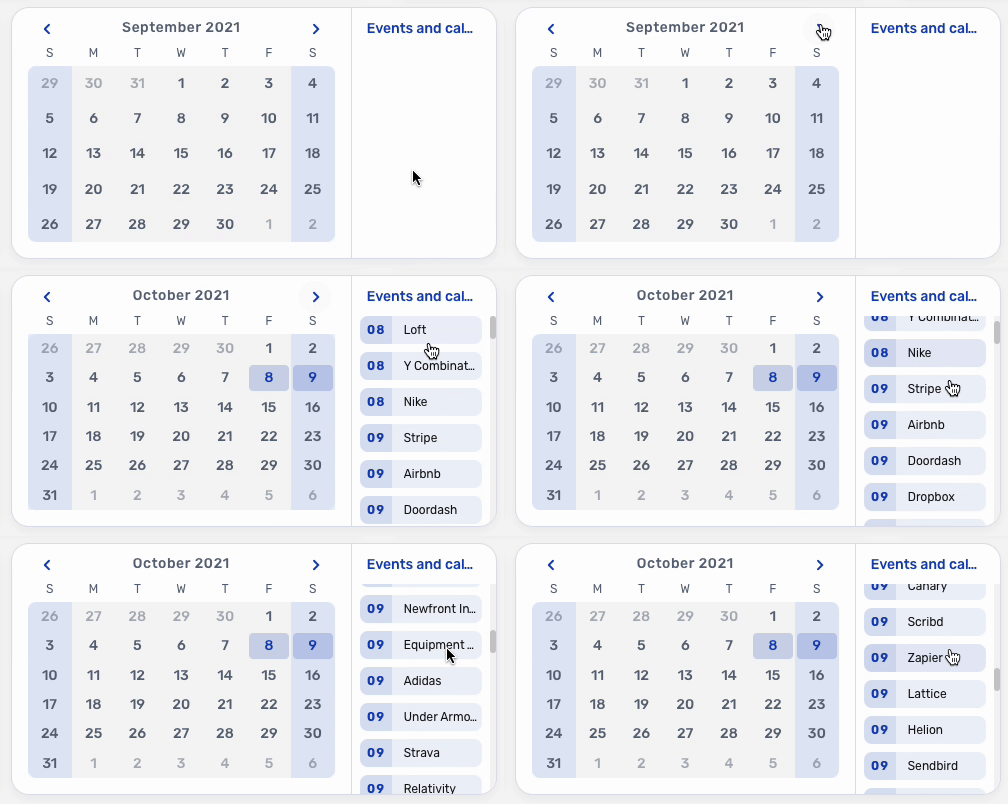
The Calendar block displays records from a table in a calendar view, positioned according to a date field you choose. It lets you visualize and monitor records with dates — such as events, tasks, payments, or appointments — and click on them directly to open and edit their details.
For instructions on how to add a block to your app, see the Blocks page.
Capabilities
- Display records from any table in a monthly calendar layout
- Position records based on any date field from the chosen table
- Filter which records appear using optional conditions
- Open and update records directly from the calendar view
- Configure the window style for how record forms open (double window, triple, full screen, and more)
- Set the success behavior after submitting a record update form
How to configure
Step 1
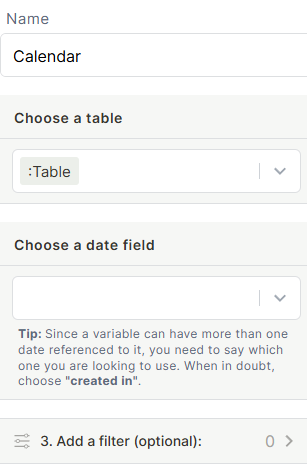
Set the name: In the Name field, enter a label to identify this block inside the editor.
Step 2
Choose a table: Select the table whose records you want to display on the calendar. Only tables available in your app will appear here.
Step 3
Choose a date field: Select which date field from the table will be used to position the records on the calendar. If the table has multiple date fields, choose the one that best represents when the record occurs. When in doubt, choose created in.
Step 4 (optional)
Add a filter: Under Add a filter, define conditions to limit which records appear on the calendar. For example, show only records assigned to a specific user or with a particular status.
Step 5
Configure the Record Update form: Under Record Update form, set how the record form behaves when a user clicks on a calendar item.
For instructions on how to configure forms, see the Forms page.
- Form source: Choose Block form to use a form configured directly in this block, or select another form source if available.
- Edit block form: Click to customize which fields appear in the form and how they are arranged.
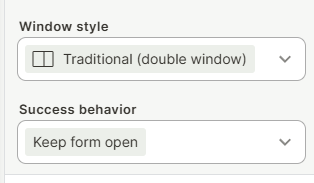
- Window style: Choose how the form opens — Traditional (double window), Triple window, Quadruple window, Right side window, Full screen, or Wider form (double window).
- Success behavior: Choose what happens after a record is submitted — for example, Keep form open to allow consecutive edits.
Step 6
Save: Click Save to apply the configuration.
Use cases and examples
- Event tracking: Display a table of company events on a calendar so the team can see at a glance what is scheduled each month.
- Task management: Show task records positioned by their due date, letting users click each task to update its status directly from the calendar.
- Payment monitoring: Map payment records by their due date to track which payments are expected and when.
- Appointment scheduling: Display client appointments from a bookings table, allowing staff to click each slot and update appointment details.
Keep in mind
- The Calendar block does not create records — it only displays and allows editing of existing ones. To add new records, use a separate form or button block.
- If the chosen date field is empty on a record, that record will not appear on the calendar.
- The block shows one date field at a time. If a record spans a range (start and end date), only the selected date field is used for positioning — it will not display as a range event.
- The filter is applied at the block level and cannot be changed by the end user at runtime.
FAQ
1 — Can I display records from more than one table in the same Calendar block?
No. Each Calendar block is connected to a single table. To show records from multiple tables, add one Calendar block per table.
2 — What happens if the table has more than one date field?
You choose which date field to use during setup. Only that field is used to position records on the calendar. If you are unsure which one to pick, the block suggests using created in as a safe default.
3 — Can users create new records directly from the calendar?
No. The Calendar block is for viewing and editing existing records. Use a form block or button block elsewhere on the page to allow record creation.
4 — Can I filter the calendar to show only records assigned to the logged-in user?
Yes. Use the filter option and set a condition based on a user field, such as filtering where the assigned user equals the current user variable.
5 — What is the difference between the window style options?
The window style controls how much screen space the record form occupies when opened. Traditional (double window) splits the screen between the calendar and the form. Full screen replaces the current view entirely with the form. The other options offer varying layouts between those extremes.
Updated 6 months ago